
How to Create Safe Audio Proof for Sales Calls
 By HenrikUpdated Aug 7, 20267 min read
Prepare short approved audio samples that answer buyer questions about sound quality, setup, metadata, or playback problems.
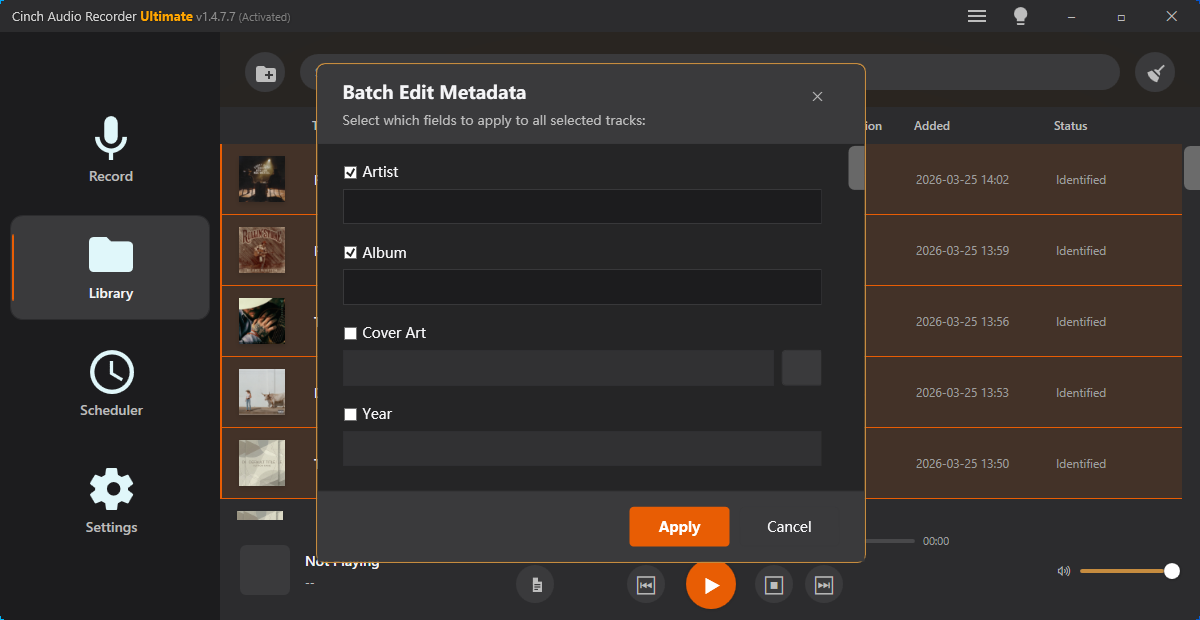
Sales enablement audio should help a salesperson answer a real question faster. It might support a demo, explain a before-and-after result, show an objection-handling example, or give a short product proof clip that can be reused safely.
The risk is that useful audio becomes a folder of unclear files: too long, unlabeled, too large, or missing the reason it exists.
Make the Review Copy Easy to Trust
| Checkpoint | Tool | Why it matters |
|---|---|---|
| 1 | Audio Metadata Viewer | Check source details, duration, format, size, and private labels. |
| 2 | Recording Quality Checker | Catch silence, clipping, missing endings, or weak levels. |
| 3 | Audio Trimmer | Cut one proof point for one sales use case. |
| 4 | Audio Normalizer | Make review copies easier to hear without making proof unfair. |
| 5 | Audio Waveform Generator | Add visual context for timing, cuts, or comparisons. |
| 6 | Audio Compressor | Create lightweight copies for enablement folders and CRM notes. |
| 7 | Audio Metadata Editor | Add product, feature, use case, version, and approval labels. |
The best sales enablement clip is not the most dramatic one. It is the one the team can use without guessing what it proves.
Step 1: Choose the Sales Job
Give each clip one job:
- Support a product demo.
- Answer a common objection.
- Show a setup result.
- Compare before and after audio.
- Provide a short follow-up after a call.
- Help a partner or reseller explain the product.
If one file tries to do all of these, it becomes hard to use and harder to approve.
Step 2: Confirm the Source Is Approved
Use Audio Metadata Viewer before editing. Check whether the file contains private labels, internal naming, customer references, or old status notes.
For sales enablement, approval matters as much as audio quality. If a clip came from a real customer, confirm that the team is allowed to use it for the intended audience. If not, replace it with a product-created demo clip.
Step 3: Check the Clip Before Editing
Use Recording Quality Checker to catch obvious playback issues before the file goes into an enablement folder.
Look for:
- Dead starts or missing endings.
- Clipping that makes the proof hard to trust.
- Long quiet sections.
- A result that is too low to hear on laptop speakers.
- A source that does not match the written claim.
This step prevents sales from forwarding a clip that creates more questions than answers.
Step 4: Trim One Proof Point
Use Audio Trimmer to create focused copies. Sales teams should not need to scrub through a long file during a call or while writing a follow-up.
Useful sales enablement filenames include:
proof-clip-noise-reduction-before-after.mp3
demo-output-short-sales-copy.mp3
objection-example-internal-review.mp3
feature-result-approved-use.mp3
Keep one proof point per file. Put the rest in a separate guide or folder note.
Step 5: Keep Comparisons Fair
Use Audio Normalizer when the clip is too quiet to review, but avoid changing one side of a before-and-after comparison more aggressively than the other.
Use Audio Waveform Generator when the team needs a quick visual cue for the before section, after section, silence, or cut point.
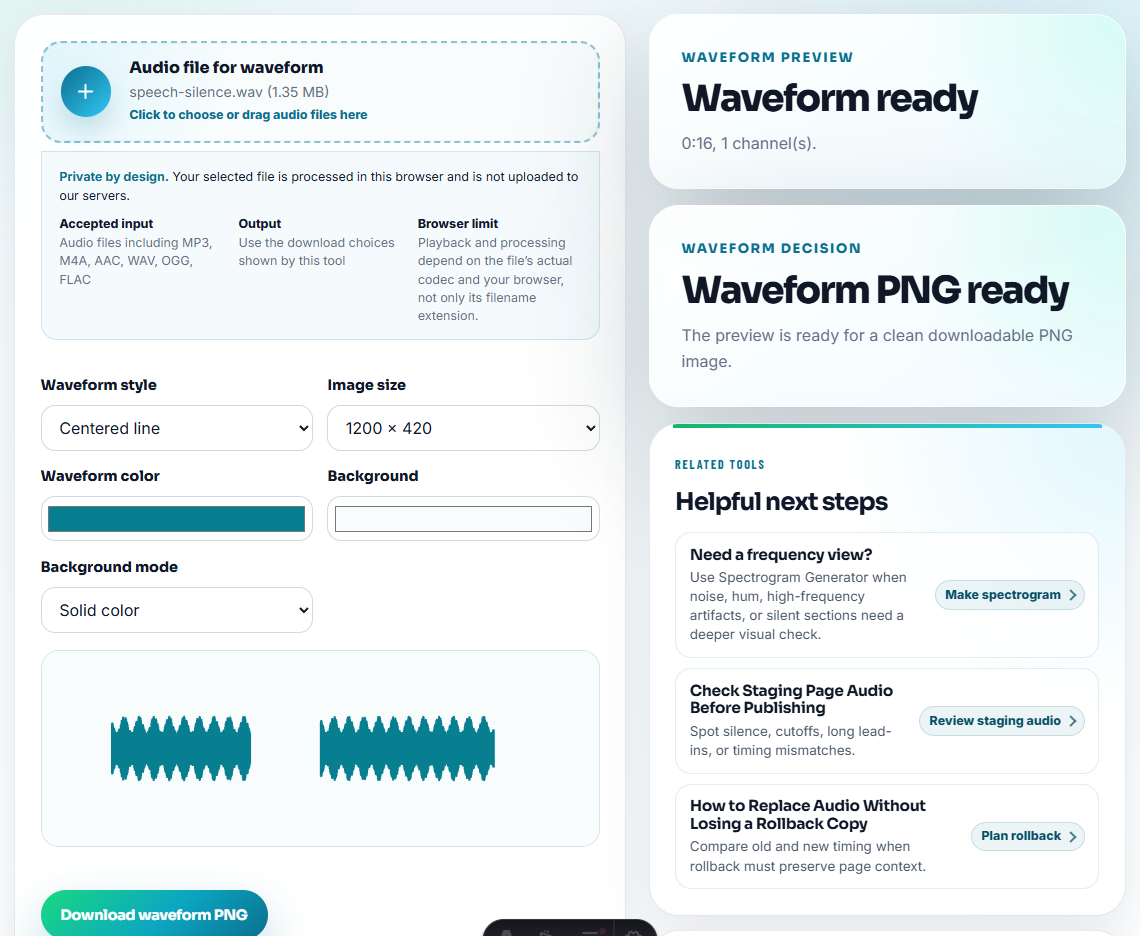
The goal is clarity, not exaggeration.
Step 6: Package the Sales Copy
Use Audio Compressor after approval so files are practical for shared folders, CRM attachments, partner kits, and email follow-up.
If a sales channel or CMS needs another format, use Online Audio Format Converter on a copy. Keep the approved source separate from converted delivery files.
Step 7: Label How the Clip Can Be Used
Use Audio Metadata Editor to add clear, boring labels:
- Product or feature.
- Use case.
- Approved audience.
- Version or date.
- Internal review status.
- Short note on what the clip demonstrates.
Sales enablement files are often reused months later. Good labels prevent stale or out-of-context examples from resurfacing.
Build an Objection Card for Each Clip
Do not store the clip alone. Give sales a small “objection card” so nobody has to invent the context during a call:
Objection: "Will the result be clear enough for review?"
Use this clip when: the buyer asks about spoken-word clarity.
Do not say: "This proves every noisy file can be fixed."
Safe line: "This sample shows the result for this recording workflow."
Owner: sales enablement / content review.
Review again: before public page, paid ad, or named-customer use.
This turns the audio into controlled sales material instead of a loose attachment.
Map Each Clip to a Buyer Objection
Sales audio is strongest when it answers a question the buyer already has. Store each clip by objection, not by whatever project created it.
| Buyer objection | Useful enablement clip | Claim boundary |
|---|---|---|
| ”Will setup be difficult?” | A short setup-result or onboarding proof clip. | Do not imply every account will finish in the same time. |
| ”Can I trust the output quality?” | A fair before-and-after or clean product-created sample. | Keep loudness and source context honest. |
| ”Will files be easy to organize?” | A neutral metadata or naming example. | Separate recognition, tagging, and folder workflow claims. |
| ”Can my team share this internally?” | A champion-safe clip with approved audience labels. | Do not treat private enablement audio as a public testimonial. |
This gives the sales team practical proof without encouraging overclaims.
Decide Whether Sales May Forward the Clip
An enablement clip can be useful internally but unsafe to send to a buyer. Mark the forwarding rule before the team starts using it.
| Forwarding status | Meaning | Required note |
|---|---|---|
| Internal only | Sales can learn from it but cannot send it out. | Explain the objection and approved talking point. |
| Buyer-safe sample | Sales may send it to a prospect in the stated context. | Include the use case and claim boundary. |
| Account-specific follow-up | Send only to the named buyer or account. | Keep private source and permission notes internal. |
| Public proof candidate | Needs permission and claim review first. | Do not post until owner approval is recorded. |
| Retired | Do not reuse because source, workflow, or claim is outdated. | Link to the replacement clip if one exists. |
This small rule prevents a training example from becoming accidental public proof.
Problems to Catch Before You Create Safe Audio Proof for Sales Calls
- Do not use customer audio without the right permission and context.
- Do not make a result sound better only by making it louder.
- Do not mix draft, internal, and approved clips in one folder.
- Do not send raw source files when a reviewed excerpt is enough.
- Do not let filenames carry private account details.
- Do not publish sales clips without a written explanation of what they prove.
Separate Enablement, Follow-Up, and Public Proof
Use sales enablement audio to help the team answer questions. Use sales follow-up audio for one buyer conversation. Use public proof only after permission and claim review. Mixing those three stages is how private clips become accidental website claims.
When Browser Prep Is Enough for Sales Enablement
Browser prep works for sales enablement when a rep needs a short internal example of tone, objection handling, or customer language. Keep raw call access controlled, label the clip by sales motion, and get approval before turning it into external collateral.
Use a stricter review process for public claims, customer testimonials, competitive comparisons, paid ads, legal-sensitive use cases, or any clip that will represent a formal product guarantee.
More Ways to Check the File
- Audio Metadata Viewer
- Recording Quality Checker
- Audio Trimmer
- Audio Compressor
- Answer Demo Requests With Safe Audio Proof
- Attach Proposal Audio Without Overpromising
- Brief Stakeholders With Safe Audio Evidence
- Give Affiliates Audio They Can Use Safely
Common Edge Cases
What would confuse someone opening the file later?
Start from approved source material, trim one proof point per clip, check playback, keep labels safe, preserve fair context, and create compact copies for the sales team.
Can sales enablement audio use customer examples?
Only if the example is approved for that use. When permission or context is unclear, use internal demos, generic samples, or product-created examples instead.
What should I check for sales enablement audio?
Give sales a clip with one approved point, a plain explanation, and boundaries on what it proves so follow-up conversations stay accurate.