
How to Use Audio in Renewal Emails Without Overclaiming
 By HenrikUpdated Aug 7, 20267 min read
Prepare renewal email audio that proves value while avoiding private account details, unfair comparisons, and unsupported claims.
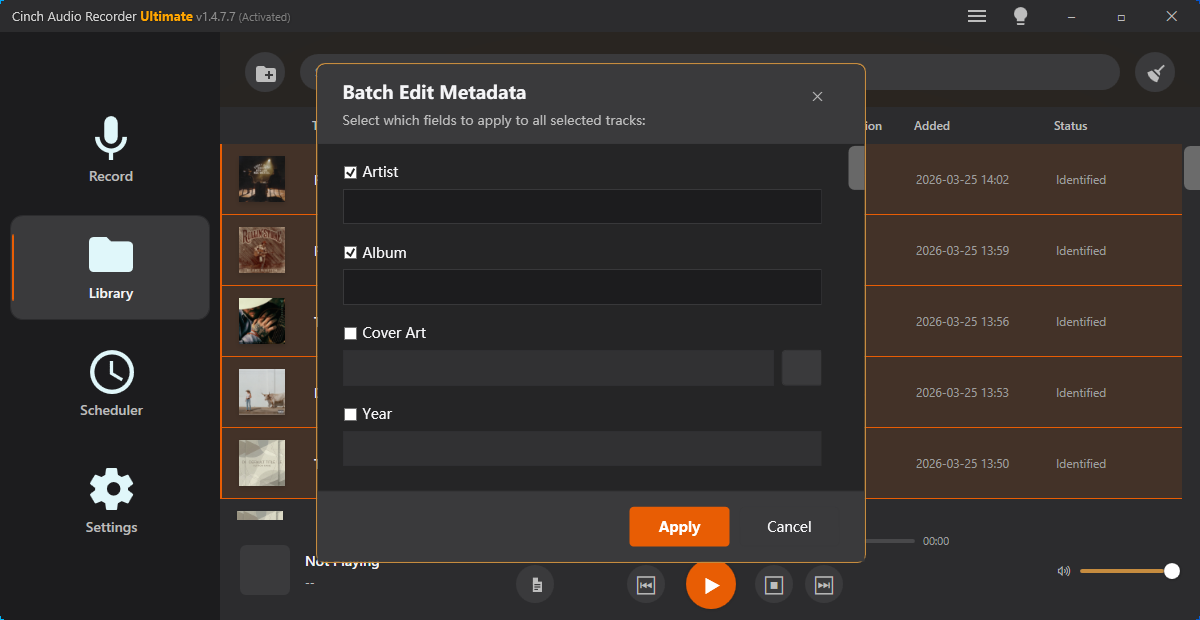
A renewal email should remind the customer why the product is useful, not overwhelm them with files. Audio can help when it shows a result, a workflow example, or a customer-specific improvement that is easier to hear than describe.
The clip needs to be short, approved, and connected to the renewal message.
Make the Review Copy Easy to Trust
| Stage | Free tool | What it helps you decide |
|---|---|---|
| 1 | Audio Metadata Viewer | Check source details, duration, size, and private labels. |
| 2 | Recording Quality Checker | Confirm the renewal clip is audible, complete, and not clipped. |
| 3 | Audio Trimmer | Cut one value moment or before-and-after section. |
| 4 | Audio Normalizer | Make a quiet review copy easier to hear without overstating value. |
| 5 | Audio Compressor | Create a small email or link-sharing copy after review. |
| 6 | Online Audio Format Converter | Export another format only when the recipient needs it. |
| 7 | Audio Metadata Editor | Add product, account, renewal, date, and approved-use labels. |
The file should support the renewal note. It should not feel like a random attachment.
Step 1: Pick One Renewal Message
Choose the reason the clip belongs in the email:
- Show a result the customer already achieved.
- Remind them of a workflow they adopted.
- Demonstrate a before-and-after improvement.
- Clarify a feature they asked about.
- Support a renewal call follow-up.
- Help an internal champion explain value.
If you cannot write one sentence explaining why the audio matters, do not send it yet.
Step 2: Check the Source and Permission Context
Use Audio Metadata Viewer to confirm the file does not expose private names, internal notes, old draft labels, or unrelated source details.
Renewal email clips can be sensitive because they connect to a customer account. Use approved product examples when permission or context is unclear.
Step 3: Confirm Playback Quality
Use Recording Quality Checker before editing. The recipient should not need to ask whether the file is broken, incomplete, or too quiet.
If the clip is meant to show a before-and-after result, check both sides before trimming.
Step 4: Trim to the Value Moment
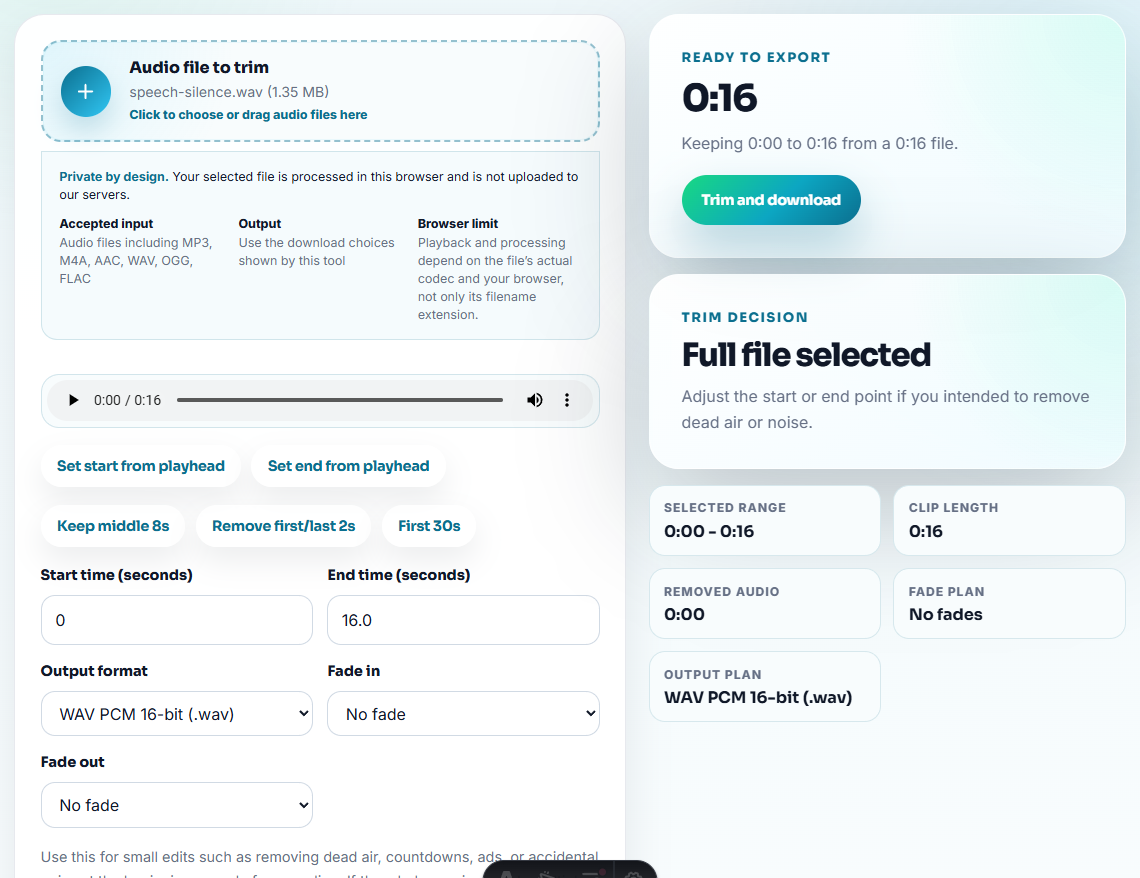
Use Audio Trimmer on a copy. The clip should start near the useful sound and stop before it becomes a long demo.
Good renewal audio filenames include:
renewal-value-proof-short-copy.mp3
renewal-before-after-reviewed-clip.mp3
account-workflow-example-renewal.mp3
renewal-follow-up-product-result.mp3
Keep the source file separate from the email copy.
Step 5: Keep the Result Honest
Use Audio Normalizer when the clip is too quiet to hear. Do not make a result sound better simply by making it louder than the source.
For before-and-after examples, keep the comparison fair. The email should build trust, not create a claim that the clip cannot support.
Step 6: Create the Email Copy
Use Audio Compressor after review so the file is small enough for email, CRM notes, or a shared link.
Use Online Audio Format Converter only when the recipient cannot open the source format or the delivery channel requires another format.
Step 7: Label and Explain the Clip
Use Audio Metadata Editor when the file may be downloaded or forwarded internally by the customer.
Pair the clip with a short email line:
I included a short reviewed clip showing the cleaner output we discussed; the original source is kept separately.That tells the customer exactly why the file is there.
Use Renewal Audio Only When It Reduces Doubt
Renewal clips should answer a concern the customer already has. If the account is worried about access, file quality, or whether the workflow still saves time, the audio should address that concern directly.
| Renewal concern | Useful clip | Safer email framing |
|---|---|---|
| ”Will I still have access after changing computers?” | A short support-approved note or demo that points to the setup path. | ”Here is the reviewed setup example we discussed." |
| "Was the recording quality actually improved?” | A fair before-and-after sample with similar loudness. | ”Listen for the cleaner section after the change, not just higher volume." |
| "Can our team find the files later?” | A sample with neutral title and metadata labels. | ”I labeled this copy so your team can see the naming workflow." |
| "Do we need to keep using this?” | A clip tied to a real workflow outcome. | ”This shows the specific task the product helped with.” |
Avoid sending audio as pressure. The best renewal clip makes the decision easier because it answers one practical doubt.
Choose the Renewal Follow-Up Type
Before attaching or linking audio, decide what kind of renewal follow-up the customer needs.
| Renewal situation | Better audio use | Avoid |
|---|---|---|
| Customer had a recent support issue | Short reviewed result or issue-resolution clip. | A polished generic demo that ignores their problem. |
| Customer champion needs internal proof | Approved buyer-safe clip plus one-line explanation. | Raw customer call audio or internal labels. |
| Customer is unsure about workflow value | Clip tied to one task they actually do. | Broad claims about every recording. |
| Customer is blocked by access or reinstall | Written access guidance first. | Sending audio before they can use the product again. |
| Customer asks about product changes | Current version-specific example. | Old proof clips from a retired workflow. |
This makes renewal email audio useful because it answers the account’s current doubt, not a generic marketing question.
Renewal Email Details That Build Trust
- Do not attach audio that does not support the renewal conversation.
- Do not expose customer names, internal notes, or private filenames.
- Do not make before-and-after examples unfair through loudness changes.
- Do not send full source recordings when a short proof clip is enough.
- Do not compress the only source file.
- Do not imply a result that the audio does not clearly show.
When Free Browser Tools Are Enough
A browser-only workflow fits renewal emails when the clip is private, short, and used to remind the account team what the customer said. Keep the source call intact, remove unrelated chatter from the shared copy, and avoid turning informal feedback into a public testimonial.
Use a stricter review workflow for formal testimonials, public case studies, legal-sensitive claims, regulated customers, or customer-identifiable audio shared beyond the account team.
Helpful Next Steps
- Audio Metadata Viewer
- Recording Quality Checker
- Audio Trimmer
- Audio Compressor
- Show Churn Risk From Audio Problems Clearly
- Help Internal Champions Explain Audio Fixes
- Turn Audio Issues Into Useful CRM Notes
- Turn Check-In Audio Into Clear Account Risk Notes
Common Edge Cases
What would confuse someone opening the file later?
Pick one renewal point, inspect the source, trim a short approved clip, check playback, keep labels private-safe, compress a sharing copy, and explain why the clip is included.
Should renewal emails include audio proof?
Only when the audio helps the customer remember value, review a result, or understand the next step. Do not attach audio just to make the email longer.
What should I check for renewal email audio?
Use audio only when it supports the renewal reason, avoids overclaiming, and gives the customer a clear example rather than extra work.