
How to Add Audio Issue Notes to a CRM Safely
 By HenrikUpdated Aug 7, 20266 min read
Summarize customer audio problems for CRM records without exposing private clips, account details, or unclear evidence.
CRM notes are built for future context. The person opening the record later may not remember the call, the support thread, or the original file name.
That is why CRM audio should be short, labeled, and attached with a clear reason. The clip should help the next person understand an account detail, not force them to replay a long recording.
Start With the Source File
| Review pass | Tool | What it catches |
|---|---|---|
| 1 | Audio Metadata Viewer | Check file details, source labels, duration, format, and size. |
| 2 | Recording Quality Checker | Confirm the useful section is audible and complete. |
| 3 | Audio Trimmer | Cut the account-relevant moment from a copy. |
| 4 | Audio Normalizer | Make a quiet CRM copy easier to review. |
| 5 | Audio Waveform Generator | Add a visual timing clue when the note points to a specific section. |
| 6 | Audio Compressor | Create a small attachment copy after review. |
| 7 | Audio Metadata Editor | Add account, date, product, status, or follow-up labels. |
The CRM attachment should make the written note stronger. It should not replace the written note.
Step 1: Decide Why the Audio Belongs in CRM
Useful CRM audio notes usually support one of these jobs:
- Capture a customer preference.
- Preserve a product feedback example.
- Document an implementation detail.
- Support a renewal or expansion conversation.
- Explain a before-and-after result.
- Help another teammate understand an account risk.
If the audio is only useful for troubleshooting, it may belong in a support ticket instead.
Step 2: Inspect the Source
Use Audio Metadata Viewer before attaching anything to an account record. Look for filenames, tags, old internal notes, or source labels that should not become part of the CRM history.
Also check duration. If the file is long, create a short reviewed copy instead of attaching the full source.
Step 3: Check Playback Before Trimming
Use Recording Quality Checker to make sure the useful part is present, audible, and not clipped.
For CRM notes, the question is simple: can another team member understand the clip without asking you what happened?
Step 4: Trim to One Account Detail
Use Audio Trimmer on a copy. Keep the section close to the useful moment and remove unrelated conversation.
Good CRM audio filenames include:
crm-account-feedback-short-copy.mp3
crm-renewal-context-reviewed-clip.mp3
crm-setup-preference-account-note.mp3
crm-before-after-proof-short-copy.mp3
Avoid putting sensitive account details directly in public-facing filenames.
Step 5: Make the Clip Reviewable
Use Audio Normalizer if the clip is too quiet for a teammate to understand on laptop speakers.
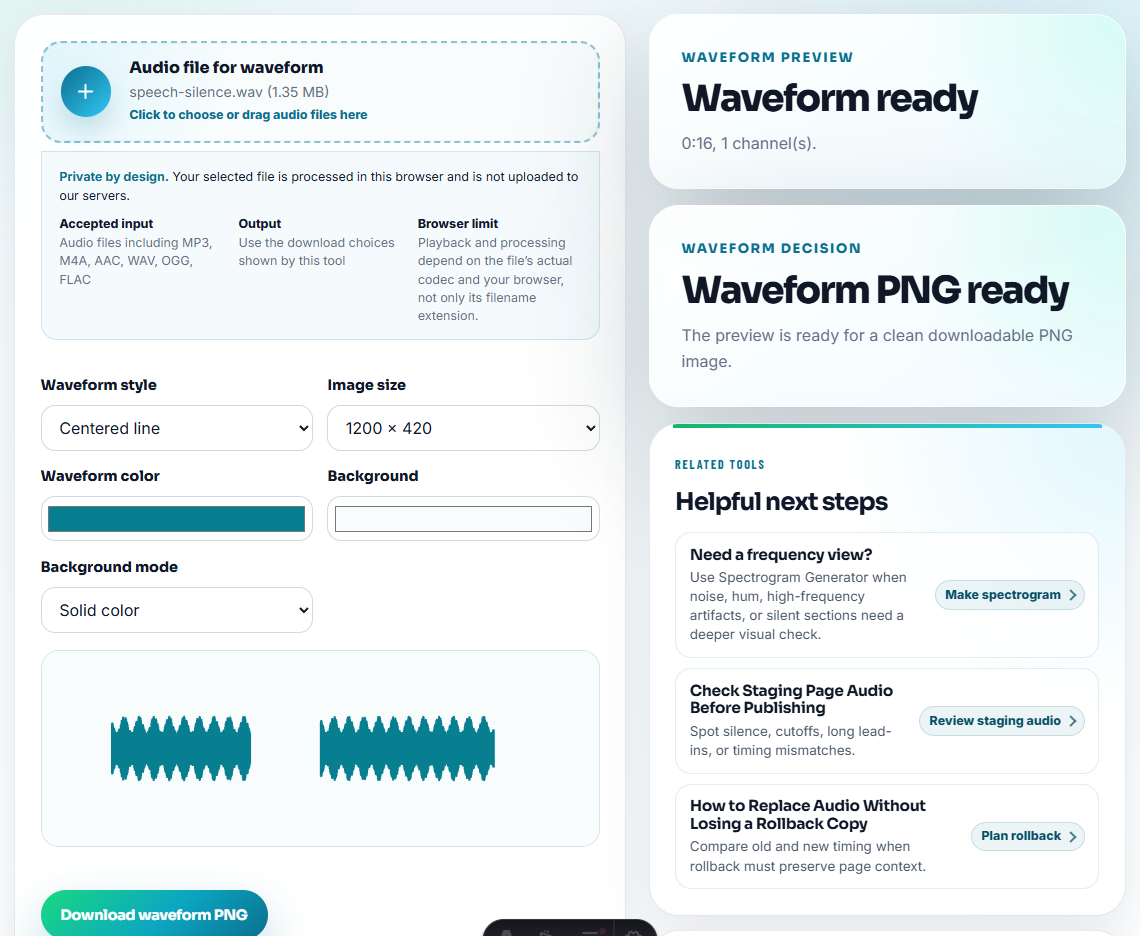
Use Audio Waveform Generator when the written note points to a timestamp, silent section, peak, or before-and-after moment.
Do not over-edit. CRM audio is evidence and context, not a final marketing asset.
Step 6: Attach a Compact Copy
Use Audio Compressor after review so the CRM attachment stays practical.
Keep the original source separate from the CRM copy. If the account record needs the full source, link it intentionally instead of replacing it with the trimmed file.
Step 7: Add Metadata and a Written Note
Use Audio Metadata Editor to add labels that still make sense outside the CRM interface:
- Account or project context.
- Product or feature.
- Date.
- Review status.
- Follow-up owner.
- Short listening note.
Then add a CRM note such as:
Short reviewed clip attached: customer explains the setup preference discussed during onboarding. Source recording kept separately.CRM Note Patterns That Prevent Future Rework
The most useful CRM audio notes are not mini transcripts. They preserve the one detail that changes the next action. From anonymized support patterns, these are the details that tend to matter later:
| If the audio mentions… | Put this in the CRM note | Why it matters |
|---|---|---|
| A new PC, recovered laptop, or motherboard change | Device move or reinstall context | The next teammate should not treat it as a first-time setup question. |
| A recording that becomes fast, distorted, scratchy, or skipped | Symptom plus when it starts | Product/support needs timing, not just “bad audio.” |
| Missing track names or split tracks from a music source | Metadata or track-separation issue | This points to library cleanup and expectations, not only recording quality. |
| A request for download link, registration reset, or key help | Access blocker before audio review | The customer may never reach the audio workflow until access is solved. |
Write the note so a teammate can decide whether the next move is support, product feedback, renewal follow-up, or documentation cleanup.
Add a CRM Disposition
The CRM note should end with a disposition, not only a clip. This tells the next teammate how to use the audio.
| Disposition | Use when | Next owner |
|---|---|---|
| Success context | The clip shows a useful outcome or customer preference. | Customer success |
| Support evidence | The clip preserves a symptom or failed workflow. | Support |
| Product feedback | The clip shows expectation mismatch, missing behavior, or repeated friction. | Product |
| Renewal risk | The clip explains doubt, frustration, or unresolved value. | Success or account owner |
| Do not reuse | The clip is private, unclear, expired, or too sensitive. | CRM owner or file owner |
This makes the CRM record searchable and action-oriented instead of becoming another attachment archive.
CRM Safety Check Before Saving the Note
- Do not attach full calls when a short excerpt is enough.
- Do not expose private filenames, personal details, or internal account notes.
- Do not use audio as a substitute for a written CRM summary.
- Do not compress or overwrite the only source file.
- Do not attach unclear clips that future teammates cannot interpret.
- Do not mix public proof clips with private account-history notes.
When Browser Prep Is Enough for CRM Notes
For CRM notes, browser prep is enough when the audio supports one next step, objection, or customer quote. Keep the full call in approved storage, clip only the relevant moment, and summarize it in text so future account owners are not forced to replay the file.
Use a stricter workflow for regulated conversations, legal-sensitive accounts, recorded calls requiring consent review, formal testimonials, or files that will be shared outside the account team.
Where to Go After This Check
- Audio Metadata Viewer
- Recording Quality Checker
- Audio Trimmer
- Audio Metadata Editor
- Turn Check-In Audio Into Clear Account Risk Notes
- Answer One Buyer Question With Safe Audio Proof
Before You Share the File
What should a CRM note preserve about the audio?
Choose one account context, inspect the source, trim a short reviewed clip, check playback, remove private source labels, add CRM-friendly metadata, and attach a compact copy.
Should CRM audio notes include full calls?
Usually no. A short reviewed excerpt with a written note is easier to scan and safer than attaching a full call recording.
What should I check for CRM audio notes?
Keep the CRM note short: what the clip proves, who it relates to, when it was captured, and whether it can be shared beyond the account team.