
How to Turn Customer Audio Notes Into Action Items
 By HenrikUpdated Aug 7, 20267 min read
Clean up customer check-in audio so support, success, and product teams can understand the issue and next step.
Customer success check-ins work best when the audio is tied to one practical question: did the customer hear the improvement, understand the workflow, or still need help?
The goal is not to send a polished marketing asset. It is to prepare a small, privacy-safe clip that helps a customer success manager follow up with useful context.
Make the Review Copy Easy to Trust
| Review pass | Tool | What it catches |
|---|---|---|
| 1 | Audio Metadata Viewer | Check source details, duration, format, size, and hidden labels. |
| 2 | Recording Quality Checker | Confirm the clip is audible, complete, and not clipped. |
| 3 | Audio Trimmer | Cut the short section that explains the check-in point. |
| 4 | Audio Normalizer | Make a quiet review copy easier to hear without changing the meaning. |
| 5 | Audio Waveform Generator | Add timing context when the customer needs to compare sections. |
| 6 | Audio Compressor | Create a smaller sharing copy after review. |
| 7 | Audio Metadata Editor | Add product, account, date, status, or follow-up labels to the copy. |
Keep the original file separate. The customer success copy should be a reviewed working file, not the only record.
Step 1: Decide the Check-In Question
Before editing anything, write down the reason the clip exists.
Useful customer success audio questions include:
- Did the customer capture the right source?
- Is the result now easier to hear?
- Does the workflow example match the customer’s use case?
- Does the customer need another format or shorter clip?
- Is the issue solved, partly solved, or still unclear?
If the clip does not answer one of those questions, it probably belongs in a support note, training page, or demo request reply instead.
Step 2: Inspect the Source Before Sharing
Use Audio Metadata Viewer to check the file name, format, duration, size, and tags. Customer success clips often come from calls, support attachments, or product examples, so old labels can expose more context than intended.
Look for:
- Customer names in filenames.
- Internal ticket or account notes.
- Old draft labels.
- Source names that should not be forwarded.
- A file that is much longer than the check-in needs.
If anything looks private, work from a renamed copy.
Step 3: Check Playback Quality
Use Recording Quality Checker before trimming. A check-in clip should not create a second round of confusion because the useful sound is missing, clipped, silent, or too quiet.
If the clip is meant to show a problem, do not remove the problem. If the clip is meant to show an improvement, make sure the customer can hear the part that changed.
Step 4: Trim to the Useful Moment
Use Audio Trimmer on a copy and keep only the section that supports the check-in.
Good check-in clips are usually:
- Short enough to review quickly.
- Clear about the before, after, or current state.
- Free from unrelated conversation.
- Paired with a note that explains what to listen for.
- Saved separately from the source.
If a customer needs full context, send a short clip first and keep the longer file available internally.
Step 5: Make the Clip Easy to Review
Use Audio Normalizer only when the clip is too quiet to understand. Avoid making a result sound better just by making it louder.
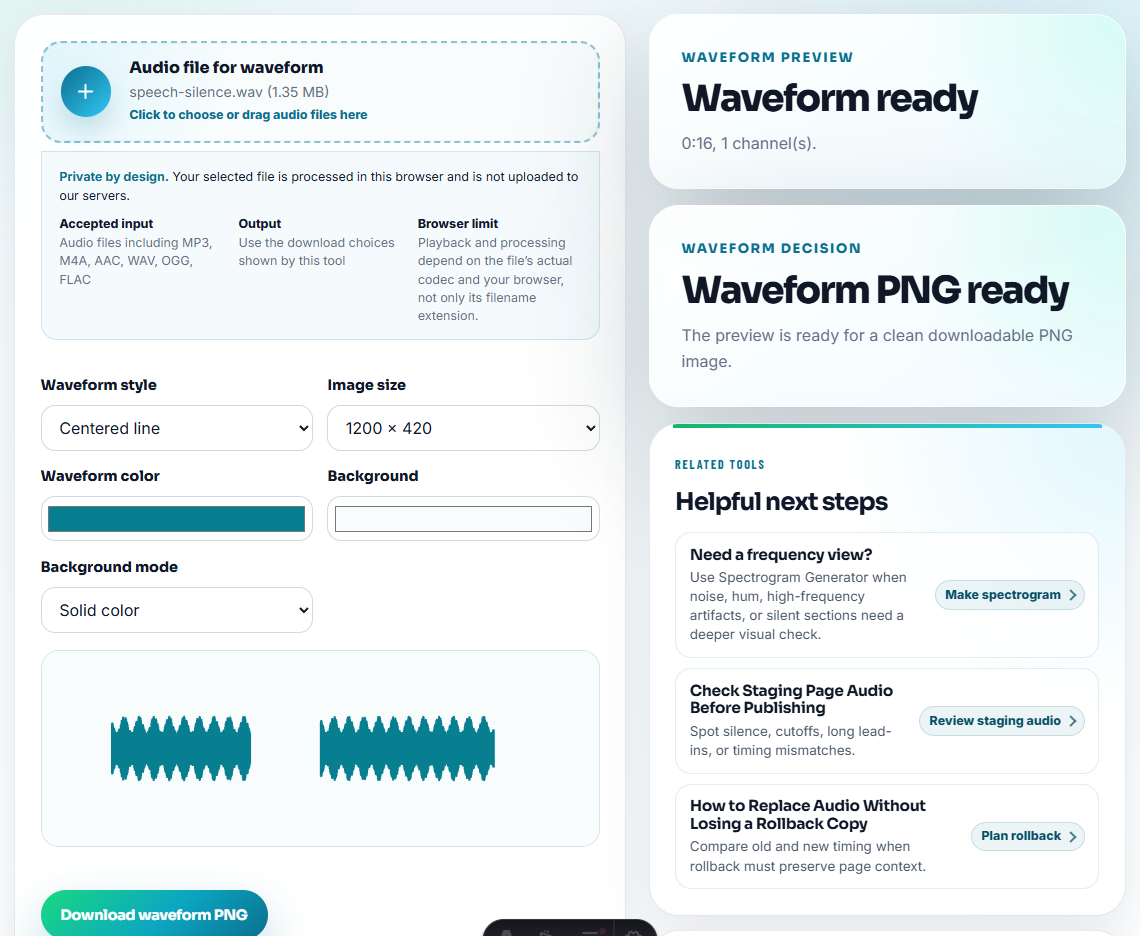
Use Audio Waveform Generator when a visual cue helps explain the check-in, such as a silent gap, a clipped peak, a rough start, or a before-and-after timing point.
Step 6: Create a Compact Sharing Copy
After the clip is reviewed, use Audio Compressor to make a smaller copy for email, CRM notes, shared folders, or customer follow-up.
Use clear filenames such as:
customer-check-in-before-after-short.mp3
success-follow-up-reviewed-clip.mp3
workflow-example-check-in-copy.mp3
resolved-issue-proof-short-copy.mp3
Use Audio Metadata Editor if the file may be forwarded later. Add enough context that the file still makes sense after it leaves the original thread.
Step 7: Pair the File With a Useful Note
A check-in clip should not arrive as a mystery attachment. Add one sentence that tells the customer what to hear:
This short clip shows the clearer output after the setting change; the original source is kept separately for reference.That note makes the audio easier to review and reduces back-and-forth.
Check-In Questions From Real Support Patterns
Customer success audio is most valuable when it catches a small issue before it becomes a renewal or refund problem. Use the clip to answer one practical question:
| Check-in situation | Audio question to answer | Helpful next action |
|---|---|---|
| Customer moved to a new computer | Can they access and test the recorder again? | Send reinstall or registration guidance before asking for audio proof. |
| Customer reports fast, distorted, or scratchy output | Does the issue happen in every recording or only after a certain time? | Ask for a short sample around the failure point, not a full library. |
| Customer says track names or split points are wrong | Is the blocker metadata, file order, or actual audio quality? | Route to metadata cleanup or product feedback with a labeled example. |
| Customer sends a vague “not working” note | What one result should they confirm first? | Give one test clip or one recording check, then escalate only if it repeats. |
That turns the check-in from a courtesy message into a useful retention and support signal.
Score the Check-In Risk Before Sharing the Clip
Not every check-in clip needs the same follow-up. Use the audio evidence to decide whether the account needs a success note, a support handoff, or urgent escalation.
| Audio signal | Risk level | Follow-up |
|---|---|---|
| Customer confirms the result is clear and usable. | Low | Save as a success note and offer one next workflow tip. |
| Customer hears improvement but still needs setup guidance. | Medium | Send one focused instruction and ask for one confirmation. |
| Customer repeats the same audio issue after a fix. | High | Escalate with the clip, source context, and steps already tried. |
| Customer cannot access the product or recording workflow. | High | Resolve access before asking for more audio samples. |
| Customer mixes several issues in one message. | Medium | Split the clip into one issue per note before assigning owners. |
This helps customer success avoid two weak responses: celebrating too early or asking the customer to repeat information the team already has.
Turn the Audio Note Into One Follow-Up Action
- Do not send full customer recordings when a short excerpt answers the question.
- Do not expose private filenames, account names, or support notes.
- Do not normalize before checking whether loudness changes would distort the point.
- Do not compress the only source copy.
- Do not mix unresolved support evidence with success-story material.
- Do not assume the recipient knows what the clip demonstrates.
When Browser Prep Is Enough for Success Check-Ins
For customer-success check-ins, browser prep is enough when the audio stays inside the account team and supports a narrow follow-up. Remove dead air, keep customer context private, and export only the portion needed to confirm the next action or renewal concern.
Use a formal review workflow when the audio contains customer-identifiable material, legal claims, public testimonials, contract-sensitive details, or files that will become marketing proof.
Where to Go After This Check
- Audio Metadata Viewer
- Recording Quality Checker
- Audio Trimmer
- Audio Normalizer
- Show Implementation Audio Issues Clearly
- Send Support Replies With One Clear Audio Proof
- Make Customer Training Audio Teach One Task
Last Review Points
What should I avoid hiding from the listener?
Pick one customer outcome, inspect the source, trim a short clip, check playback, remove private details, add clear labels, and share a compact copy with context.
Should customer success clips include the full recording?
Usually no. A short reviewed excerpt is easier to understand and safer to share than a full source recording.
What should I check for customer success audio?
Pick clips that show progress, blockers, or user sentiment clearly, then label the account, date, and follow-up action.