
How to Review Audio Issues During Implementation
 By HenrikUpdated Aug 7, 20266 min read
Collect setup, access, and playback evidence so implementation teams can see what failed and who owns the fix.

Implementation review audio helps a team understand what happened during setup, onboarding, migration, or first use. It can show whether the customer captured the right source, used the right settings, or heard the expected result.
The clip should make the review easier without hiding the real setup context.
Check the Copy Before You Change It
| Step | Free tool | What to confirm |
|---|---|---|
| 1 | Audio Metadata Viewer | Check source format, duration, size, channels, and labels. |
| 2 | Recording Quality Checker | Confirm the setup example is audible and complete. |
| 3 | Audio Trimmer | Cut the section that shows the setup result or issue. |
| 4 | Audio Normalizer | Make quiet review copies easier to hear without changing the conclusion. |
| 5 | Audio Waveform Generator | Add timing context for gaps, peaks, or before-and-after sections. |
| 6 | Audio Compressor | Create compact review copies after approval. |
| 7 | Audio Metadata Editor | Add account, setup step, version, status, and review labels. |
Treat implementation clips as working evidence, not marketing assets.
Step 1: Decide the Review Question
Implementation review clips usually answer one of these:
- Did the setup capture the right audio source?
- Did a changed setting improve the result?
- Is the customer hearing the expected output?
- Is the issue caused by input, output, format, or playback?
- Does the onboarding example match the written instruction?
- What should the next support or success step be?
The review question should guide the trim.
Step 2: Inspect the Source and Context
Use Audio Metadata Viewer to capture duration, format, channel count, size, and labels before you create a review copy.
Implementation files may contain customer names, device labels, account details, or internal notes. Remove those from the shared copy when they are not needed.
Step 3: Check Playback Before Sharing
Use Recording Quality Checker to catch silence, clipping, missing endings, or very low levels.
If the review is about a failed setup, preserve the failure. If it is about a successful setup, make sure the proof section is easy to hear.
Step 4: Trim the Setup Example
Use Audio Trimmer on a copy and keep the exact section that explains the setup result.
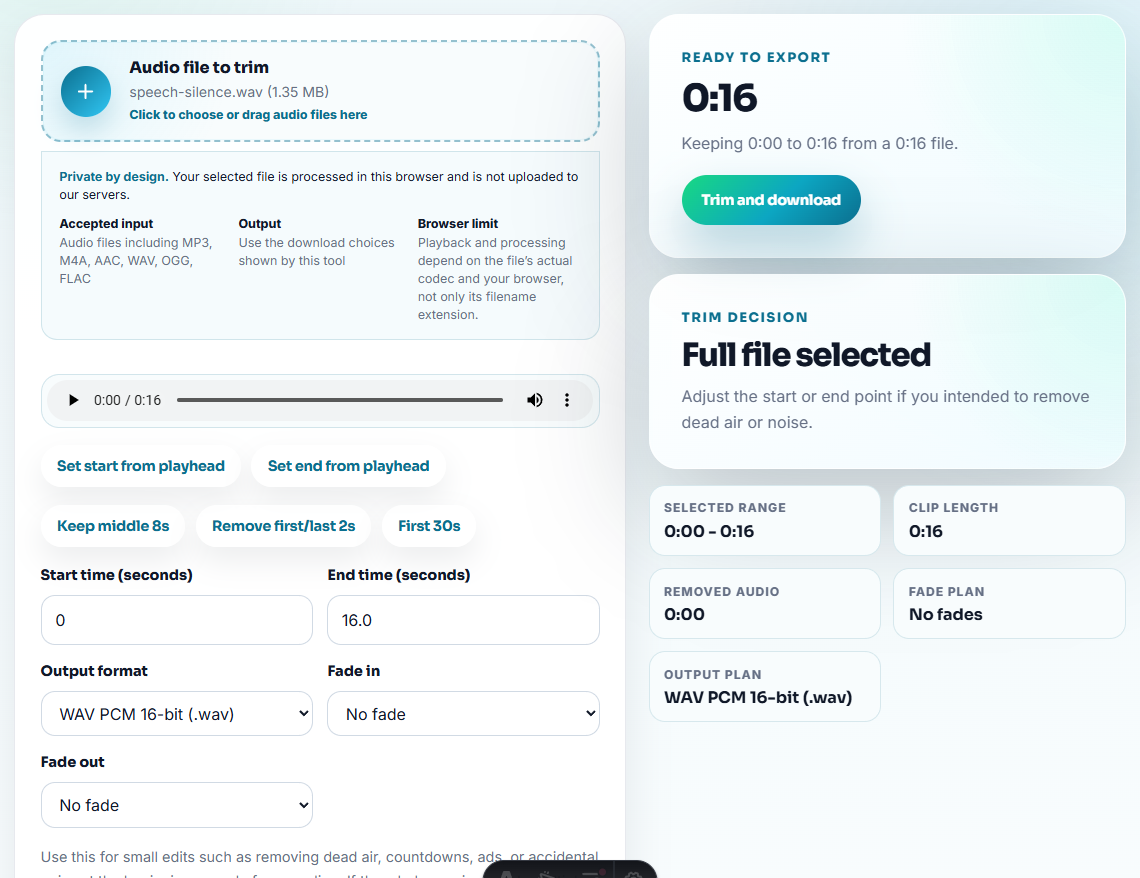
Useful filenames include:
implementation-review-source-capture-example.mp3
implementation-review-setting-change-result.mp3
implementation-review-onboarding-output-copy.mp3
implementation-review-playback-issue-short.mp3
Keep the original source in a separate folder or ticket.
Step 5: Make the Review Copy Understandable
Use Audio Normalizer only when the reviewed copy is too quiet to understand. Avoid changes that make a setup look better than it was.
Use Audio Waveform Generator when timing matters, such as a silence gap, delayed start, clipped peak, or before-and-after result.
Step 6: Package the Review Copy
Use Audio Compressor after checking playback so the file is easier to attach to CRM, support notes, customer success records, or an internal implementation review.
Do not compress the only source file. The team may need the original if the review turns into a deeper support case.
Step 7: Label the Next Action
Use Audio Metadata Editor to add:
- Setup step.
- Product or feature.
- Account or project context.
- Version or date.
- Review status.
- Expected result.
- Next owner.
Then add a short note:
Reviewed clip shows the output after changing the input source setting. Customer still needs to confirm playback on their device.Separate Setup Proof From Support Evidence
An implementation review gets confusing when every clip is treated as the same kind of proof. A successful setup sample, a failed playback sample, and a device-change question need different handling.
| Review signal | What the clip should prove | Next owner |
|---|---|---|
| Customer can record a clean sample after setup. | The selected input and output path worked in the customer’s environment. | Customer success or onboarding. |
| Recording becomes fast, scratchy, or distorted after a short time. | The issue is reproducible enough to compare source, timing, and playback behavior. | Support or engineering review. |
| Customer moved to a new computer. | The problem is activation, installation, file migration, or recording setup, not one mixed issue. | Support first, then success if workflow help is needed. |
| Files are created but hard to identify. | Naming, track separation, or metadata expectations need a follow-up note. | Product documentation or support article owner. |
This distinction makes the review useful even when the final answer is not ready yet. The clip tells the team which kind of work remains.
Route the Review by Evidence Type
Implementation evidence should go to the team that can act on it. Use the prepared clip to route the issue instead of forwarding everything to everyone.
| Evidence type | Route to | Include with the clip |
|---|---|---|
| Clean setup proof | Customer success | The setup step, expected result, and customer confirmation needed. |
| Access or activation blocker | Support or billing | Error wording, account context, and whether audio review is still blocked. |
| Reproducible playback defect | Support or engineering | Short sample, timing, device/source note, and steps already tried. |
| Confusing workflow or instructions | Documentation owner | The moment of confusion and the page/email that caused it. |
| Repeated implementation pattern | Product owner | Similar cases, affected segment, and proposed next investigation. |
This gives the reader a practical implementation workflow: prepare the audio, then route the evidence to the right owner.
Red Flags While You Review Audio Issues During Implementation
- Do not send long setup recordings without pointing to the useful section.
- Do not remove the failed setup evidence if the review depends on it.
- Do not expose private account or device labels unnecessarily.
- Do not overwrite the original implementation file.
- Do not use audio without a written next action.
- Do not make a result sound better through unfair loudness changes.
When Browser Prep Is Enough for Implementation Review
Browser prep is enough when implementation review only needs a checked clip, a trimmed symptom, or a small comparison copy. Use a deeper workflow when the review affects project sign-off, customer evidence, privacy review, or cross-team delivery notes.
Use a deeper workflow when the implementation requires logs, screen recordings, device screenshots, configuration exports, privacy approval, or formal project documentation.
Useful Follow-Up Steps
- Audio Metadata Viewer
- Recording Quality Checker
- Audio Trimmer
- Audio Normalizer
- How to Add Audio Evidence to a Bug Report
- Prepare Team Audio Review Without Version Confusion
- How to Share Customer Reference Audio Safely
- How to Send Audio Proof in a Support Reply
Checks Worth Making First
What should I check before using audio for implementation review?
Choose one setup or outcome question, inspect the source, trim the useful section, check playback, label the version and context, and share a reviewed copy.
Should implementation review audio be polished?
Only enough to make it understandable. Keep source and reviewed copies separate so the team can compare the real setup with the prepared clip.
What should I check for implementation review audio?
Tie each clip to the implementation step it proves, label what changed, and keep any temporary or failed samples out of the final review.