
How to Share Audio for Team Review Without Mixups
 By HenrikUpdated Aug 7, 20266 min read
Prepare team review audio with short context clips, version labels, quality checks, waveform notes, and safe copies.

Team review audio fails when everyone listens to a different file, a different timestamp, or a different version. Someone comments on the rough copy, someone else hears the compressed copy, and the final decision becomes messy.
A team review copy should invite specific feedback without putting the source file at risk.
Set the Review Question First
Team review becomes faster when everyone listens for the same decision.
| Review question | Send | Ask | Avoid |
|---|---|---|---|
| Is the problem fixed? | Before/after or issue sample | Does the issue remain? | A full folder of versions |
| Is the level comfortable? | Normalized review copy | Too loud, too quiet, or uneven? | Comparing unmatched clips |
| Is the edit too aggressive? | Edited copy plus source reference | What context is missing? | Hiding the original |
| Is this ready to publish? | Final-style delivery copy | Any blocking issue? | Unlabeled draft |
| Which version is best? | Numbered options | Choose one reason | Different durations or sections |
Check the File Before Sharing
| Task | Tool | Result to verify |
|---|---|---|
| 1 | Audio Metadata Viewer | Confirm duration, format, size, channels, and current labels before sharing. |
| 2 | Recording Quality Checker | Catch obvious silence, clipping, missing endings, or low level. |
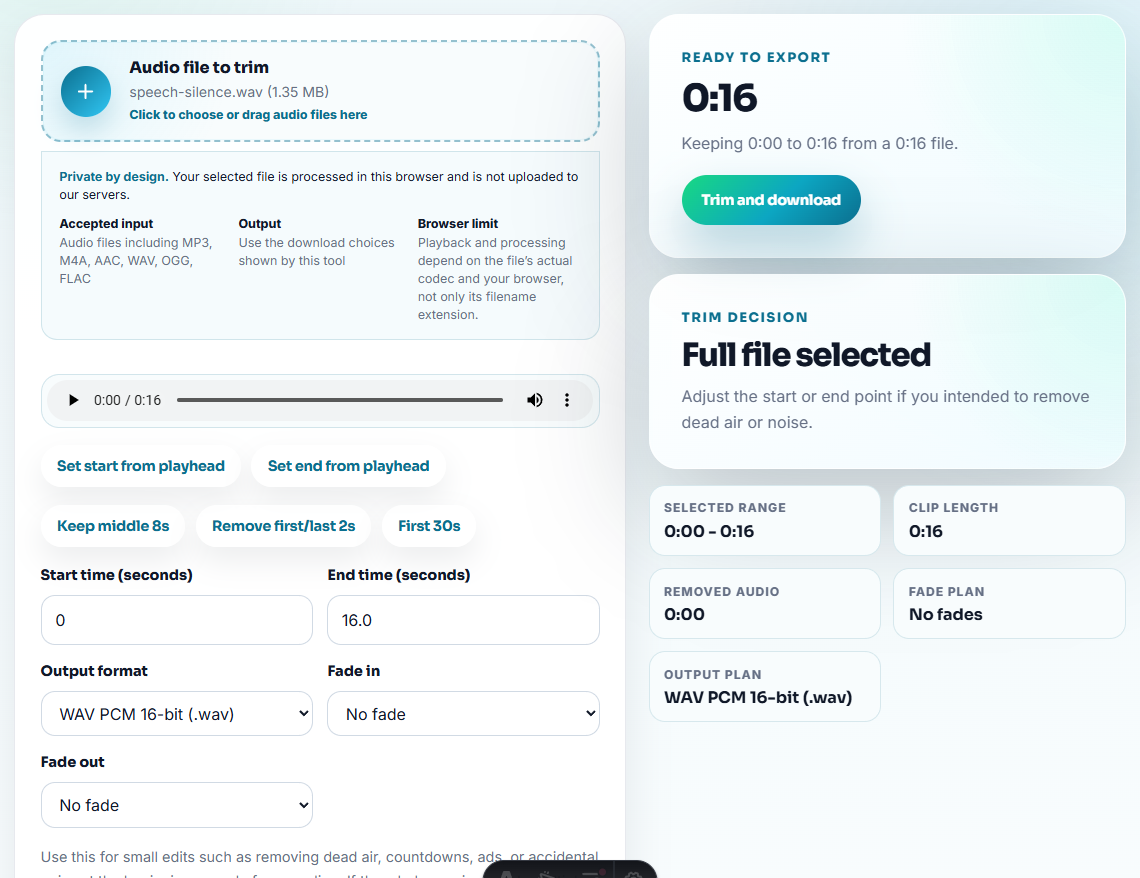
| 3 | Audio Trimmer | Cut the section the team actually needs to review. |
| 4 | Audio Waveform Generator | Add a visual reference for timestamps, peaks, silence, or edit points. |
| 5 | Audio Normalizer | Create a comfortable review copy without changing the source. |
| 6 | Audio Compressor | Make the reviewed copy easier to send only after it is checked. |
| 7 | Audio Metadata Editor | Add version, project, reviewer, or status notes. |
The goal is not to make a perfect master. The goal is to make feedback precise.
Step 1: Ask One Review Question
Before preparing the file, decide what the team should answer:
- “Is the voice clear enough?”
- “Is this the right section for the demo?”
- “Does the intro feel too long?”
- “Is the background sound distracting?”
- “Which version should become final?”
If the question is unclear, the review file will collect vague opinions.
Step 2: Keep Source, Review, and Final Separate
Use simple folders:
source
team-review
approved-final
The team-review folder can contain shorter, lighter, easier-to-comment files. The source folder stays untouched.
Step 3: Check Before Sending
Use Audio Metadata Viewer and Recording Quality Checker before sharing.
Look for:
- Wrong file version.
- Unexpected short duration.
- Mostly silent audio.
- Clipping.
- Missing endings.
- Too-low voice level.
- Stereo problems that may affect reviewers on earbuds.
Fixing those problems before review saves a round of avoidable comments.
Step 4: Trim the Review Moment
Use Audio Trimmer to cut the exact section the team needs. Add a few seconds of context before and after the moment if the decision depends on transitions.
For longer files, create a short note beside the link:
Review question: Does the music under the voice feel too loud?
Listen from: 00:18 to 00:42
Version: review-v2
Step 5: Add a Visual Reference When Helpful
Use Audio Waveform Generator when the review depends on timing, silence, loud peaks, or where a cut happens.
The waveform does not need to be beautiful. It just needs to help everyone point at the same moment.
Step 6: Label the Version
Use filenames that make the status obvious:
demo-voice-review-v1.mp3
intro-music-review-v2.mp3
support-example-team-check.mp3
lesson-audio-review-before-final.mp3
Use Audio Metadata Editor when project, version, or notes should travel with the file.
Prevent Review Version Confusion
Teams often lose time because a compressed copy, a draft copy, and the source file all look like candidates for approval. Make the file role obvious before sharing.
| File role | Where it belongs | Filename cue | Who should open it |
|---|---|---|---|
| Source | source/ | original | Editor or owner only |
| Review clip | team-review/ | review-v1 | Reviewers answering one question |
| Final candidate | approved-final/ | final-candidate | Decision maker |
| Compressed copy | share-copy/ | compressed-review | People blocked by size limits |
| Reference visual | notes/ | waveform or timestamp-note | Reviewers discussing timing |
Team Review Check Before You Share the Folder
- Do not send a file named
new-final-final.mp3. - Do not ask for review without saying what decision is needed.
- Do not overwrite the source with a review export.
- Do not compress the file so much that reviewers judge artifacts.
- Do not mix approved files and rough files in one folder.
- Do not leave private or unrelated audio in a team review clip.
When You Do Not Need a Desktop Recorder
For team review, browser prep is enough when everyone needs one focused clip with a clear decision attached. Keep the source file private, include the question reviewers should answer, and avoid sending a long recording that creates scattered feedback.
Use a larger collaboration workflow when many reviewers need tracked comments, permissions, transcript review, legal approval, or scheduled release control.
Helpful Audio Tools
- Audio Metadata Viewer
- Recording Quality Checker
- Audio Trimmer
- Audio Waveform Generator
- Audio Metadata Editor
- Build an Audio Sample Pack People Can Review
- Share Private Audio Without Extra Exposure
- Send Client Audio Review Copies They Can Judge
- Show Implementation Audio Issues Clearly
Quick Answers Before You Continue
What should I check before using audio for team review?
Keep the source, create a short review copy, check quality, label the version, add timestamps or waveform clues, and send only the file people need to judge.
Is team review different from final delivery?
Yes. A review copy should make feedback easier, while a final delivery copy should be clean, approved, and ready for the audience.
Should I send the whole recording to the team?
Only when the full context matters. For most review questions, a focused clip with a short note gets clearer feedback.