
How to Send Help Desk Audio Without Private Clues
 By HenrikUpdated Aug 7, 20268 min read
Prepare help desk ticket audio that preserves the issue, removes private clues, and gives support reproducible evidence.

Help desk ticket audio has one job: help support understand the issue faster. A long, unlabeled, or broken attachment can slow the case down because the support team has to guess what to hear.
A better ticket file is short, privacy-safe, and paired with a note that explains the expected result and the actual result.
Build Evidence Around One Symptom
| Sequence | Free tool | What to look for |
|---|---|---|
| 1 | Audio Metadata Viewer | Check format, duration, size, channels, and hidden labels. |
| 2 | Recording Quality Checker | Confirm the reported problem is still audible. |
| 3 | Audio Trimmer | Cut the shortest section that contains the issue and context. |
| 4 | Audio Waveform Generator | Show silence, clipping, gaps, or timing clues when useful. |
| 5 | Audio Compressor | Create a smaller ticket copy after the issue is confirmed. |
| 6 | Online Audio Format Converter | Convert a copy only if support asks for another format. |
| 7 | Audio Metadata Editor | Add issue, product, ticket, version, or review labels. |
Do not repair the problem out of the file. The support team needs to hear what went wrong.
Step 1: Define the Ticket Question
Before uploading audio, write the question the file should answer:
- Is there silence?
- Is the recording clipped?
- Is the level too low?
- Is one channel missing?
- Is the wrong source recorded?
- Is the exported file shorter than expected?
- Does playback fail on a device or app?
This turns the audio into evidence instead of a vague attachment.
Step 2: Inspect the File
Use Audio Metadata Viewer to check format, duration, size, channel count, and labels. A support file may reveal personal names, internal filenames, or account details if it was exported directly from another system.
If private details are present, make a clean copy before sharing.
Redact the Right Things Before Uploading
Help desk attachments often travel farther than expected. Before uploading the file, check three places for private clues:
| Place to check | Examples to remove or avoid |
|---|---|
| Filename | Customer name, account email, order number, internal ticket note. |
| Audio content | Private conversation, unrelated voices, personal details, paid source material. |
| Metadata | Old title, artist, comments, lyrics, source folder, project code. |
If removing those clues also removes the symptom, do not force the edit. Use a safer recreated sample or ask support how they want the evidence packaged.
Step 3: Confirm the Problem Is Still Audible
Use Recording Quality Checker before trimming or compressing. If the issue disappears during editing, the ticket becomes harder to diagnose.
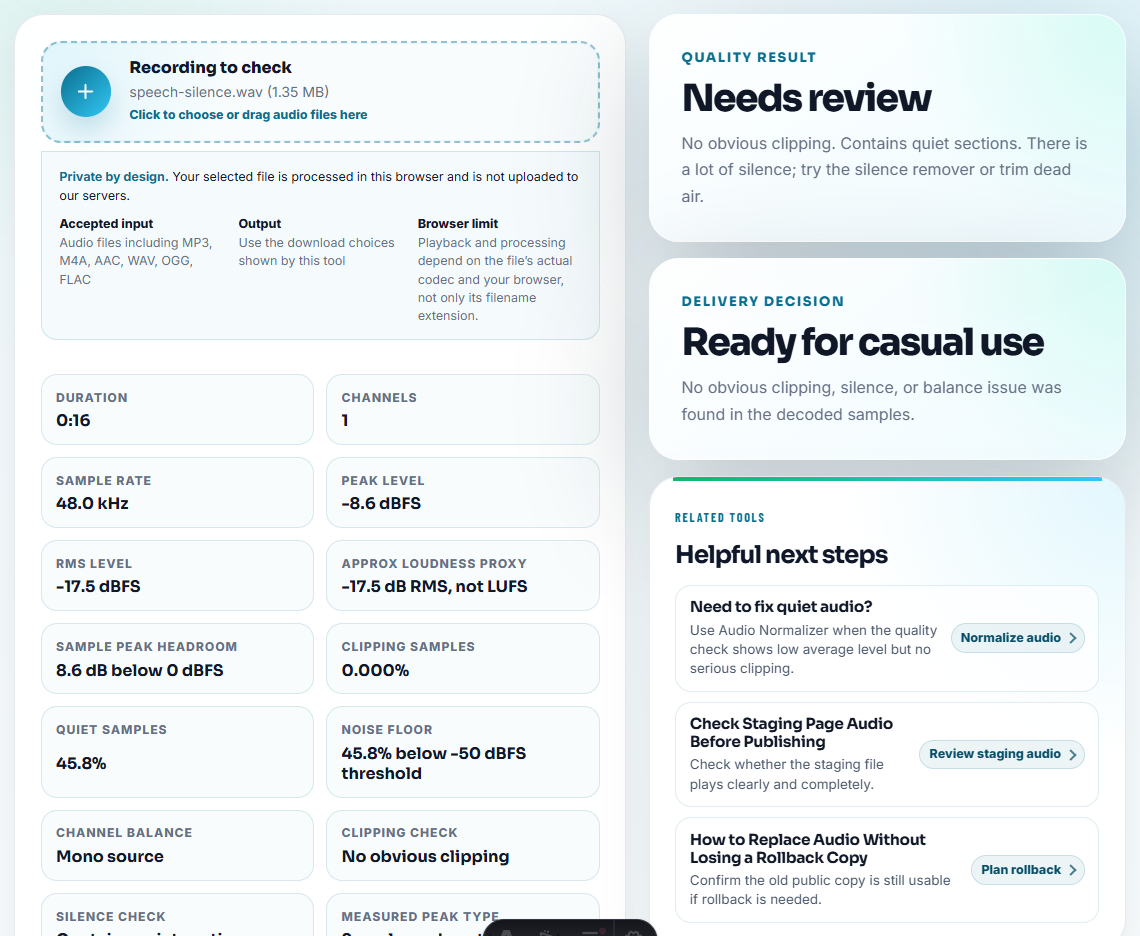
For example, do not normalize away the quietness if the ticket is about low volume. Do not cut off the silent section if the ticket is about missing audio.
Step 4: Trim to the Reproduction Moment
Use Audio Trimmer on a copy. Keep a few seconds before and after the problem so support can understand context.
Good ticket filenames include:
ticket-low-volume-example-short.mp3
ticket-silence-after-export-copy.mp3
ticket-clipping-reproduction-clip.mp3
ticket-one-channel-missing-sample.mp3
Use the written ticket body for private identifiers instead of stuffing them into filenames.
Step 5: Add Visual Clues When They Help
Use Audio Waveform Generator if a visual makes the issue easier to spot. This can help with silence, gaps, clipped peaks, rough edits, or missing endings.
Do not attach a waveform if it adds no explanation. The support file should stay easy to review.
Step 6: Make a Practical Ticket Copy
Use Audio Compressor only after confirming the issue remains audible. Smaller files are easier to upload, but the ticket copy still needs to preserve the problem.
Use Online Audio Format Converter only if the help desk asks for a different format or the ticket form rejects the source.
Step 7: Label the Evidence
Use Audio Metadata Editor to add safe labels:
- Product or tool.
- Issue type.
- Expected result.
- Actual result.
- Ticket or review status.
- Short note on what to hear.
Then add a ticket note such as:
The issue starts around 00:07. Expected normal playback; actual result is a silent gap after export.Match the Attachment to the Support Queue
A help desk ticket moves faster when the audio points to the right queue. Do not send every problem as a generic recording issue.
| Reported symptom | Best ticket audio evidence | Extra note support needs |
|---|---|---|
| Fast, scratchy, or distorted output. | The shortest copied section where the problem appears. | When it starts, source format, and whether it happens in another player. |
| No sound or silent gap. | A clip that preserves the silence and a waveform if useful. | Expected audio source and exact export or recording step. |
| Track names missing or only numbers appear. | Metadata screenshot or neutral sample filename, not a private library dump. | Source app, recognition status, and naming expectation. |
| New computer or reinstall issue. | Usually no audio unless playback changed. | Separate activation, installation, and file-location details. |
This makes the ticket evidence specific enough for support to act without exposing unnecessary customer data.
Add the Four Fields That Prevent Back-and-Forth
A ticket audio file is much easier to handle when the note answers the first diagnostic questions.
| Field | What to include | Example |
|---|---|---|
| Expected | What should have happened. | ”The exported file should include the full 2-minute recording.” |
| Actual | What the attached clip proves. | ”Playback becomes silent after 00:18.” |
| Source path | Where the problem appeared. | ”Recorded from browser audio, then exported as MP3.” |
| Privacy check | What was removed or avoided. | ”Customer name and order number are not in the filename or tags.” |
If you cannot fill in one of these fields, say so directly. “Unknown source app” is more useful than a guessed source, because support can ask the right follow-up question instead of chasing the wrong issue.
Why Help Desks Ask for Another File
When support asks for a second audio file, it is usually not because the first attachment was useless. It is often missing one decision detail.
| Missing detail | Why the first file was hard to use | Better attachment note |
|---|---|---|
| No timestamp | Support has to listen through unrelated audio | ”The issue starts at 00:07.” |
| No expected result | The listener hears a symptom but not the intended outcome | ”Expected normal playback; actual result is silence.” |
| Edited too heavily | The file no longer proves the original problem | ”Trimmed only; no normalization or conversion.” |
| Private source unclear | Support cannot safely forward the clip | ”Private speech removed; issue recreated in a safe sample.” |
| Wrong queue context | The issue may be playback, billing, install, or metadata | ”This file is only for the playback symptom.” |
Adding those details once is faster than sending three versions of the same file.
Help Desk Audio Checks Before Uploading
- Do not send a full recording when a short reproduction clip is enough.
- Do not remove the exact sound problem support needs to inspect.
- Do not expose private filenames, account details, or internal notes.
- Do not compress the only source file.
- Do not attach a file without expected-result and actual-result context.
- Do not convert formats unless the support workflow needs it.
When to Keep the Original Out of the Ticket
Do not upload the original when it contains private speech, licensed content, sensitive names, or unrelated material. A help desk usually needs the smallest safe evidence that proves the issue, not the whole source archive.
Use a deeper diagnostic workflow when support needs logs, device details, app versions, privacy approval, repeated reproduction steps, or the original source file.
When Browser Prep Is Enough for a Ticket
Browser prep is enough when the ticket needs one short, safe reproduction clip and a clear note about expected versus actual playback. Use a stricter support workflow when the issue needs logs, account context, privacy approval, or the original source file.
Related Fixes and Prep Guides
- Audio Metadata Viewer
- Recording Quality Checker
- Audio Trimmer
- Audio Waveform Generator
- Send Support Replies With One Clear Audio Proof
- Add Audio Evidence That Makes Bug Reports Clear
- Send Troubleshooting Audio That Shows One Symptom
- Prepare Remote Support Audio Before the Session
Questions Worth Asking
What should I check before using audio for help desk tickets?
Inspect the file, remove private labels, trim the issue section, check that the problem remains audible, add ticket-friendly context, and attach a compact reviewed copy.
Should I edit a ticket audio example?
Edit only a copy. Trim unrelated sections and reduce file size, but do not remove the sound problem support needs to hear.
What should I check for help desk ticket audio?
Check that the clip shows one issue, contains no passwords or private speech, opens in a normal player, and has a file name the help desk can match to the ticket.