
Show Remote Support the Exact Audio Problem
 By HenrikUpdated Aug 7, 20267 min read
Create short remote support audio clips that show the exact issue, protect private details, and give technicians enough context.

Remote support sessions can produce useful audio, but full session recordings are often too long, too private, and too hard for another teammate to review.
A better handoff is a short clip that shows the issue, expected result, or resolved moment, with enough context to understand what happened.
Check the File Before Sharing
| Review pass | Tool | What it catches |
|---|---|---|
| 1 | Audio Metadata Viewer | Check source details, duration, format, size, channels, and labels. |
| 2 | Recording Quality Checker | Confirm the support moment is audible and complete. |
| 3 | Audio Trimmer | Cut the relevant section from a copy. |
| 4 | Audio Waveform Generator | Add visual context for silence, gaps, peaks, or timing. |
| 5 | Audio Compressor | Create a smaller reviewed copy after the section is approved. |
| 6 | Online Audio Format Converter | Convert only if the support workflow needs another format. |
| 7 | Audio Metadata Editor | Add session, issue, product, date, and review labels. |
The handoff should help another person understand the session without replaying everything.
Step 1: Pick the Session Moment
Remote support audio usually needs one clear purpose:
- Show what the customer heard.
- Preserve a reproduction moment.
- Compare before and after a setting change.
- Document a resolved issue.
- Explain a remaining blocker.
- Hand off a case to another teammate.
If the moment is not clear, write the support note first, then prepare the clip around that note.
Step 2: Inspect the Session Source
Use Audio Metadata Viewer to check duration, format, size, and labels.
Remote support recordings may contain names, account details, screen-share context, device labels, or unrelated conversation. Create a clean reviewed copy instead of forwarding the full source.
Step 3: Check the Support Moment
Use Recording Quality Checker before trimming. Confirm the issue or result is audible and that the useful section is not clipped, silent, or missing.
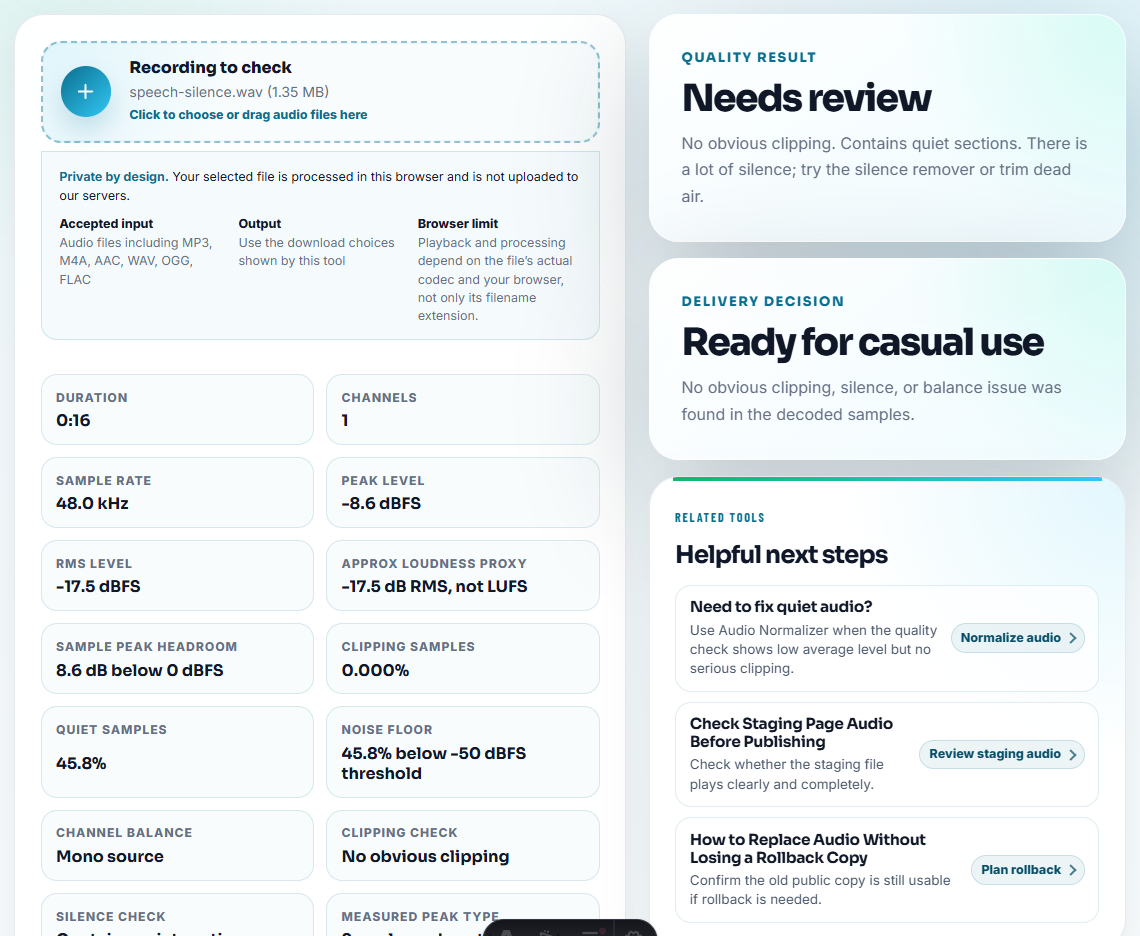
If the session audio is itself the problem, do not edit away the evidence.
Step 4: Trim a Reviewable Clip
Use Audio Trimmer on a copy. Keep a few seconds before and after the support moment so the clip does not lose meaning.
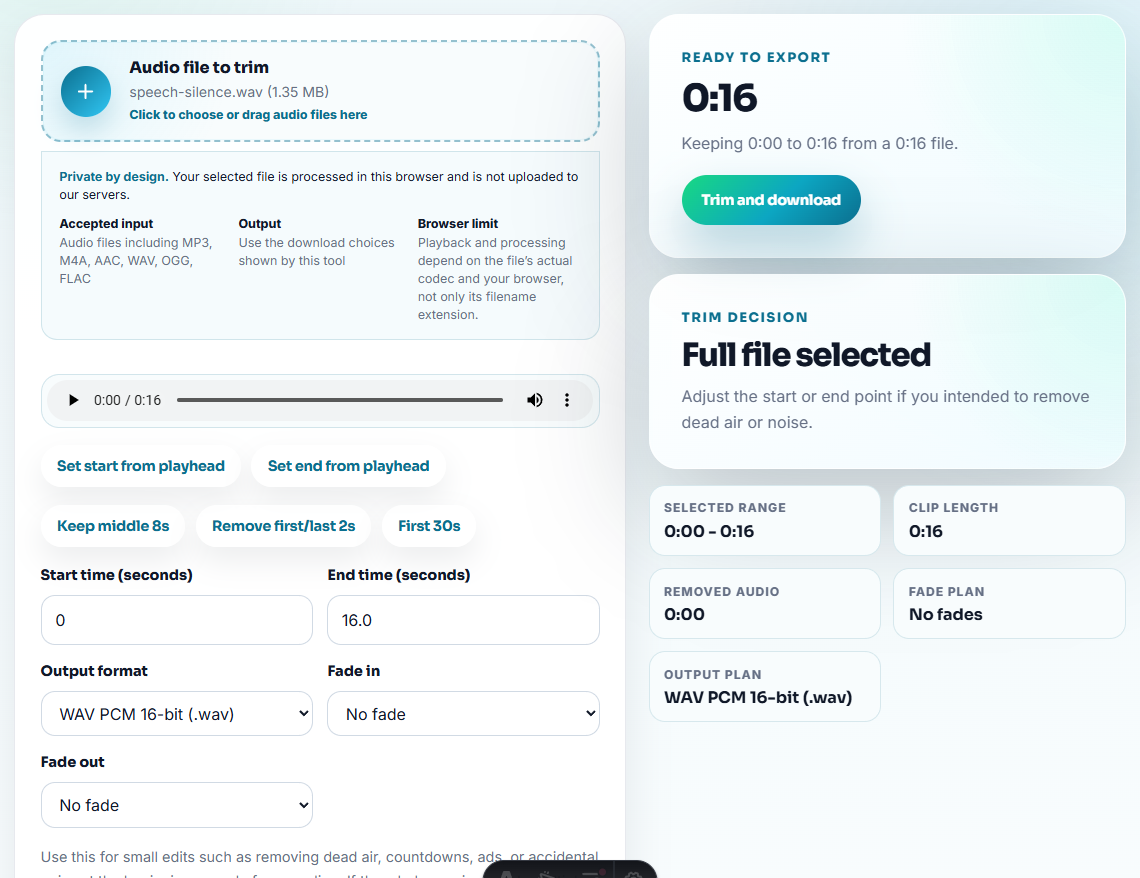
Useful filenames include:
remote-support-session-issue-example.mp3
remote-support-resolved-after-setting-change.mp3
remote-support-before-after-short-copy.mp3
remote-support-handoff-reviewed-clip.mp3
Use the ticket or CRM record for private identifiers.
Step 5: Add Timing Context
Use Audio Waveform Generator when a teammate needs to find silence, a gap, a clipped peak, or a clear before-and-after section quickly.
The visual is especially helpful when the clip will be reviewed later by someone who did not join the session.
Step 6: Create the Sharing Copy
Use Audio Compressor after review so the file is practical for support notes, CRM attachments, escalation packages, or internal chat.
Use Online Audio Format Converter only if the recipient or system cannot open the source format.
Step 7: Label What Happened
Use Audio Metadata Editor to add:
- Session date.
- Product or feature.
- Issue type.
- Expected result.
- Actual result.
- Resolution status.
- Next owner.
Add a short support note:
Reviewed clip shows the audio result after changing the capture source. Customer confirmed improvement during the session.Remote Session Moments Worth Capturing
Do not record or retain an entire remote session just because it exists. The useful part is usually one short decision moment. Based on recurring support requests, capture one of these moments:
| Session moment | Keep in the clip | Leave in private notes |
|---|---|---|
| User cannot register after a computer change | The error wording and whether reinstall succeeded | License key, order number, email, or account details. |
| Recording works briefly, then becomes fast or distorted | A few seconds before and after the speed change or distortion | Long unrelated playback and personal desktop context. |
| Source app records but track names are missing | The resulting file list or spoken explanation of what is missing | Private library names or playlist details. |
| Audio routing changes during support | The before/after result after changing device or cable settings | Full screen-share history. |
This makes the page more useful than a generic trimming guide: it tells the support person which evidence is worth keeping and which evidence creates privacy risk.
Capture the Before and After Without Recording Everything
Remote support often changes settings while the customer is present. Keep the evidence small: one clip before the change and one clip after the change is usually stronger than a full session recording.
| Situation | Before clip | After clip |
|---|---|---|
| Wrong recording route | Short sample that misses the intended source | Short sample after choosing the correct source |
| Distorted output | A few seconds where distortion is obvious | Same source after the setting or device change |
| Missing track names | Example result with generic labels | Example result after recognition or metadata correction |
| Notification sounds captured | Sample that includes the interruption | Clean test after quiet setup changes |
Add one note that says exactly what changed between the two clips. That gives the next reviewer a cause-and-effect path instead of a long session archive.
Prepare Before the Remote Call Starts
The best remote support audio is often prepared before anyone shares a screen. Ask for a small, safe sample and decide what evidence the session should create.
| Before-session item | Why it helps |
|---|---|
| One short sample file | Lets the technician hear the reported problem without browsing private folders. |
| Expected result note | Prevents the session from becoming a guessing exercise. |
| Current player or source app | Separates playback failure from recording or export failure. |
| Permission boundary | Clarifies whether the clip can be stored, escalated, or only reviewed live. |
| Stop condition | Defines when to stop recording and move to logs, screenshots, or account steps. |
For example, if the customer says the output is distorted, the support note should say whether the distortion happens during recording, after export, or only in one player. The audio clip then supports that one decision instead of becoming a full session archive.
Final Check Before the Remote Support Call
- Do not send full session recordings when a short clip is enough.
- Do not expose names, account details, or private session labels.
- Do not remove the exact issue the team needs to review.
- Do not rely on audio without a written status note.
- Do not overwrite the original session source.
- Do not convert or compress until the reviewed section is confirmed.
Use Free Tools Before the Remote Session
Use free browser tools before a remote support session when the goal is to make one symptom easier to hear. Trim to the failing moment, keep the customer-approved source unchanged, and label the file with device, app, and timestamp details so the session starts from evidence instead of memory.
Use a deeper workflow when the session needs consent review, screen recording, logs, configuration files, formal escalation, or customer-identifiable evidence.
Where to Go After This Check
- Audio Metadata Viewer
- Recording Quality Checker
- Audio Trimmer
- Audio Compressor
- Escalate Audio Issues With Reproducible Evidence
- Send Help Desk Audio Without Private Clues
Last Review Points
What should I check before using audio for remote support sessions?
Choose the support moment, inspect the source, trim a short example, check playback, remove private labels, add session context, and share a compact reviewed copy.
Should remote support audio include the full session?
Usually no. A short reviewed excerpt with a timestamp note is easier to review and safer than sharing a full session recording.
What should I check for remote support audio?
Prepare one clip that shows the issue before the session starts, then keep the source and device context ready for the support person.