
How to Check Audio Download Links Before Publishing
 By HenrikUpdated Aug 7, 20266 min read
Review downloadable audio before changing public links, buttons, files, formats, or page attachments.

Changing an audio download link can create quiet problems. The file may play, but it may be the wrong version, too large, poorly labeled, missing source notes, or attached to page text that no longer matches.
Before changing public buttons or download files, review the audio like a release asset.
Decide What the Public Link Should Do
Changing a download link is a content decision as much as a file decision. The new file should match the page promise.
| Link situation | Check first | Safe action | Risk if skipped |
|---|---|---|---|
| Replacing an old file | Old and new duration, format, and purpose | Keep rollback or redirect notes | Users may get the wrong version |
| Adding a new download | Page text and file identity | Label source and final copy | Link may feel untrusted |
| Reducing file size | Whether quality still fits the page | Compress only the delivery copy | Page may ship a weak sample |
| Changing format | Device or browser compatibility | Test the final public file | Some users may be unable to open it |
| Retiring a link | Whether old pages still reference it | Update related page copy | Broken internal paths can remain |
Make the Review Copy Easy to Trust
| Task | Tool | Result to verify |
|---|---|---|
| 1 | Audio Metadata Viewer | Confirm file identity, duration, format, comments, and source notes. |
| 2 | Recording Quality Checker | Make sure the downloadable copy plays and is not silent, clipped, or incomplete. |
| 3 | Audio File Size Calculator | Check whether the download size fits the page purpose. |
| 4 | Audio Waveform Generator | Check timing when the download represents a specific example or excerpt. |
| 5 | Audio Compressor | Create smaller download copies after the source and use are approved. |
| 6 | Online Audio Format Converter | Create a format-specific download copy only when the recipient needs it. |
| 7 | Audio Metadata Editor | Add download status, source, page, version, replacement, and owner notes. |
Product demos, support attachments, tutorial files, sample packs, knowledge base downloads, and public audio examples all need the same download sanity check.
Step 1: Confirm What the Link Should Deliver
Start with the page need:
page: /download-center/
button label: Download sample audio
expected file: setup-demo-public-v2.mp3
purpose: small public example
old file: setup-demo-public-v1.mp3
decision: replace after review
If the button text says “sample,” do not link to a long source recording. If the page says “MP3,” do not quietly deliver another format.
Step 2: Inspect the Candidate File
Use Audio Metadata Viewer to check:
- Title.
- Duration.
- Format.
- File size.
- Comment fields.
- Source reference.
- Version notes.
If the metadata points to an old product page or a different use, pause before updating the link.
Step 3: Test the Download Copy
Use Recording Quality Checker on the exact file that will be linked.
Check whether it:
- Plays completely.
- Contains the expected content.
- Starts and ends cleanly.
- Is not mostly silence.
- Is not obviously clipped.
- Has a reasonable duration for the page promise.
A source file passing QA does not prove the final downloadable copy is correct.
Step 4: Review Size and Format
Use Audio File Size Calculator when the file will be downloaded from a public page or attached to a support article.
Use Audio Compressor only when the download needs to be smaller. Use Online Audio Format Converter only when the format must change.
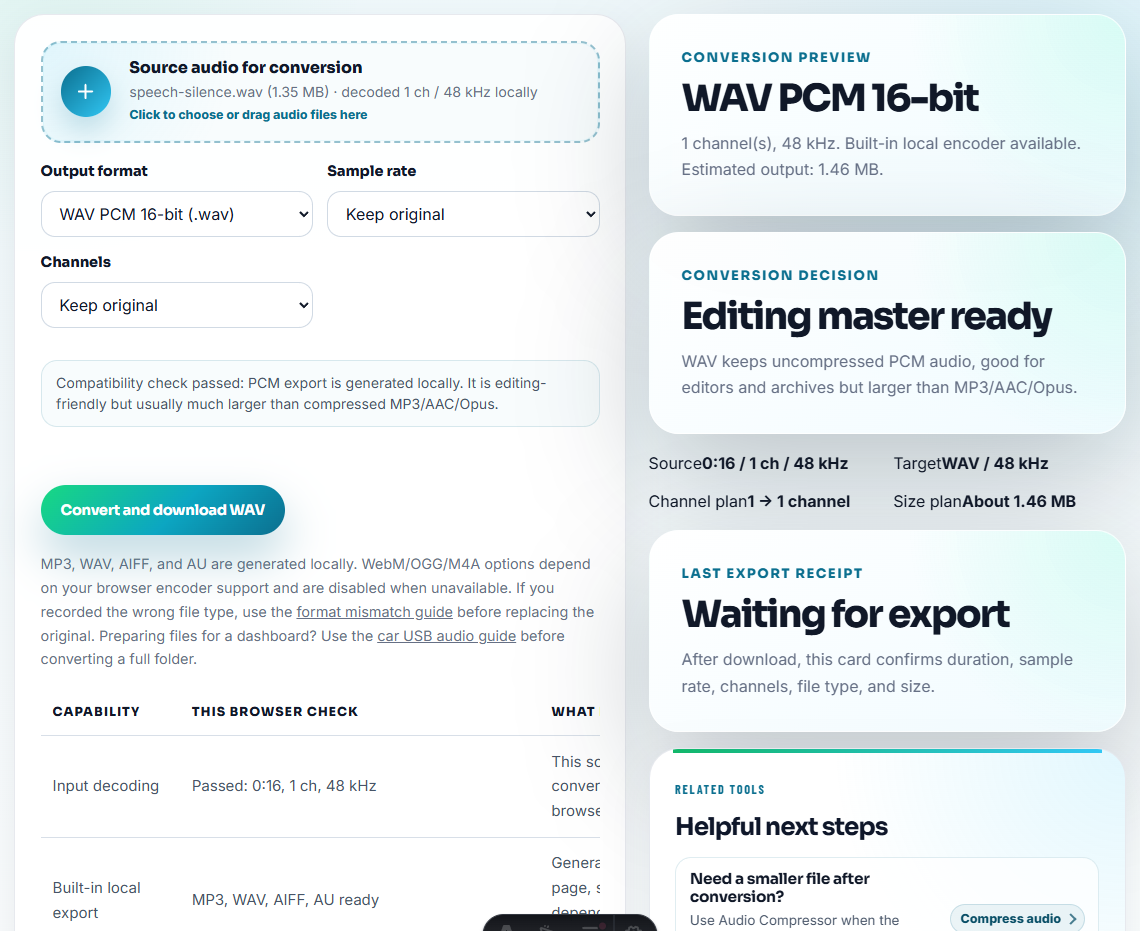
Do not change both content and format without recording both reasons.
Step 5: Check Page Context
Before updating the link, compare the audio with the surrounding page:
- Does the page name the right format?
- Does the page describe the right length?
- Does the file support the example beside it?
- Does a caption need to change?
- Does the old file need to remain available?
- Does a replacement note need to point to the new copy?
The download file and page copy should tell the same story.
Step 6: Add Link Review Notes
Use Audio Metadata Editor to add:
Download link review: approved. Page: /support/. Replaces support-example-v1.mp3. Source: source-support-example-original.wav. Owner: support content.If the old file should not be used again:
Retired from public download. Replaced by support-example-v2.mp3. Keep for source trace only.Step 7: Verify Old and New Paths
After the page is updated, check:
- New link opens the intended file.
- Old link behavior is intentional.
- The downloaded filename is understandable.
- The page still has useful surrounding instructions.
- The source and replacement record can be found later.
This protects users and keeps old files from reappearing.
Verify the Download Path Before Publishing
- Do not swap a download file without checking the exact public copy.
- Do not link to source files when users need a compact delivery file.
- Do not change the file format without updating the page wording.
- Do not remove old files before checking whether they are referenced.
- Do not keep private metadata inside a downloadable copy.
- Do not close the review until the page link has been checked.
When You Do Not Need a Desktop Recorder
For download-link review, browser tools help confirm that the linked file opens, plays, and matches the label users see. Test the final link, not just the local file, and keep a record of the page, filename, size, and replacement decision.
Use a stricter release process when downloads are paid assets, legal proof, customer-approved material, regulated content, or heavily promoted campaign files.
Related File Prep Guides
- Audio Metadata Viewer
- Audio File Size Calculator
- Plan Audio Replacement Without Broken References
- Move Website Audio Without Breaking References
- Make Download Page Audio Clear After Saving
- Trace Public Audio Back to the Source File
Common Edge Cases
What should another person be able to understand?
Check the file identity, source, format, size, playback quality, page context, replacement status, and whether the old link should remain, redirect, or retire.
Is a download link review the same as a playback test?
No. Playback is one part. A download link review also checks file naming, source traceability, size, format, page wording, and old-to-new replacement behavior.
What should another person be able to understand?
Test that the linked file opens, matches the expected version, has a reasonable size, and is not an outdated or private copy.