
How to Make Download Page Audio Clear After Saving
 By HenrikUpdated Aug 7, 20266 min read
Prepare download page audio that stays understandable after saving, with clear purpose, metadata, format, and privacy checks.

Downloadable audio needs more context than an embedded player. Once someone saves the file, it may leave your page, lose surrounding notes, or sit in a downloads folder with dozens of other files.
Download-page audio has to make sense after it leaves the page, including its filename, format, size, and listening purpose.
Check the File Before Sharing
| Checkpoint | Tool | Why it matters |
|---|---|---|
| 1 | Audio Metadata Viewer | Inspect source details, duration, format, size, channels, and existing labels. |
| 2 | Recording Quality Checker | Catch silence, clipping, low level, or incomplete audio before publishing. |
| 3 | Audio Trimmer | Remove unrelated starts, endings, or sections not meant for download. |
| 4 | Audio Normalizer | Make the delivery copy easier to hear when needed. |
| 5 | Online Audio Format Converter | Create a compatible copy when the source format is not suitable. |
| 6 | Audio Compressor | Reduce file size after the final listening check. |
| 7 | Audio Metadata Editor | Add title, creator, project, date, and notes. |
Think of the file as a small product. It should be clear outside the page.
Step 1: Decide What the Download Is
Name the purpose before editing:
- Sample.
- Lesson.
- Replay.
- Support example.
- Music preview.
- Voice message.
- Archive copy.
- Client review file.
If the user expects a full source file, do not accidentally upload a compressed review copy. If they only need a sample, do not publish the whole source.
Step 2: Keep a Source and Delivery Folder
Use a simple folder split:
download-source
download-delivery-copy
The page should link to delivery copies. The source folder stays available if the file needs a new export later.
Step 3: Check the Audio Before Publishing
Use Recording Quality Checker.
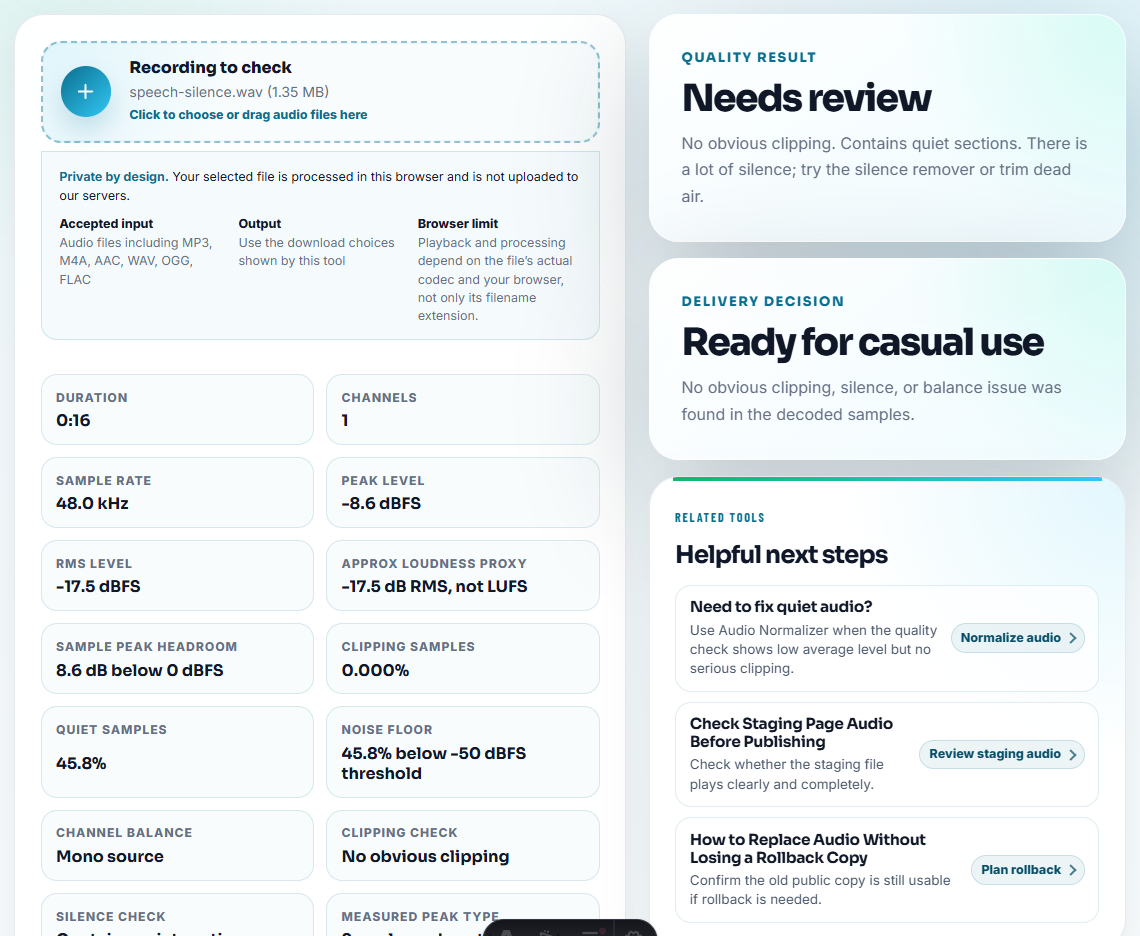
Confirm:
- The useful content exists.
- The file is not mostly silence.
- The ending is complete.
- Speech or music is understandable.
- No obvious clipping ruins the main section.
If the file fails here, fix or replace it before worrying about size.
Step 4: Trim Only What Does Not Belong
Use Audio Trimmer to remove:
- Setup time.
- Private chatter.
- Repeated starts.
- Long endings.
- Test audio.
- Anything not promised by the download label.
Leave enough context so the downloaded file makes sense by itself.
Step 5: Make Playback and Size Practical
Use Audio Normalizer only if the delivery copy is too quiet.
Use Online Audio Format Converter when the source format is not practical for the expected audience.
Use Audio Compressor after the content, level, and format are right. Compressing a broken file only makes a smaller broken file.
Step 6: Label the File Like It Will Travel
Use filenames that explain the file:
webinar-replay-audio-july-2026.mp3
product-demo-sound-sample.mp3
lesson-03-practice-audio.mp3
interview-highlight-download.mp3
Use Audio Metadata Editor to add title, project, date, creator, or notes when helpful.
Match the Download Type to the Visitor Expectation
The file should match what the page makes the visitor think they are getting.
| Download type | Visitor expectation | File should include | File should not include |
|---|---|---|---|
| Sample | A short example they can judge quickly. | One representative section with clean labels. | Full source recording or private setup audio. |
| Lesson | Audio tied to a specific step. | Lesson number, topic, and complete section. | Unrelated intro, outtakes, or draft labels. |
| Support example | Evidence that explains one issue. | The symptom or expected result with context. | Customer-identifying source material. |
| Replay | A usable listening copy. | Full promised content and practical format. | Review snippets or compressed test copies. |
This keeps the page useful after the file leaves the browser tab.
Add Context That Survives the Download
Once the file leaves the page, the visitor may lose the surrounding explanation. Build the context into the delivery copy.
| Download risk | Prevent it with | Example |
|---|---|---|
| The file is renamed or forwarded. | Clear filename and embedded title. | product-demo-sample-clean-output.mp3 |
| The listener forgets the purpose. | Short metadata note or page-matched title. | ”Sample for Step 3 export playback test.” |
| The file exposes private source details. | Clean delivery copy, not source recording. | Remove account, ticket, or draft labels. |
| The file becomes outdated. | Version or review date in metadata. | ”Reviewed 2026-08; replace after product change.” |
This turns a downloadable file into a small self-contained asset rather than a loose attachment.
Problems to Catch Before You Make Download Page Audio Clear After Saving
- Do not upload the only source file by accident.
- Do not publish a file named
audio-final.mp3. - Do not compress before checking playback.
- Do not leave private or unrelated sections in a public download.
- Do not convert repeatedly between lossy formats.
- Do not let metadata contradict the filename.
When a Quick Local Check Is Enough
For a download page, browser prep is enough when you are making one audio asset easier to preview, download, or verify. Keep source and web copy separate, test the file name and playback from the page, and confirm the page text describes the exact file.
Use a larger publishing workflow when you need transcripts, licensing review, paid-access control, analytics, public accessibility review, or many files updated on schedule.
Related File Prep Guides
- Audio Metadata Viewer
- Recording Quality Checker
- Audio Compressor
- Audio Metadata Editor
- Make Website Audio Embeds Play Cleanly
- Make QR Code Audio Open Fast on Phones
- Fix Audio Files That Upload Forms Reject
Common Edge Cases
What would confuse someone opening the file later?
Check the source, make a delivery copy, trim unrelated sections, confirm playback, add clear labels, compress only after review, and keep the source separate.
Is downloadable audio different from embedded audio?
Yes. A downloadable file may be saved, forwarded, renamed, or opened later, so filenames and metadata matter more.
What should I check for downloadable audio?
Confirm the sample or download file matches the page promise, opens reliably, has clear labels, and does not point users to a stale version.