
Build a USB Audio Folder That Plays Simply
 By HenrikUpdated Aug 7, 20266 min read
Build a cleaner USB audio folder with readable names, safer MP3 copies, checked volume, and simple playback testing.

A USB audio folder can fail even when every file plays on your computer. The player may sort tracks in a strange order, skip unsupported files, show unreadable titles, or jump from a quiet lecture to a loud song.
A USB playback folder should be predictable for the device that reads it. Use simple names, compatible files, and a clean order before copying the folder to the drive.
Check the File Before Sharing
| Review pass | Tool | What it catches |
|---|---|---|
| 1 | Audio Metadata Viewer | Inspect format, duration, bitrate, channels, and tags before copying files. |
| 2 | Online Audio Format Converter | Create compatible MP3 copies when a device rejects the source format. |
| 3 | fix garbled song names on a car USB drive | Rewrite MP3 tags and simple filenames for older dashboard-style players. |
| 4 | Audio Metadata Editor | Add useful title, artist, date, episode, or folder notes after the copy is ready. |
| 5 | Audio Normalizer | Reduce distracting volume jumps across copied files. |
| 6 | Audio File Size Calculator | Estimate whether the final folder fits the drive with room to spare. |
The goal is not to rebuild your whole music library. The goal is to create one predictable playback folder.
Step 1: Build a Small Test Folder First
Do not start by copying hundreds of files. Create a small test folder that represents the real collection.
Example:
USB-Test
001 - Short Song.mp3
002 - Long Talk.mp3
003 - Non-English Title.mp3
004 - Quiet Voice.mp3
005 - Large File.mp3
Include the awkward files on purpose: long names, non-English titles, quiet recordings, long shows, and anything that failed before.
Sort the Folder by Playback Risk
Before copying everything, group files by what might fail on the target player.
| File type in the folder | Risk on simple players | Better USB copy | Test first |
|---|---|---|---|
| Long lectures or shows | Slow scanning or hard navigation | Numbered parts | Beginning, middle, and end. |
| Non-English filenames | Garbled dashboard display | Short plain names plus safe tags | A few representative titles. |
| Mixed formats | Some files may be skipped | Conservative MP3 copies only where needed | One file from each format. |
| Quiet voice beside music | Volume jumps | Normalized voice copies | Speaker or car playback. |
| Many similar files | Confusing order | Numeric prefixes | Sort order on the real device. |
This turns USB preparation into a testable folder plan instead of a blind bulk conversion job.
Step 2: Inspect the Files Before Changing Them
Use Audio Metadata Viewer to check what each file actually is.
Record the basics:
- File type.
- Duration.
- Bitrate.
- Channels.
- Title and artist tags.
- Embedded artwork.
- File size.
If the device has trouble with only one file type, convert only that type. If the problem is unreadable track names, fix tags and filenames instead of re-compressing audio.
Step 3: Create Safer Playback Copies
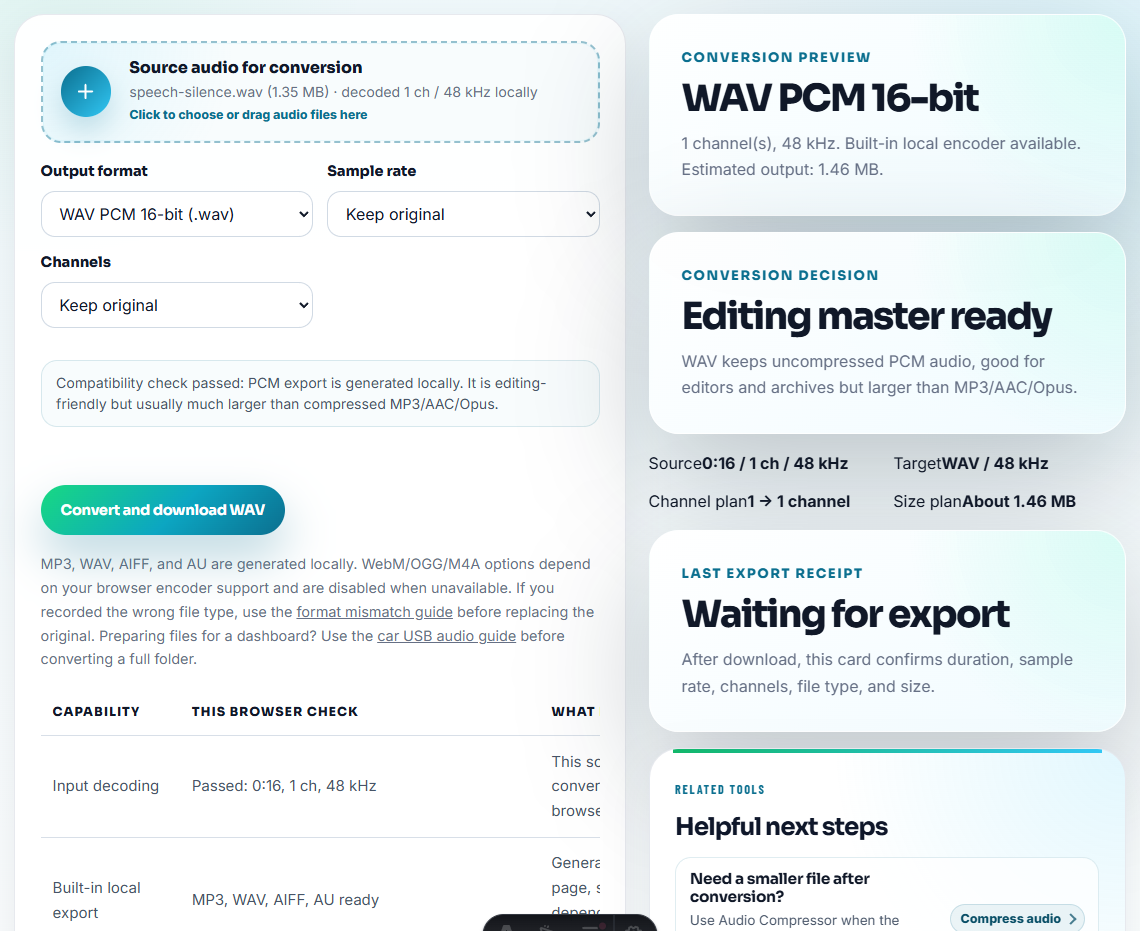
Use Online Audio Format Converter when a player cannot see or play the original file. Save the converted copy into the USB folder, not over the original.
Keep names simple:
001 - Morning Lecture.mp3
002 - Interview Part 01.mp3
003 - Music Practice A.mp3
Short, boring filenames often behave better than clever filenames with symbols, emojis, version notes, or very long text.
Step 4: Fix Tags for Dashboard-Style Players
If MP3 files play but names look scrambled, use the fix garbled song names on a car USB drive on the USB copies.
This is especially useful when:
- The car stereo shows boxes or question marks.
- The dashboard uses old titles instead of filenames.
- Tracks sort strangely because title tags disagree with filenames.
- Non-English names display badly.
- You want a conservative folder for an older player.
For broader library notes, use Audio Metadata Editor after the playback copy is already confirmed.
Step 5: Normalize Only When Volume Jumps Are Distracting
Use Audio Normalizer when files in the folder play at noticeably different levels.
Good candidates:
- Voice recordings mixed with music.
- Podcast clips from different sources.
- Radio captures recorded on different days.
- Lessons where one file is much quieter than the next.
Do not normalize everything blindly. If two files already play at a comfortable level, leave them alone.
Step 6: Check Folder Size Before Copying Everything
Use Audio File Size Calculator when the folder is large or the USB drive is small.
Leave spare room for:
- Rebuilt folders.
- Alternate copies.
- Device indexing files.
- Future additions.
- A backup test batch.
If the drive is nearly full, playback devices may scan slowly or behave unpredictably. A cleaner folder is usually better than a drive packed to the last megabyte.
USB Folder Check Before Copying Files
- Do not edit your original library just to satisfy one USB player.
- Do not convert every file before identifying the actual failure.
- Do not rely on computer playback as proof the USB player will work.
- Do not use long filenames for a folder meant for an older player.
- Do not mix rough drafts, originals, converted files, and final files in the same folder.
- Do not fill the entire drive before testing a small batch.
Use Free Tools Before Copying to USB
For USB playback folders, browser tools are useful when you are preparing a small set of files for a car, speaker, classroom, or event laptop. Keep names short, test sort order on the target device, and keep a backup outside the USB drive.
Use dedicated library software when you need bulk deduplication, advanced tagging rules, album-art management at scale, or a permanent music-library workflow.
Where to Go After This Check
- Audio Metadata Viewer
- Online Audio Format Converter
- fix garbled song names on a car USB drive
- Audio Normalizer
- Make Audio Play Correctly From a Car USB Drive
- Fix Missing Audio Titles Without Guessing
Common Edge Cases
What should I check before filling a USB audio drive?
Check file format, readable filenames, MP3 tags, folder order, volume consistency, and a small real-device test before copying the full collection.
Is this different from converting audio for car USB playback?
Yes. The focus is the folder and playback checklist: names, order, tags, test batches, and final copies rather than only format conversion.
Should I edit my original music folder for USB playback?
No. Prepare a separate USB copy so tag fixes, simplified filenames, and converted files do not damage your main library.