
How to Ask Audio Questions Without Exposing Data
 By HenrikUpdated Aug 7, 20267 min read
Prepare community post audio that asks one clear question while protecting private voices, metadata, and source context.
Community post audio should make it easy for people to understand your question or example. Whether you are asking for troubleshooting help, sharing a before-and-after result, or showing a workflow, a short prepared clip is more useful than a long raw file.
The main risks are privacy and confusion. Public forums, groups, and community threads can preserve files longer than expected, so the shared copy should be deliberate.
Make a Public-Safe Copy First
| Sequence | Free tool | What to look for |
|---|---|---|
| 1 | Audio Metadata Viewer | Check duration, format, size, channels, and hidden labels. |
| 2 | Recording Quality Checker | Confirm the clip is audible and complete. |
| 3 | Audio Trimmer | Cut the section people need to hear. |
| 4 | Audio Normalizer | Make the shared copy easier to hear when needed. |
| 5 | Audio Waveform Generator | Add a visual cue for silence, clipping, or comparison points. |
| 6 | Audio Compressor | Create a smaller post-friendly copy after review. |
| 7 | Audio Metadata Editor | Add topic, issue, source, or share-status labels. |
The community should know what to listen for before they open the file.
Remove Clues Outside the Audio Too
A safe community post is not only about trimming speech. Filenames, tags, screenshots, and the written post can reveal context even when the clip sounds harmless.
| Place to check | Risk | Safer choice |
|---|---|---|
| Filename | Customer, project, or account names | Rename by issue, not identity. |
| Metadata | Old title, author, comments, or device clues | Strip or replace with neutral notes. |
| Written post | Too much private background | Describe the symptom and setup only. |
| Waveform image | File path or private title in screenshot | Crop or regenerate a neutral visual. |
| Download link | Folder exposes unrelated files | Share only the prepared copy. |
Step 1: Decide the Post Question
Choose one purpose for the audio:
- Ask why a file sounds wrong.
- Show a before-and-after result.
- Share a short demo sample.
- Ask whether clipping or noise is obvious.
- Show a format or playback problem.
- Give context for a support or tutorial question.
If the clip does not help people answer the post, leave it out.
Step 2: Remove Private Clues
Use Audio Metadata Viewer to inspect visible and hidden file details. Look for private names, project labels, old titles, account clues, or notes that do not belong in a public post.
If the audio contains a customer, meeting, personal voice, or private conversation, consider recreating the issue with a safer sample.
Step 3: Keep the Useful Section
Use Audio Trimmer on a copy. Keep the shortest section that still explains the question.
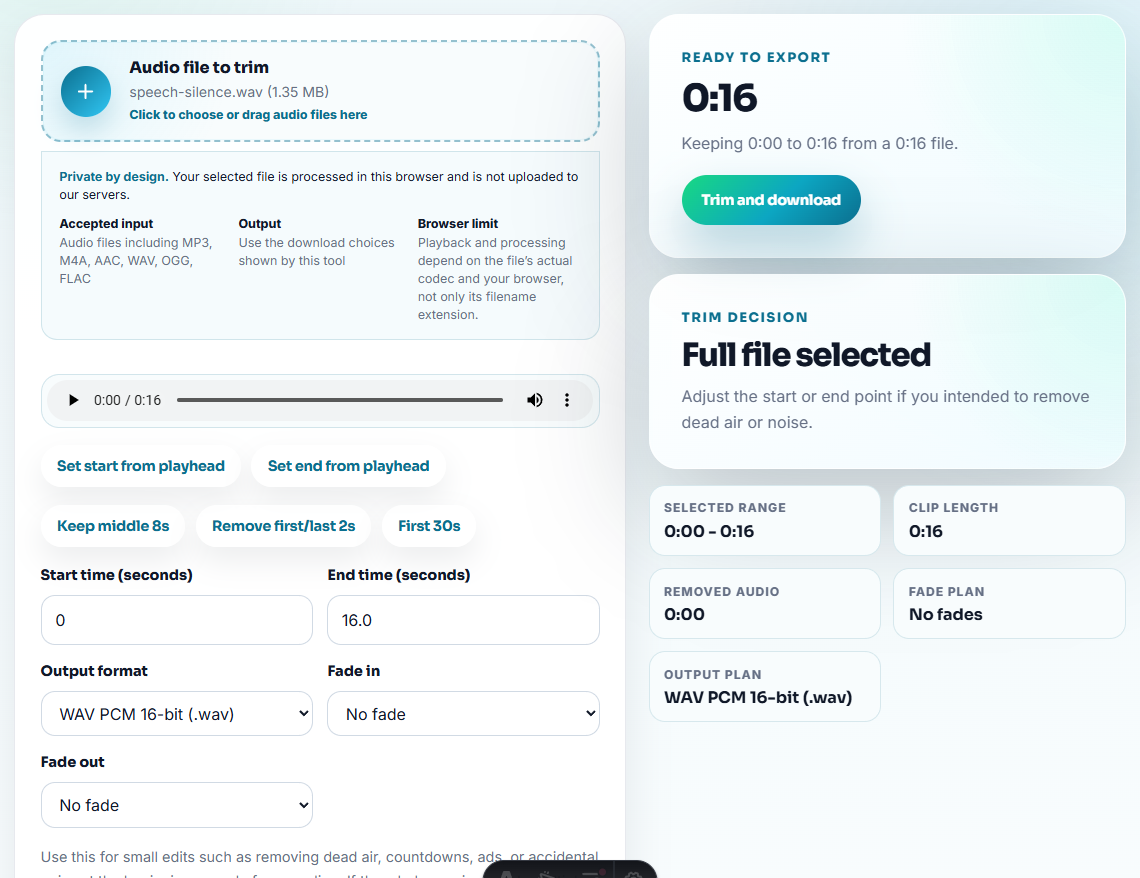
Good community clips:
- Start near the problem or example.
- Include a few seconds of context.
- Remove private conversation.
- Avoid long silence or repeated attempts.
- Match the written post.
Step 4: Check That the Example Still Works
Use Recording Quality Checker before posting. If the post asks about clipping, silence, missing sound, or level, make sure the issue remains audible in the shared copy.
Use Audio Normalizer only when the example is too quiet to understand. Do not hide the problem by over-processing it.
Step 5: Add a Visual Clue When Helpful
Use Audio Waveform Generator if the community needs to see where a silent section, peak, or cut appears.
That can make feedback more specific than “somewhere near the middle.”
Step 6: Create a Practical Sharing Copy
Use Audio Compressor after checking the file. Use Online Audio Format Converter only if the community platform or listener needs another format.
Keep the original and the posted copy separate.
Step 7: Label What to Listen For
Use filenames such as:
community-post-clipping-example-short.mp3
before-after-cleanup-question.mp3
playback-problem-sample-copy.mp3
please-check-silence-at-start.mp3
Use Audio Metadata Editor if the file may be downloaded or reused.
Choose the Safest Way to Ask the Question
Many community posts do not need the original audio. They need a small sample that lets other people answer a specific question without seeing private context.
| Community question | Best shared asset | Safer written context |
|---|---|---|
| ”Why does this sound distorted?” | A short copied sample where the distortion is still audible. | Mention device, app, and timing without sharing private project names. |
| ”Is this clipping or just loud?” | A small clip plus waveform image. | Ask listeners to compare peaks, not judge the whole recording. |
| ”Why are track names missing?” | A neutral filename or metadata example. | Describe the source workflow without posting account or library details. |
| ”Can this be fixed?” | A recreated problem sample when the original contains private speech. | Explain what you already tried and what result changed. |
The post becomes more useful because it gives people the evidence they need and removes what they do not need.
Write a Community-Safe Audio Note
Pair the clip with a short note that tells helpers what to inspect and what you already removed.
| Note part | Example |
|---|---|
| What to hear | ”The distortion starts around 00:06.” |
| What was removed | ”Private conversation before the issue was trimmed out.” |
| What was preserved | ”The noisy section is unchanged so the problem is still audible.” |
| What you tried | ”Converted a copy to MP3 and checked that the problem remains.” |
| What you need | ”Is this clipping, noise, or a playback/export issue?” |
This improves the chance of useful replies because the community sees a clean question instead of an unexplained file.
Community Post Checks Before Publishing
- Do not post private customer or meeting audio.
- Do not upload a long raw recording when a short example works.
- Do not remove the issue you are asking about.
- Do not leave private metadata in a public file.
- Do not post multiple similar versions without explaining them.
- Do not rely on audio without a clear written question.
When Browser Prep Is Enough for Community Posts
Browser prep is enough when the post needs one short public-safe clip that asks one clear question. Use a stricter process when the audio includes customer identity, licensed material, sensitive voices, or evidence that could be quoted outside the community thread.
Use a larger workflow when the audio needs consent, anonymization, legal review, professional redaction, or formal support escalation.
Related Fixes and Prep Guides
- Audio Metadata Viewer
- Recording Quality Checker
- Audio Trimmer
- Audio Waveform Generator
- Add Audio Evidence That Makes Bug Reports Clear
- Send Support Replies With One Clear Audio Proof
- Share Private Audio Without Extra Exposure
- Record a Clear Audio Message Before Sending
- Turn One Audio Moment Into a Social Post
- Make Audio Easy to Send in Messaging Apps
Checks Worth Making First
What makes the file easier to review later?
Use a short clip, remove private sections, check that the example is audible, label what people should listen for, and keep the original file separate.
Should I post the full audio file in a community?
Usually no. A short focused example is easier for others to review and safer than a long raw recording.
What should I check for community post audio?
Use a short public-safe clip, explain what people should listen for, and avoid posting raw files that invite confusion or privacy problems.