
How to Make Background Music Loop Without a Jolt
 By HenrikUpdated Aug 7, 20266 min read
Trim background music, make clean loops, add fades, normalize level, convert format, and prepare safe playback copies.
Background music often fails for small reasons: the loop starts too late, the ending clicks, the volume is too loud under speech, or the final file is not in the format the player expects.
A music loop should restart without calling attention to itself. Check the start, end, and level before using it under voiceover, sleep audio, course lessons, or event playback.
Decide What Kind of Loop You Need
The cleanest loop depends on where the music will sit. A loop under speech has different requirements from a loop used as a standalone waiting bed.
| Use case | Main risk | Better choice | Listen for |
|---|---|---|---|
| Under narration | Music competes with words | Lower, steadier copy | Voice stays easy to understand |
| Event waiting bed | Ending exposes the repeat | Longer repeated copy | No obvious restart point |
| Tutorial intro | Start feels late or abrupt | Tight trim with a small fade | First beat arrives where expected |
| App or web background | File gets too large | Short loop with compatible export | Smooth repeat at realistic volume |
| Social clip | Loop distracts from the message | Shorter section with clear end | Music supports the clip, not the reverse |
Use the Tools in This Order
| Sequence | Free tool | What to look for |
|---|---|---|
| 1 | Audio Metadata Viewer | Check format, duration, size, and basic file details. |
| 2 | Audio Trimmer | Cut one useful loop section or intro/outro cue. |
| 3 | smooth harsh starts and endings | Smooth abrupt starts, endings, or manual loop exits. |
| 4 | Audio Normalizer | Keep playback level comfortable under speech or visuals. |
| 5 | Audio Merger | Join repeated sections only when a longer bed is needed. |
| 6 | Online Audio Format Converter | Create a playback copy for the target app or device. |
| 7 | Audio File Size Calculator | Estimate storage needs for repeated or long background beds. |
Always keep the original track untouched. Loop editing is easiest when you can restart from the source.
Step 1: Inspect the Source
Open the file in Audio Metadata Viewer to confirm duration, format, and file size. If the file is already small and compatible, avoid converting it until the final step.
Make a short note about the intended use:
- Speaking under the music.
- Event walk-in or waiting music.
- Tutorial intro.
- Rehearsal loop.
- Website or app demo.
The use case decides how loud, long, and smooth the loop should be.
Step 2: Trim the Loop Section
Use Audio Trimmer to isolate a section that can repeat naturally. Avoid cutting in the middle of a strong beat, word, chord change, or obvious sound effect.
After trimming, listen to the start and ending together. If the join feels obvious, move the cut point before adding processing.
Step 3: Use Fades Only When They Help
Use smooth harsh starts and endings when the loop clicks or needs a smooth entrance or exit. Do not automatically fade every loop. A fade can make the repeat more noticeable if the audio is meant to continue without a break.
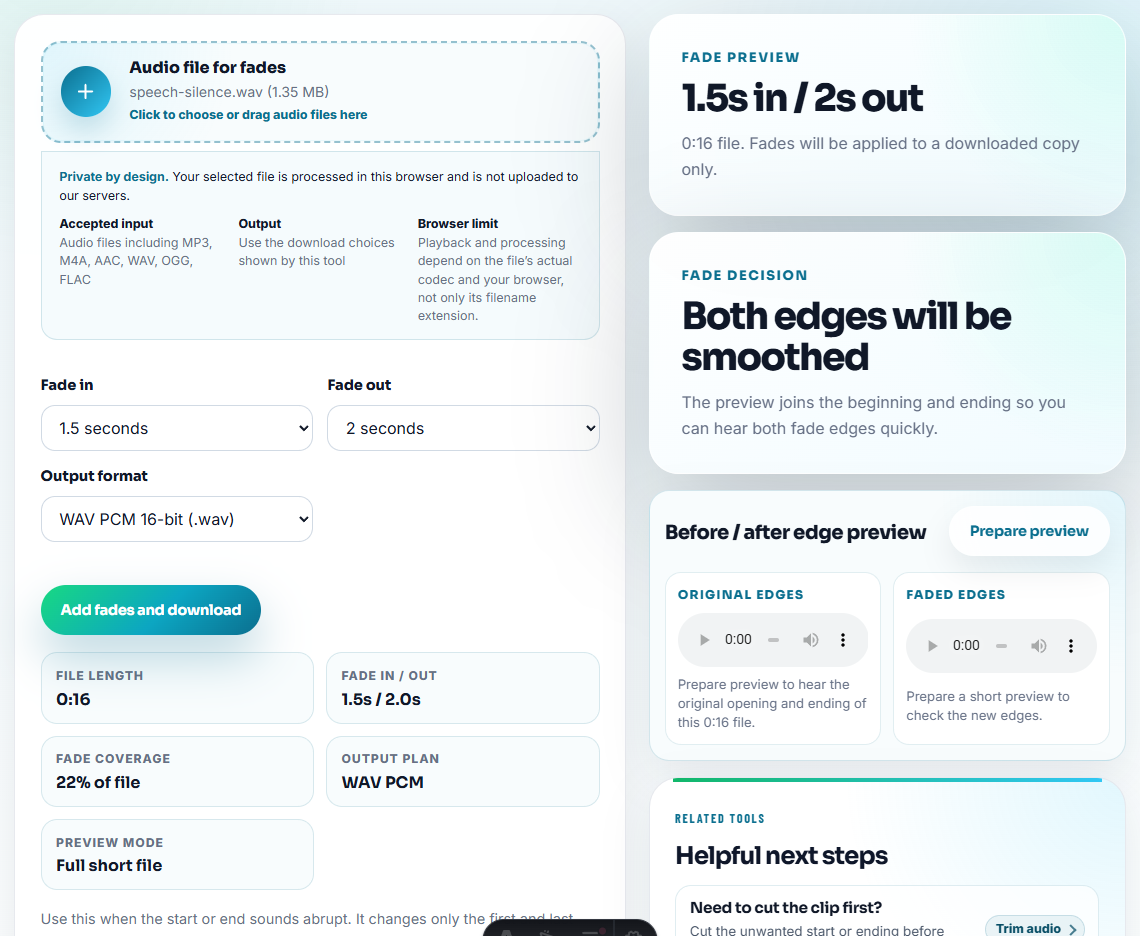
For background music under speech, short fades are usually enough.
Step 4: Set a Comfortable Level
Use Audio Normalizer after trimming and fades. Keep the level moderate if the music will sit behind narration, classroom audio, or presentation speech.
If the music is fighting the voice, lower the music in your editor or presentation tool instead of making the voice painfully loud.
Step 5: Extend Only the Final Copy
Use Audio Merger when you need a longer background bed for a fixed duration. Duplicate and merge the prepared loop copy, then listen through the joins.
Do not merge a rough loop many times. Fix the short loop first.
Test the Loop Like the Listener Will Hear It
A loop can sound fine once and still become annoying after five repeats. Test the copy in the same role it will have in the project.
| Test situation | What to listen for | Fix before export |
|---|---|---|
| Under voiceover | Music hides words or consonants | Lower the music or choose a simpler section. |
| Waiting music | The restart point becomes obvious | Move the cut or make a longer loop bed. |
| Sleep or focus audio | A click or level jump breaks attention | Add a gentler fade or choose a softer section. |
| Presentation playback | The cue starts late after clicking | Trim lead-in silence. |
| Website or app demo | File loops too often because it is too short | Use a slightly longer repeatable section. |
Step 6: Export a Playback Copy
Use Online Audio Format Converter only when the target app or device needs a different format. Keep a simple file name and test the final copy in the real playback environment.
When Browser Prep Is Enough for Background Loops
Browser prep is enough when you are testing one loop for clean seams, comfortable level, and a smaller delivery copy. Use a fuller workflow when the loop will be used in ads, paid courses, licensed media, live events, or repeated brand assets.
Related Fixes and Prep Guides
- Audio Trimmer
- smooth harsh starts and endings
- Audio Normalizer
- Audio Merger
- Stop Background Music Covering Voiceover
- Make Video Voiceover Clear Before Export
- Sort Songs by BPM and Key Without Guessing
- Organize Practice Audio So Sessions Are Easier
- Prepare Event Audio That Plays Without Surprises
- Make Course Audio Clear for Each Lesson
Quick Checks Before You Finish
How do I make a background music loop from a longer track?
Work on a copy, trim one repeatable section, test the join, add short fades if needed, normalize gently, and export a playback copy in the format you need.
Should a loop always fade in and fade out?
Not always. A loop should repeat cleanly. Use fades only when the start or ending clicks, feels abrupt, or needs a deliberate entrance or exit.
What should I check before using background music in a project?
Check the loop length, volume, format, file size, and whether you have permission to use the source audio in that project.