
How to Clean an Audio Folder Without Deleting Sources
 By HenrikUpdated Aug 7, 20266 min read
Plan audio folder cleanup with originals, review copies, duplicates, storage estimates, and safer labels.

Cleaning an audio folder is easy to start and hard to undo. A few fast renames, one accidental overwrite, or deleting the wrong duplicate can make the folder worse than before.
Use this cleanup plan before a larger batch of audio files is moved, renamed, compressed, or sent to someone else.
Choose the Cleanup Rule Before Moving Files
A cleanup plan should make the next step obvious without forcing risky decisions too early.
| Cleanup goal | Keep separate | First useful tool check | Safe next step |
|---|---|---|---|
| Free storage space | Originals and smaller copies | File size and duration | Archive before deleting |
| Share files with a team | Source, review, and delivery copies | Metadata and quality | Label versions clearly |
| Remove possible duplicates | Files with same duration or title | Metadata plus listening check | Mark as possible duplicate |
| Build a clean archive | Raw recordings and edited copies | Format, date, and notes | Preserve source names in a log |
| Share a lighter folder | Final copies only | Size and playback check | Compress copies, not originals |
Check the Folder Before Renaming Files
| Pass | Tool to open | Check to make |
|---|---|---|
| 1 | Audio Metadata Viewer | Inventory duration, format, size, channels, and existing labels. |
| 2 | Audio File Size Calculator | Estimate space for originals, working copies, and final folders. |
| 3 | Recording Quality Checker | Mark risky files before deciding where they belong. |
| 4 | Audio Compressor | Create smaller secondary review copies when the source is preserved. |
| 5 | Audio Metadata Editor | Add confirmed project, source, version, or review notes. |
The plan should tell you what to do next without forcing every decision immediately.
Step 1: Define the Cleanup Goal
Write one sentence before touching the files.
Examples:
Make this folder understandable before sending review copies.
Separate source recordings from edited exports.
Find possible duplicates without deleting originals yet.
Prepare a final folder for website audio files.
This prevents scope creep. If the goal is only to organize, do not start doing audio repair at the same time.
Step 2: Create a Folder Map
Use a simple cleanup map:
00-originals-do-not-edit
01-working-review
02-possible-duplicates
03-needs-audio-fix
04-final-labeled
05-small-sharing-copies
Keep 00-originals-do-not-edit separate. If you later make smaller files, they should live in 05-small-sharing-copies, not replace the original.
Step 3: Inventory Before Moving
Use Audio Metadata Viewer on representative files from each current folder.
Capture:
- Format.
- Duration.
- File size.
- Channels.
- Current tags.
- Whether a file appears to be source, edited, compressed, or unknown.
If you find a folder that is already clean, leave it alone.
Step 4: Estimate Working Space
Use Audio File Size Calculator before making copies of large recordings.
Plan space for:
- Untouched originals.
- Working review copies.
- Possible duplicates.
- Final labeled copies.
- Small sharing copies.
- Backup.
If space is tight, do not solve it by compressing originals. Move the source to safer storage or make fewer temporary copies.
Mark Duplicates Before You Delete Anything
Duplicate-looking audio is risky because two files can share a name pattern but contain different takes, endings, metadata, or quality levels.
| Duplicate clue | Why it is not enough | Safer check |
|---|---|---|
| Same filename | One may be a later replacement or exported copy | Compare folder path, date, and duration. |
| Same duration | Content can still differ by level or edit | Listen to the same timestamp in both files. |
| Same waveform shape | One may be compressed or missing metadata | Check format, size, and tags. |
| Smaller copy exists | It may only be for sharing | Keep the larger source until the role is clear. |
| Old copy is unused | It may be the only backup before a bad edit | Move to archive before deletion. |
Step 5: Mark Risky Files
Use Recording Quality Checker before moving files into a final folder.
Mark files as:
ok-to-label
needs-listening-review
silent-check-needed
clipped-check-needed
possible-incomplete
This prevents polished folder names from hiding broken audio.
Step 6: Decide Where Smaller Copies Belong
Use Audio Compressor only for secondary copies when size is a real problem.
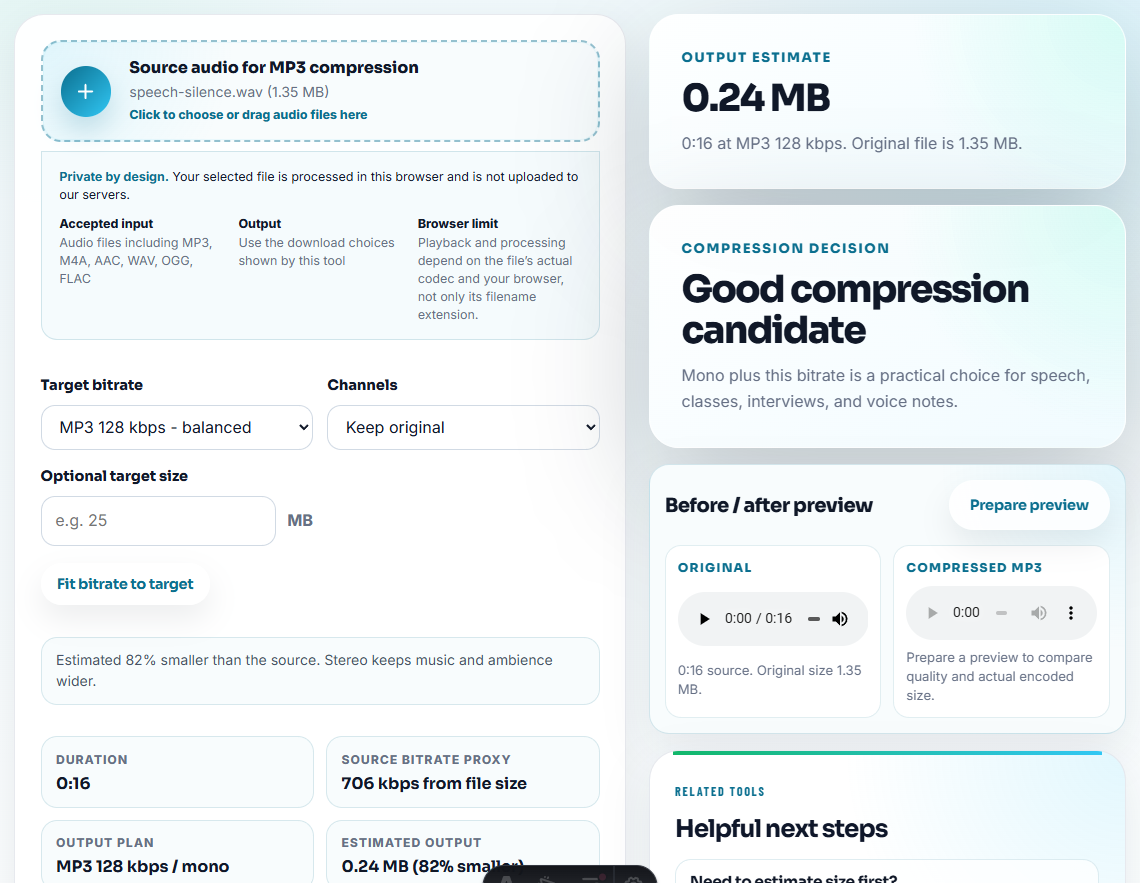
Good use cases:
- Email review copy.
- Cloud folder sample.
- Website preview.
- Phone listening copy.
Bad use case:
- Replacing the only source recording.
Step 7: Apply Labels After the Plan Is Stable
Use Audio Metadata Editor when you have confirmed the role of a file.
Useful cleanup labels:
- Source original.
- Working copy.
- Final review.
- Small sharing copy.
- Possible duplicate.
- Needs repair.
Do not write final metadata on uncertain files. Use notes such as needs-review until the decision is made.
Cleanup Rules That Protect Source Files
- Do not begin by deleting files.
- Do not compress the only source copy to save space.
- Do not merge old folders without a review bucket.
- Do not rename many files without keeping the original filename clue.
- Do not hide broken files inside a final folder.
- Do not treat cleanup, backup, and audio repair as one task.
Use Browser Tools for a First Cleanup Plan
For a folder cleanup plan, browser tools help you inspect examples before moving or deleting files. Start with labels, duplicates, and broken playback, keep a backup list, and do not clean production folders until the owner approves the plan.
Use specialist software when your cleanup needs automatic duplicate matching, checksums, access control, legal retention, or many contributors changing the same archive.
Useful Follow-Up Steps
- Audio Metadata Viewer
- Audio File Size Calculator
- Recording Quality Checker
- Audio Compressor
- Audio Metadata Editor
- Choose the Right Audio Copy Before You Edit
- Find What Is Worth Keeping in a Messy Audio Folder
- Identify Unknown Audio Files Before Sorting
- Build an Audio Backup Folder You Can Trust
- Keep Audio Versions Clear Before Final Approval
Quick Checks Before You Finish
What should an audio folder cleanup plan include?
Include untouched originals, working copies, files to review, possible duplicates, final folders, storage needs, and notes about what should not be changed.
Should I delete duplicates during cleanup planning?
No. Mark possible duplicates first, compare them, and keep the better source until you are sure another copy is safe.
What should I check before planning audio cleanup?
Decide what to keep, archive, rename, or delete only after you know which files are originals, which are review copies, and which are no longer trusted.