
How to Build an Audio Backup Folder You Can Restore
 By HenrikUpdated Aug 7, 20267 min read
Prepare an audio backup folder with source protection, playback checks, size planning, and clear copy roles.
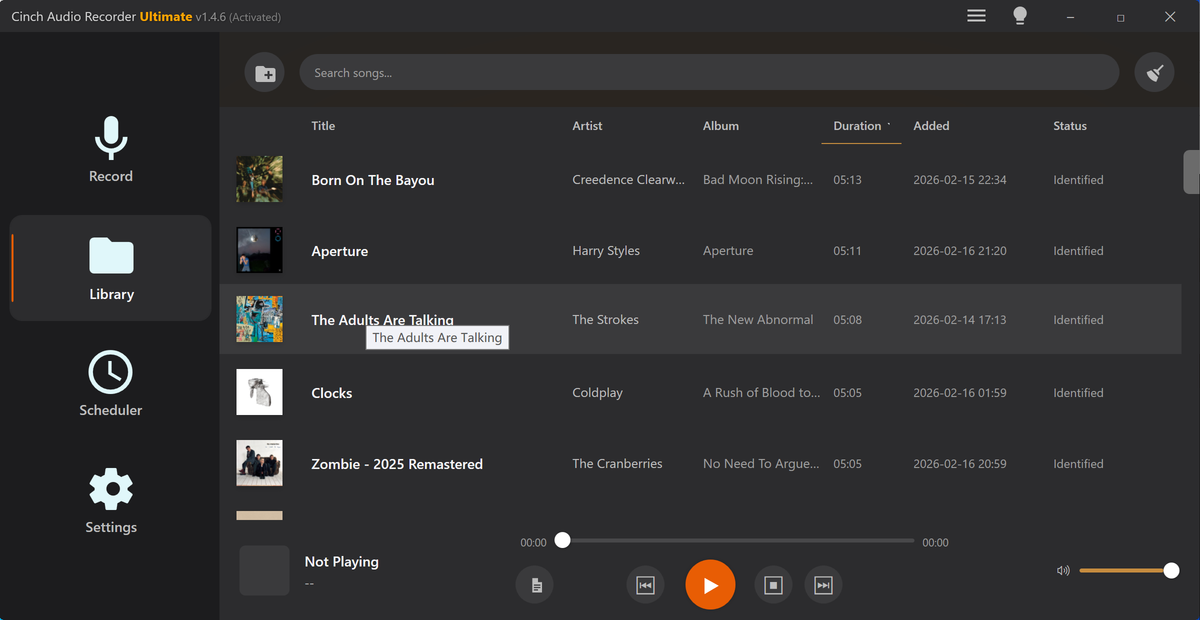
A backup folder is not just a place to dump audio. If the files are hard to identify, mixed with temporary exports, or missing the original source, the backup may not help when you actually need it.
A useful backup folder is boring in the best way: originals stay intact, review copies are labeled, and future you can tell which file is safe to restore.
Start With the File You Would Restore
| Pass | Tool to open | Check to make |
|---|---|---|
| 1 | Audio Metadata Viewer | Check file type, duration, size, channels, and existing tags before sorting. |
| 2 | Audio File Size Calculator | Estimate backup space before copying a large folder. |
| 3 | Recording Quality Checker | Confirm important files are not silent, clipped, or incomplete. |
| 4 | Audio Metadata Editor | Add title, date, speaker, project, or archive notes. |
| 5 | Online Audio Format Converter | Create compatible listening copies when needed. |
| 6 | Audio Compressor | Create smaller secondary copies, not replacement originals. |
The backup should preserve truth first. Convenience copies come second.
Do Not Back Up Confusion
A backup is only useful when someone can tell which file should be restored. Before copying a folder, remove or label uncertainty instead of preserving a mess forever.
| Confusing item | Backup risk | Safer label or action |
|---|---|---|
final-final-new.mp3 | Nobody knows whether it is approved | Rename a copy with status and date. |
| Tiny compressed copy beside source | Someone may restore the low-quality file | Put it in sharing-copies. |
| Failed export | It may be mistaken for a real backup | Move to review-before-delete. |
| Missing source note | Future restore may use the wrong version | Add a short restore note. |
| Unchecked important file | Backup may preserve silence or cutoff | Spot-check playback before trusting it. |
Step 1: Create a Simple Folder Structure
Start with a structure you can understand six months later:
Audio-Backup
01-originals
02-cleaned-listening-copies
03-sharing-copies
04-notes-and-waveforms
If the project is important, add date or topic folders:
2026-07-family-interviews
2026-07-webinar-recordings
2026-07-radio-captures
Do not bury everything in one giant folder.
Step 2: Inspect Before Sorting
Use Audio Metadata Viewer on representative files.
Check:
- Format.
- Duration.
- File size.
- Channels.
- Existing tags.
- Whether the file is source, edited, or compressed.
This prevents a common mistake: backing up only the smallest file because it looks convenient, then discovering later that it was a low-quality sharing copy.
Step 3: Estimate the Space Needed
Use Audio File Size Calculator when the folder is large or the drive is close to full.
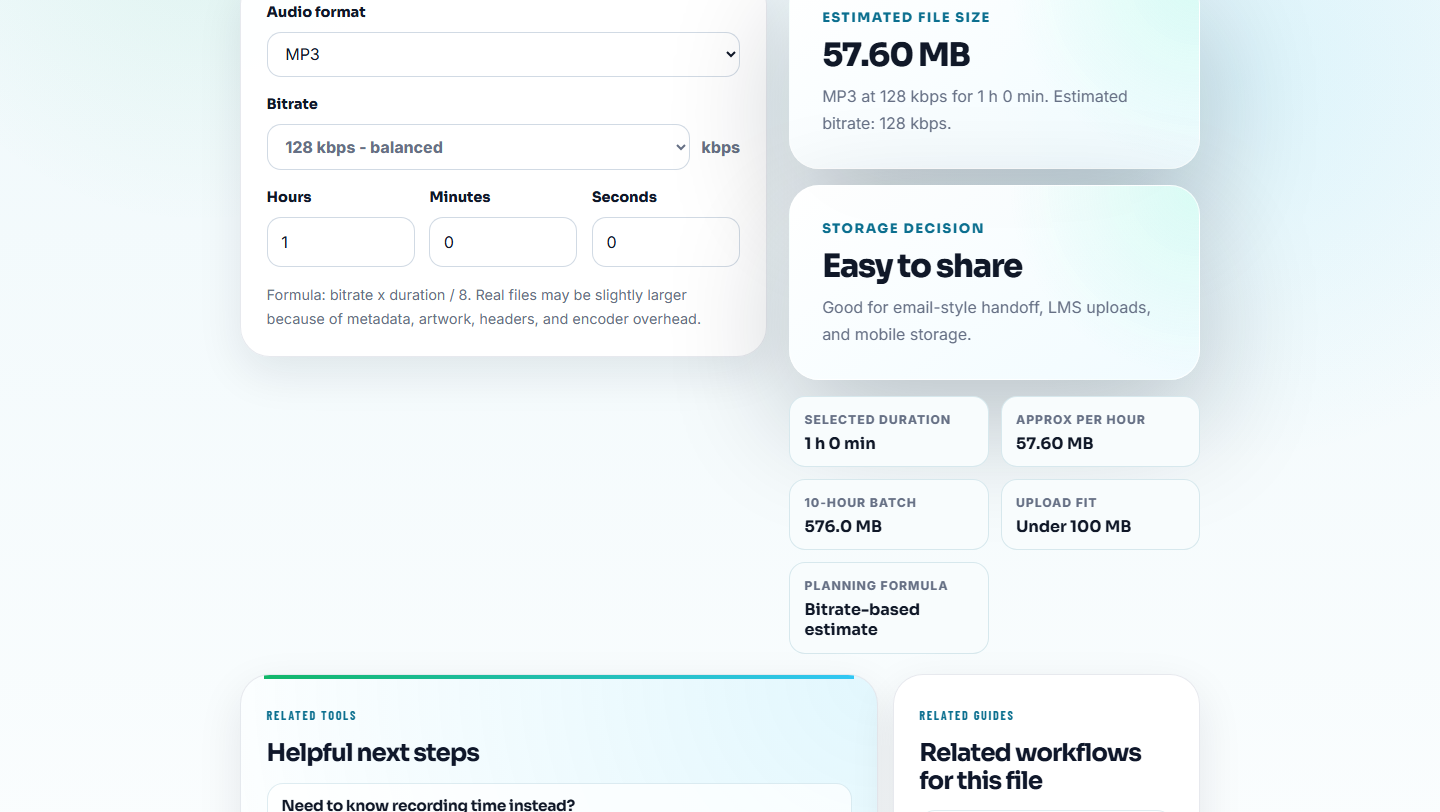
Leave room for:
- Original files.
- Cleaned copies.
- Future exports.
- Notes.
- A second backup location.
If you are backing up long recordings, avoid planning to the exact available megabyte. Keep extra space.
Add Backup Health Checks
A backup folder is only useful if files can be found and restored. Add a lightweight health check for important collections.
| Check | What to confirm | How often |
|---|---|---|
| Source present | The original or trusted source exists | After major recording or cleanup work |
| Role labels | Source, listening, sharing, retired, and review copies are separated | During each backup pass |
| Playback spot check | Important files are not silent, clipped, or incomplete | Before relying on a new backup |
| Restore path | Someone can identify which file to restore | After file replacement or migration |
| Second location | Critical source files are not stored in only one place | For high-value recordings |
This is not a formal disaster-recovery system. It is a practical way to avoid discovering a bad backup when you need it most.
Step 4: Check Important Files
Use Recording Quality Checker on files that matter most.
Look for:
- Silent recordings.
- Unexpectedly short files.
- Heavy clipping.
- Very low level.
- Long blank sections.
Do this before assuming a folder is safely archived. A copied silent file is still a silent file.
Step 5: Add Labels That Survive Moving
Use Audio Metadata Editor when the file will be opened outside your folder structure.
Useful labels:
- Title.
- Speaker.
- Date.
- Project.
- Source.
- Notes such as original, cleaned, review, or compressed.
Also keep filenames clear. Metadata helps, but filenames are what you see during backup recovery.
Step 6: Make Listening Copies Separately
Use Online Audio Format Converter or Audio Compressor only for secondary copies.
Good backup labels:
interview-source-original.wav
interview-cleaned-listening.mp3
interview-small-share.mp3
Do not replace a high-quality source file just because a smaller copy is easier to move.
Assign a Backup Role Before Copying
A backup folder gets messy when every export is treated the same. Decide the role of each file before it enters the backup.
| File type | Backup role | Keep? | Label example |
|---|---|---|---|
| Original recording or capture | Recovery source | Yes | source-original |
| Cleaned listening copy | Convenience copy | Yes, if useful | listening-copy |
| Small email or chat copy | Delivery copy | Maybe | small-share-copy |
| Failed export or unclear duplicate | Review item | Temporarily | review-before-delete |
This makes restore decisions easier later because the folder says which file is truth and which file is convenience.
Backup Folder Note Template
collection:
source folder:
listening copies:
sharing copies:
retired files:
last playback spot check:
space estimate:
restore priority:
second backup:
owner:
next review:
Keep this note inside the backup folder so recovery does not depend on a separate chat or memory.
Backup Checks Before You Trust the Folder
- Do not use one folder for originals, drafts, finals, and temporary exports.
- Do not compress your only source file.
- Do not trust a backup folder without checking playback on important files.
- Do not use vague names such as
audio1.mp3. - Do not rely only on a media player library; keep files understandable in folders.
- Do not keep dozens of copies if their purpose is unclear.
Use Browser Tools for Small Backup Reviews
Browser prep is enough when you are checking a small backup folder and deciding which files are originals, review copies, or sharing copies. Use a formal backup process when the archive needs schedules, checksums, permissions, retention rules, or team access.
Use dedicated backup or asset-management software when you need automatic schedules, checksums, permission control, retention rules, or large team archives.
Tools That Pair With This Task
- Audio Metadata Viewer
- Audio File Size Calculator
- Recording Quality Checker
- Audio Metadata Editor
- Check Storage Before a Long Recording Starts
- Restore the Right Audio Backup Safely
- Keep Useful Audio and Retire Unclear Files
- Save Family Voice Recordings Without Losing Context
Checks Worth Making First
What should an audio backup folder include?
Keep source originals, cleaned listening copies when needed, notes about format and purpose, simple filenames, and enough space for future exports.
Should I compress audio before backing it up?
Do not compress the only source copy. Compress separate listening or sharing copies when size matters.
What should I check before preparing audio for backup?
Separate originals from delivery copies, confirm the backup opens, keep file names readable, and leave enough context for someone else to restore the right audio later.