
Metadata Not Found? Fix Titles and Cover Art
 By HenrikUpdated Aug 16, 20266 min read
Fix missing song metadata by checking the recording first, improving the sample, retrying identification, editing tags, and replacing cover art.
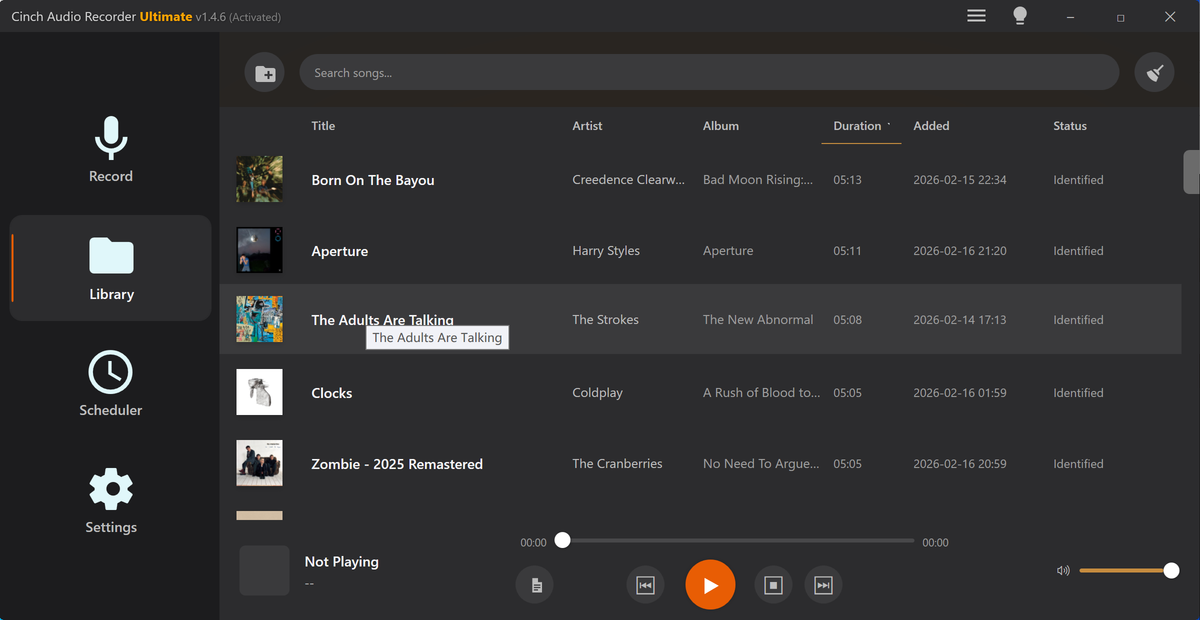
Missing metadata is frustrating, but it does not automatically mean the recording failed. A file can play perfectly while the title, artist, album, lyrics, or cover art stays blank.
Treat metadata as the second step. First verify the sound. Then fix the information.
The Short Answer
Use this order:
- Play the recording and confirm the audio is correct.
- Trim or remove accidental fragments first.
- Retry identification if the sample is clean.
- Manually edit title, artist, album, and filename when needed.
- Replace cover art only when you know the correct release.
- Reopen the file in your normal player to confirm the tags display.
Why Metadata Is Missing
Common reasons:
- The recording is too short.
- The audio has noise, talking, ads, or notification sounds.
- The track is live, remixed, obscure, or unreleased.
- The file is one long session instead of a clean track.
- The recording captured the wrong source.
- Cover art or lyrics are not available for that match.
Automatic identification is useful, but it is not guaranteed.
Do Not Treat Blank Tags as a Recording Failure
Missing metadata is a lookup problem until the audio proves otherwise. Check the sound before you spend time changing record settings or rerecording a usable file.
| What you see | What it may mean | Better next step |
|---|---|---|
| Title and artist are blank | The track was not matched | Play the file and confirm the audio first. |
| Cover art is missing | The match has no artwork or picked a weak release | Verify the title before replacing art manually. |
| First track matched, later tracks did not | Later clips may include silence, ads, or crossfades | Compare matched and unmatched intros. |
| Wrong artist appears | The fingerprint or tag source may be wrong | Remove the bad tag and label from evidence. |
| Spoken audio has no song tags | It may not need music metadata | Use date, topic, speaker, or source labels. |
When Only the First Song Gets Metadata
A common support pattern is a recording session where the first saved track gets a title or artist, but later songs stay blank or receive weak matches. That usually means the problem is not simply “ID3 is broken.” It can come from how the audio was captured, split, or identified.
Check these points before retrying every file:
- Was the session saved as one long file instead of separate songs?
- Did the first track have a clean intro while later tracks included ads, speech, silence, or crossfades?
- Were some tracks shorter than the others?
- Did notification sounds, browser sounds, or system alerts get captured between songs?
- Did the source player switch quality, volume, or output device during the session?
If the audio is one long file, split it into clean tracks first. Then identify or edit each track individually. If the tracks are already separate, compare one matched file and one unmatched file: length, noise, intro clarity, and whether the correct song starts immediately.
Check the Audio Before Tags
Before editing anything, listen to the file:
- Does it play from start to finish?
- Is it the intended song or source?
- Is there unwanted silence or a notification?
- Is it one complete track or several fragments?
If the audio is wrong, go back to capture troubleshooting. If the audio is right, continue with metadata cleanup.
Fix Missing Metadata in Cinch
In the Cinch Library:
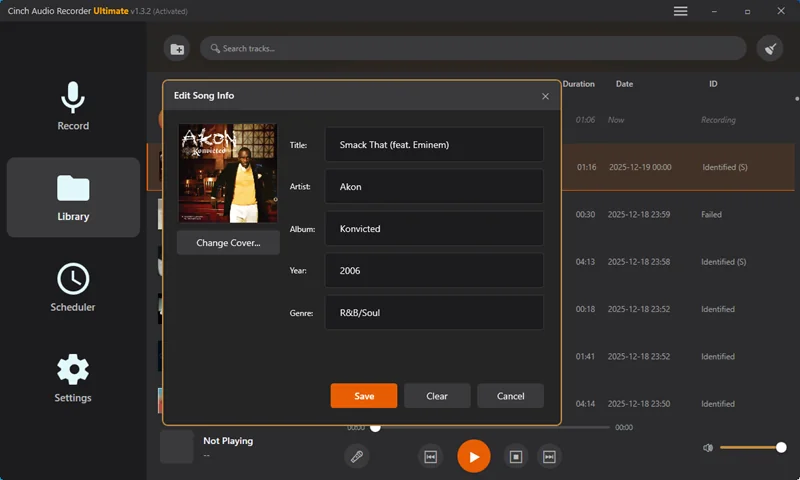
- Select the recording.
- Play it to confirm the audio.
- Retry identification if available.
- Edit title, artist, album, or filename manually when needed.
- Refresh or replace cover art if the artwork is missing or wrong.
- Save and reopen the file in your usual player.
For several files, sort them first: correct matches, partial matches, no matches, and files that should be re-recorded.
Manual Metadata Rules
Use manual editing when automatic matching is wrong or unavailable.
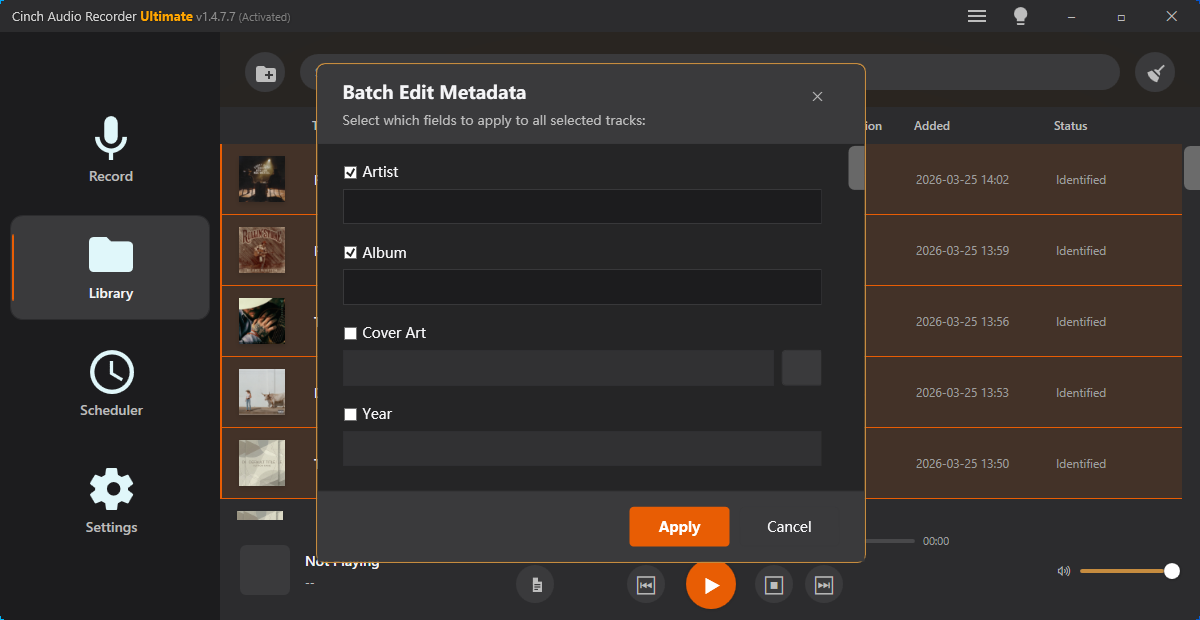
For music:
Artist - Title.extFor radio, lessons, and spoken recordings:
2026-07-28 - Source - Topic.mp3Do not force fake album names or cover art onto spoken audio. A clear filename is often more useful.
When Manual Tags Are Better Than Another Retry
Retrying identification is useful only when the audio sample is likely to match a known track. If the file is a lecture, radio segment, voice memo, webinar, private recording, live remix, or edited clip, manual labels may be the cleaner fix.
| File type | Better metadata approach | Why |
|---|---|---|
| Clean commercial song | Retry identification, then verify title and cover art | The track may exist in a matching database |
| Radio show or DJ mix | Use date, station, show name, and segment notes | One file may contain several tracks or speech sections |
| Lecture or webinar | Use topic, speaker, date, and session number | Song-style artist and album fields can confuse search later |
| Voice memo | Use person, purpose, and date only if safe | Private names should not be exposed in shared files |
| Short edited clip | Label the source and clip purpose | Identification may fail because the sample is too short |
The goal is not to fill every tag field. The goal is to make the file easy to recognize later without inventing information.
Related Troubleshooting Guides
- Record audio with metadata and cover art
- Clean up recorded audio
- No sound recorded
- Audio Metadata Editor
- Audio Metadata Viewer
- Inspect and fix verified metadata fields
Frequently Asked Questions
Why was no metadata found for my recording?
The recording may be too short, noisy, obscure, live, remixed, or not matched in the available database. The audio can still be usable.
Does missing metadata mean the recording failed?
No. First play the file. If the audio is correct, missing metadata is a cleanup problem, not necessarily a capture problem.
Should I identify before trimming?
Verify and trim the usable audio first, then retry identification or edit tags manually.
How do I fix missing cover art?
Retry identification if the track is correct, then replace artwork manually if the match is missing or wrong.