
How to Fix Missing Audio Titles Without Guessing
 By HenrikUpdated Aug 7, 20267 min read
Inspect tags, fix verified fields, add cover art, and avoid labeling the wrong audio copy.
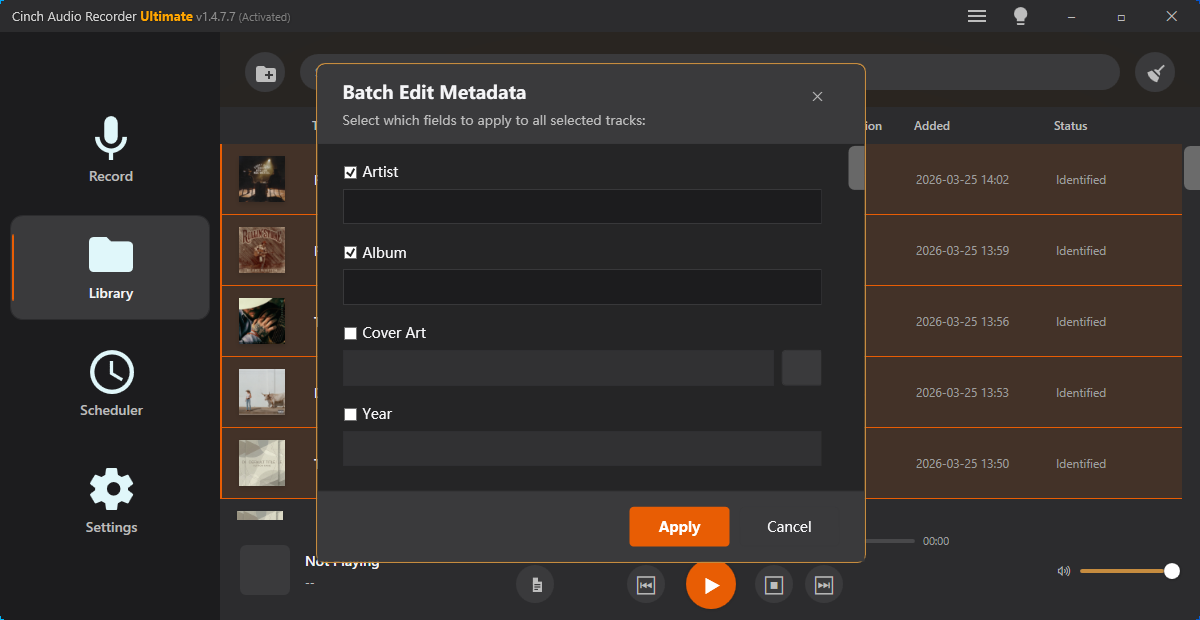
Missing metadata is not the same as a bad recording. A file can sound correct while the title, artist, album, cover art, lyrics, or player display stays blank.
Do not edit tags by guessing. Inspect the file first, make changes on a copy, and keep the original until the corrected version opens correctly in your normal player.
Use the Tools in This Order
Use this order:
| Step | What to use | What it answers |
|---|---|---|
| 1 | Audio Metadata Viewer | What tags and artwork are already inside the file? |
| 2 | Recording Quality Checker | Is the audio long and clean enough to trust? |
| 3 | Audio Trimmer | Should bad starts, endings, ads, or fragments be removed first? |
| 4 | Audio Metadata Editor | Which verified fields should be written into the final file? |
| 5 | fix garbled song names on a car USB drive | Do MP3 tags need a car-friendly copy for older dashboards? |
Metadata cleanup should happen after you know the file is the keeper copy.
Step 1: Inspect Before Editing
Open the file in the Audio Metadata Viewer. Do not start by rewriting fields blindly.
Look for:
- Existing title and artist.
- Album, year, genre, and track number.
- Embedded cover art.
- Duration and bitrate.
- File type and MIME details.
- Whether the tags match the audio you hear.
If the viewer shows old or wrong information, your media player may be displaying tags from the file rather than the filename. If the viewer shows no tags, the filename may be the only useful label.
Step 2: Confirm the Audio Is Worth Tagging
Before editing metadata, play the recording and check the file quality. If it is the wrong song, a silent capture, or only a partial recording, fixing the title will not solve the real problem.
Use the Recording Quality Checker when you need quick evidence:
- Does the duration look right?
- Are there long silent sections?
- Is the file clipped or very quiet?
- Does the file appear to have the expected channel layout?
If the recording is one long file, use the audio chapter splitter before adding track-level metadata.
Step 3: Trim or Split Before Tagging
Metadata belongs to the final file, not the messy draft.
Use the Audio Trimmer when:
- The file has a false start.
- The first seconds contain setup noise.
- The end contains extra silence.
- A single excerpt should become the final copy.
Use the Audio Chapter Splitter when one long recording needs separate named sections.
Do not add cover art or track numbers to a file you already know you will cut into smaller pieces.
Step 4: Edit Only Verified Fields
Open the final file in the Audio Metadata Editor and change only the fields you can verify.
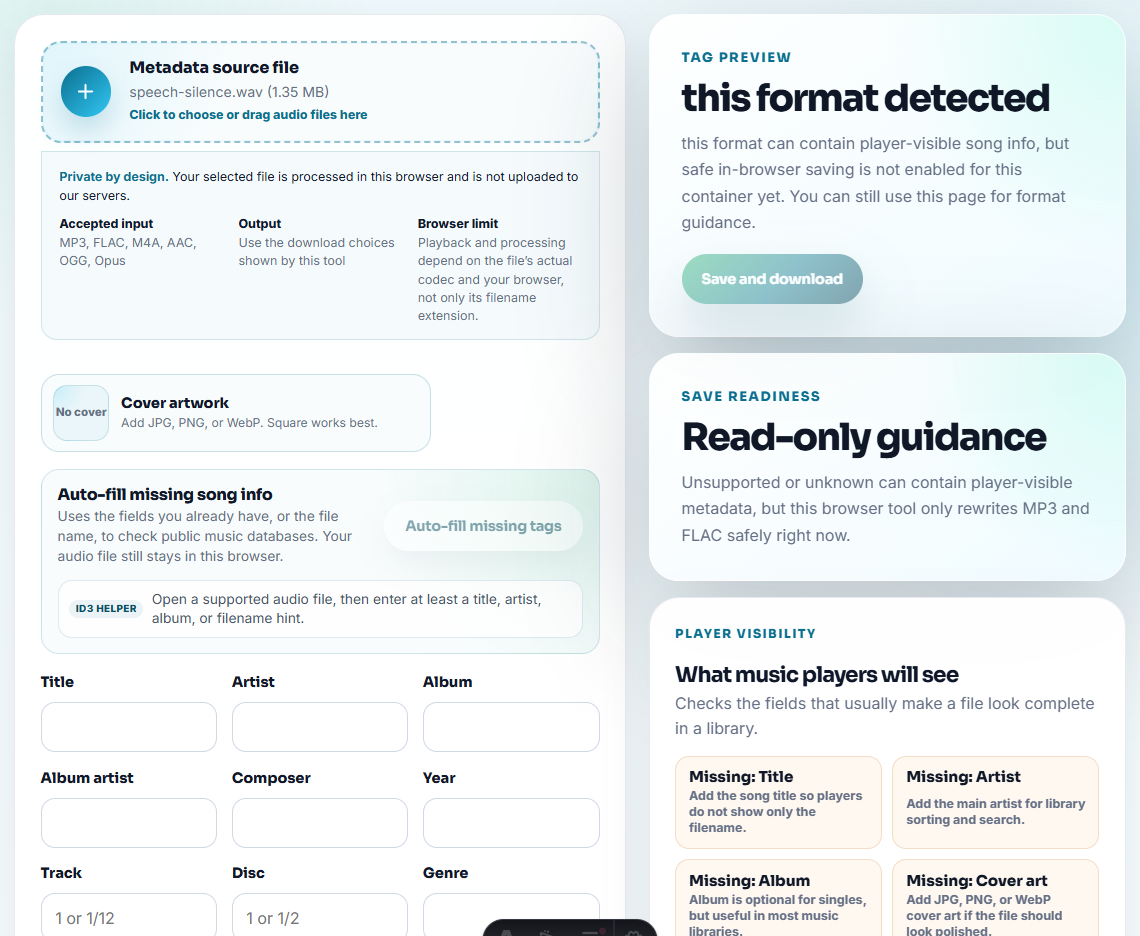
For music:
- Title.
- Artist.
- Album.
- Track number.
- Cover art.
- Lyrics or comments when useful.
For spoken audio:
- Title or topic.
- Speaker or source.
- Date.
- Notes in the comment field.
Do not invent an album name for a lecture, webinar, or support recording just to fill a blank field. A clear filename plus a simple title is often better.
Step 5: Check the File in the Real Player
After saving metadata, reopen the file in the player or device where it will be used. A browser editor can write the file correctly while a specific player still caches old information or ignores certain fields.
Check:
- The title is readable.
- The artist or source is correct.
- The cover art appears where expected.
- The filename still makes sense outside the media player.
- The audio still plays normally.
If the file is for a car USB drive and names show as boxes, question marks, or scrambled characters, use the fix garbled song names on a car USB drive on MP3 copies.
When Metadata Is Missing for Only Some Songs
This is common after long recording sessions. One track may be clean enough to identify while the next includes speech, silence, ads, crossfades, or a short fragment.
Compare one matched file with one unmatched file:
- Is the unmatched file shorter?
- Does the actual song start immediately?
- Is there talking or noise before the music?
- Was the file split at a clean boundary?
- Is it a live version, remix, or obscure source?
If the audio is correct, manually edit the fields you know. If the audio is not a clean track, fix the split or trim first.
Decide Whether the Problem Is Tags or the File
Metadata symptoms can look similar even when the cause is different. Check the cause before rewriting tags.
| Symptom | Likely cause | Better fix | Do not do this |
|---|---|---|---|
| Player shows filename instead of title | No embedded title tag | Add a verified title to the final copy | Guess artist or album fields. |
| Player shows an old wrong title | Existing tag overrides the filename | Inspect and replace the wrong tag | Rename only the file and assume it is fixed. |
| Car dashboard shows scrambled text | Encoding or tag compatibility issue | Make a car-safe MP3 copy | Rewrite the only archive copy. |
| Album art belongs to another file | Artwork was copied from a different source | Remove or replace artwork only when verified | Keep decorative but wrong art. |
| Track title is unknown after capture | Audio boundary or recognition confidence is weak | Listen, trim, split, then add known fields manually | Publish polished fake metadata. |
The useful result is not a fully filled form. It is a file whose labels can be trusted later.
Decide Which Fields Are Safe to Edit
Metadata quality depends on confidence. It is better to leave a field blank than publish a polished but wrong title, artist, or source note.
| Field | Edit when… | Leave blank or review when… | Safer fallback |
|---|---|---|---|
| Title | The file content is confirmed by listening | The filename and audio do not match | Use a descriptive filename. |
| Artist or speaker | The source is known | The voice or recording source is uncertain | Use “Unknown speaker” only in private notes. |
| Album or project | It belongs to a real collection | It is a one-off support or lesson file | Use topic/date instead. |
| Cover art | The image belongs to this audio | The art came from another file or page | Skip artwork until verified. |
This is especially important for captured music folders where missing track names can tempt people to guess.
Related Fixes and Prep Guides
- Audio Metadata Viewer
- Audio Metadata Editor
- Audio Trimmer
- Audio Chapter Splitter
- Metadata not found
- Record audio with metadata and cover art
- Add cover art to audio
- Fix Garbled Song Names on a Car USB Drive
- Inspect Tags and File Details Before Sorting
- Edit Confirmed Song Information and Artwork
- Organize Recorded Music After Capture
Quick Checks Before You Finish
What should I check before editing audio metadata?
Play the file first, confirm it is the right audio, inspect existing tags with a metadata viewer, then edit only fields you can verify.
Why do some songs have metadata and others do not?
Some recordings are too short, noisy, live, remixed, split badly, or saved as one long file. The audio may be fine even when automatic metadata is missing.
Can a free metadata editor fix every audio format?
No. Browser-safe metadata writing depends on the format and file structure. Keep an original copy and check the tool’s supported formats before batch editing.