
How to Add Cover Art to Audio Files After Recording
 By HenrikUpdated Aug 7, 20266 min read
Add cover art to recorded audio safely by checking the file first, choosing artwork, editing MP3 or FLAC tags, and saving a new copy.
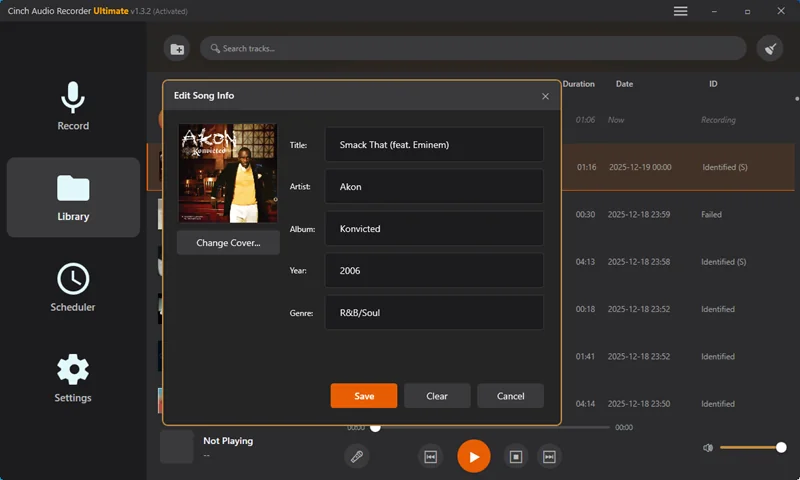
Cover art makes a recorded audio file easier to recognize, but it should be one of the last steps in the cleanup process. First make sure the audio is correct. Then fix the title, artist, filename, and artwork together.
This guide focuses on practical cover art cleanup after recording: what to check first, which formats are safer to edit in the browser, and when the desktop recorder workflow is a better fit.
The Short Answer
Use this order:
- Play the recording.
- Confirm it is the right audio.
- Trim, split, merge, or re-record if needed.
- Check the title, artist, album, and filename.
- Add a square JPG, PNG, or WebP cover image.
- Save a new tagged copy instead of overwriting the original.
- Open the saved copy in your normal player and confirm the artwork appears.
Do not add artwork to a file that has not been checked. A polished cover can make a bad or wrong recording look finished.
When Cover Art Is Worth Adding
Cover art is useful when the file will live in a library, music player, phone, car system, or long-term archive.
Add artwork when:
- The recording is a song, album track, radio segment, mix, or saved music file.
- The title and artist are already correct.
- The file will be kept longer than a quick test.
- You want the file to look complete in a player.
- You are preparing a cleaned copy after trimming or metadata review.
Skip artwork when:
- The file is only a short diagnostic sample.
- The recording is silent, clipped, incomplete, or wrong.
- The file is a temporary raw copy.
- You do not know which artwork belongs to the recording.
For lectures, webinars, and voice notes, a clear filename may matter more than cover art. The audio file naming guide covers those cases.
What the Cinch Metadata Editor Can Save
The Audio Metadata Editor opens MP3, FLAC, M4A, AAC, OGG, and OPUS files so you can inspect player-visible fields.
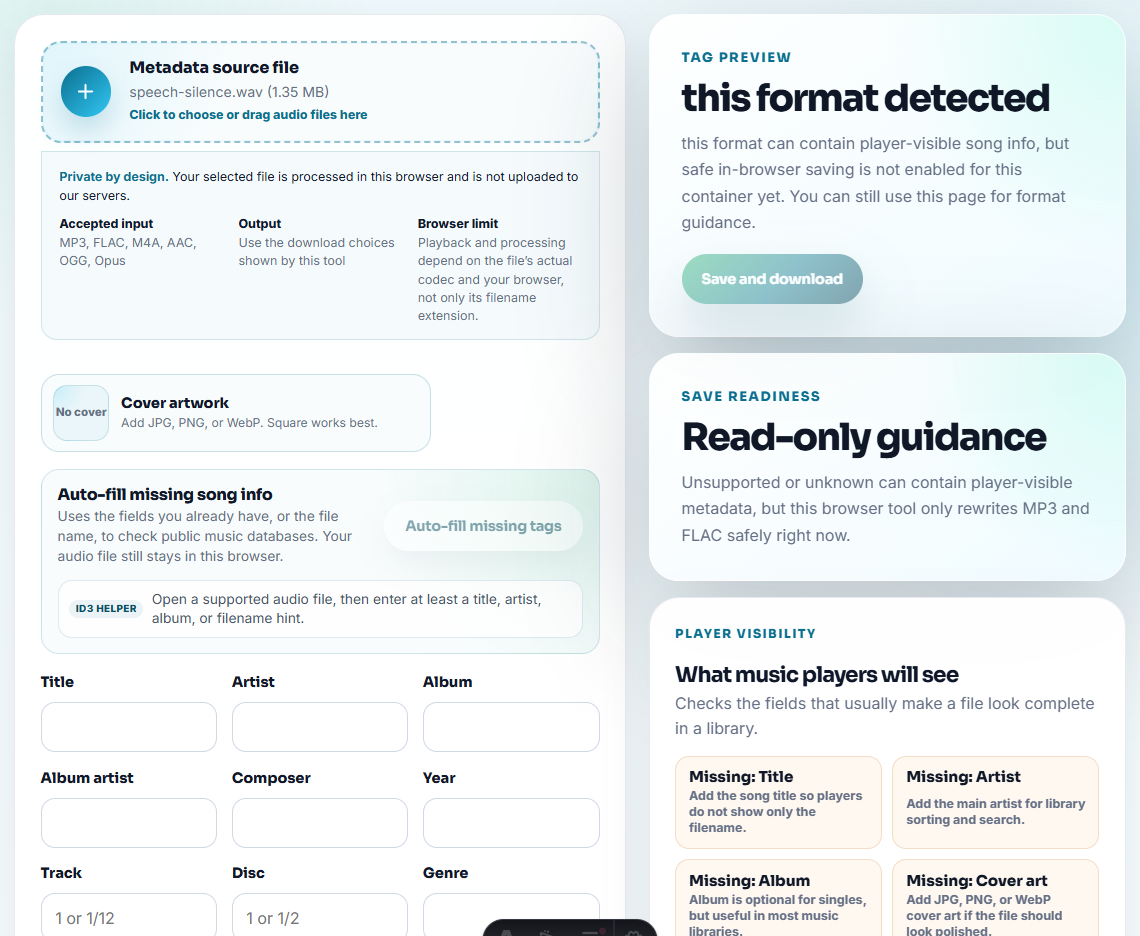
For saving in the browser, keep the current boundary clear:
| Format | Browser Tool Behavior | Practical Use |
|---|---|---|
| MP3 | Can save a new tagged MP3 copy | Good for common listening files |
| FLAC | Can save a new tagged FLAC copy when parsed safely | Good for lossless library copies |
| M4A / AAC | Guidance only in this browser tool | Use for inspection, then edit elsewhere if needed |
| OGG / OPUS | Guidance only in this browser tool | Use for inspection, then edit elsewhere if needed |
The tool avoids rewriting containers it cannot handle safely. That is intentional: a no-save warning is better than a corrupted audio file.
Step-by-Step: Add Cover Art to MP3 or FLAC
For a finished local file, start with this order:
- Open the Audio Metadata Editor.
- Choose the audio file.
- Confirm the editor detects MP3 or FLAC if you need browser-safe saving.
- Review title, artist, album, and other fields.
- Click the cover artwork picker.
- Choose a JPG, PNG, or WebP image.
- Check the preview.
- Click Save and download.
- Open the new tagged copy in your usual player.
- Keep the original until the new copy plays correctly.
The editor downloads a new tagged file and leaves the original unchanged. That is safer than editing directly over the only copy you have.
Choose Artwork That Matches the File
Use artwork that actually belongs to the recording. Similar-looking artwork can create confusion later, especially with remixes, live versions, radio cuts, covers, and compilation tracks.
Good artwork habits:
- Use a square image when possible.
- Avoid tiny blurry thumbnails.
- Avoid artwork from the wrong release.
- Use simple, recognizable images for spoken audio.
- Keep one final copy after confirming the player displays it correctly.
If the source is a radio show, course, or voice note, you can use a simple topic image, but do not force album-style metadata onto files that are easier to find by date and topic.
Fix Audio Before Artwork
Artwork should not come before cleanup.
Check these first:
- Does the file play from start to finish?
- Is the recording silent or too quiet?
- Is the source correct?
- Are there notification sounds?
- Does it need trimming?
- Is it one long file that should be split?
- Is the filename useful?
Use the Recording Quality Checker for silence, clipping, and level checks. Use Clean up recorded audio when the file needs trimming, merging, naming, format, or archive decisions.
Use Cinch When Cover Art Is Part of Repeated Recording
If you are recording music repeatedly, artwork is not a one-file job. It is part of the library workflow.
With Cinch Audio Recorder:
- Record a short sample from a familiar source.
- Open the saved item in the Library.
- Check the audio first.
- Review title, artist, artwork, lyrics, and filename.
- Fix or re-identify when the match is wrong.
- Record the full session only after the sample behaves correctly.
For a one-off MP3 or FLAC correction, the browser metadata editor is enough. For repeated streaming-audio sessions, the desktop workflow is easier because capture, review, naming, and library cleanup stay together.
Common Cover Art Problems
The artwork does not appear in my player
First confirm you opened the new tagged copy, not the original. Then check whether the player supports artwork for that file format. Some apps also cache old artwork and may need the file reloaded.
The editor will not save my M4A or OPUS file
The current browser tool offers guidance for those containers but does not rewrite them. Convert or edit in a tool that safely supports the format you need, or use MP3/FLAC when the browser-safe workflow is enough.
Automatic artwork is wrong
Do not keep wrong cover art just because it appeared automatically. Live versions, covers, remixes, and obscure recordings can match the wrong release. Replace it manually or leave the cover blank.
The file has artwork but the filename is still useless
Fix both. A file with good cover art and a name like track01.mp3 is still hard to manage outside a music player.
Related Guides and Tools
- Audio Metadata Editor
- Record audio with metadata and cover art
- Organize recorded music after capture
- Audio file naming guide
- Clean up recorded audio
- Audio Metadata Viewer
Frequently Asked Questions
Can I add cover art to a recorded audio file?
Yes, when the file format supports embedded artwork and the editor can rewrite that container safely. The Cinch metadata editor can save tagged MP3 and FLAC copies in the browser.
Should I add cover art before or after trimming audio?
Add cover art after confirming the recording is correct. Trim, split, merge, or re-record first so you do not polish a file that still needs audio cleanup.
What image should I use for audio cover art?
Use a clear JPG, PNG, or WebP image that actually belongs to the file. Square artwork works best for most music players.