
How to Organize Practice Audio After Each Session
 By HenrikUpdated Aug 7, 20266 min read
Organize music practice files with BPM/key notes, section clips, speed copies, labels, and source safety.
Practice files get messy fast. One folder can contain full songs, short loops, backing tracks, slowed sections, live recordings, and unnamed exports. If you cannot find the right file quickly, practice time turns into file management.
The goal is a cleaner practice library, not a fake-perfect analysis. Browser estimates can guide sorting, but your ears and final labels still matter.
Separate Source, Review, and Final Copies
| Task | Tool | Result to verify |
|---|---|---|
| 1 | Audio Metadata Viewer | Check existing title, artist, duration, format, and file details. |
| 2 | BPM Finder | Estimate tempo for practice grouping, playlists, or reference notes. |
| 3 | Audio Key Finder | Estimate likely musical key when harmonic content is clear enough. |
| 4 | Audio Trimmer | Cut a chorus, riff, solo, backing section, or difficult passage. |
| 5 | Audio Speed Changer | Make a slower or faster practice copy while preserving pitch. |
| 6 | Audio Waveform Generator | Create a visual reference for starts, stops, and sections. |
| 7 | Audio Metadata Editor | Add useful tags after the final practice file is ready. |
Think of these tools as a note-taking system for audio, not as final music analysis authority.
Step 1: Inspect the File
Start with the Audio Metadata Viewer. See what the file already says before adding more labels.
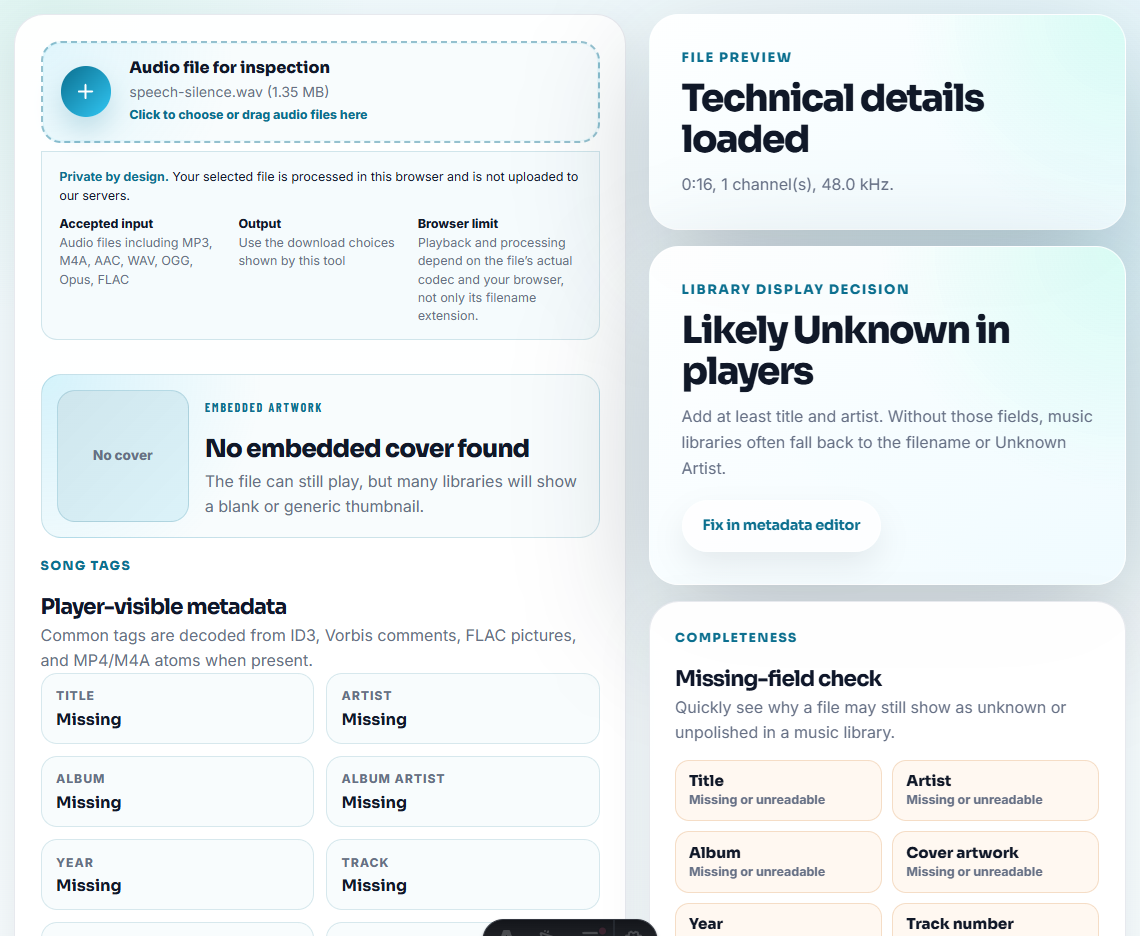
Check:
- Title and artist.
- Duration.
- Format.
- Existing artwork.
- Bitrate and file size.
- Whether the filename already carries useful information.
If the file is an unnamed recording, use a working filename before doing any edits. A clear filename prevents confusion later.
Step 2: Estimate BPM
Use the BPM Finder on rhythmic music. The estimate can help group practice files or build a warm-up folder.
Good candidates:
- Beat-heavy songs.
- Backing tracks.
- Drum loops.
- Dance or pop tracks with steady tempo.
Less reliable candidates:
- Rubato performance.
- Classical pieces with changing tempo.
- Spoken audio.
- Noisy live recordings.
Write BPM as a note or tag, not as an unquestioned fact.
Step 3: Estimate Key When It Helps
Use the Audio Key Finder when key matters for practice, singing, guitar, piano, or backing-track organization.
Key estimates are more useful when the file has clear harmony. They are less useful for percussion-only tracks, noisy recordings, modulating songs, or dense mixes.
If you already know the key from sheet music or a teacher, trust that source over an automated estimate.
Step 4: Trim Practice Sections
Use the Audio Trimmer to make short practice clips. Do not always practice from the beginning of the full song.
Useful clips:
- Chorus only.
- Difficult riff.
- Solo section.
- Intro count-in.
- Backing loop.
- Slow practice segment.
Export copies with names that explain the purpose, such as song-name-chorus-practice.mp3.
Step 5: Create Speed Variations
Use the Audio Speed Changer after trimming. Slowing a short section is easier to manage than slowing an entire song.
Practical versions:
- Normal speed.
- Slow practice.
- Slightly faster challenge copy.
Keep pitch preserved unless you intentionally want a transposed feel. For ear training, label speed changes clearly so you know what you are hearing.
Step 6: Create a Visual Reference
Use the Audio Waveform Generator when a visual helps locate a section or compare two takes.
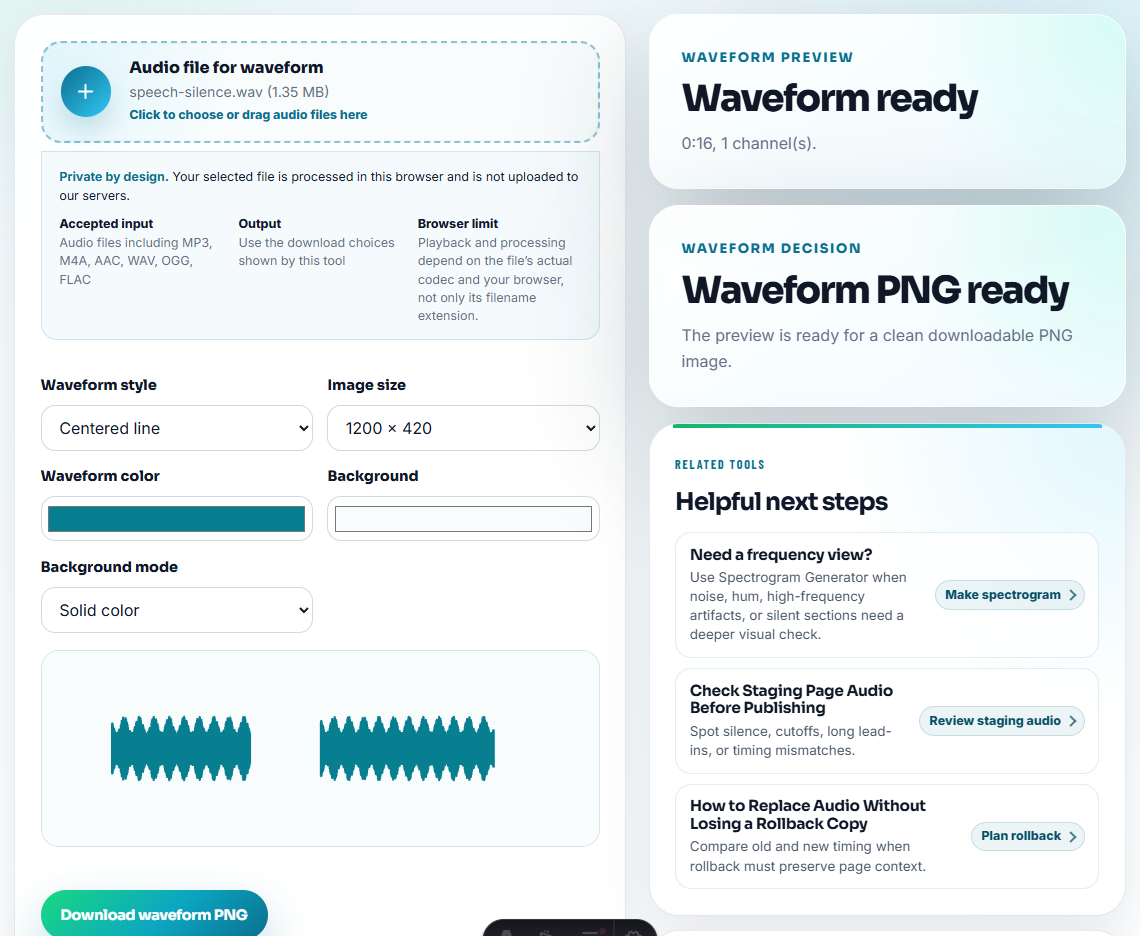
Waveforms are useful for:
- Seeing where a chorus starts.
- Comparing practice takes.
- Marking silence or count-ins.
- Creating lesson notes.
For social sharing, use the Audio Waveform Video Maker instead.
Step 7: Add Tags Last
Use the Audio Metadata Editor after the practice file is final.
Helpful practice tags:
- Song title.
- Artist or source.
- BPM estimate.
- Key estimate.
- Practice section.
- Speed version.
Avoid overwriting the original song metadata with practice notes unless the file is clearly a copy.
Separate Practice Copies From Source Music
Practice folders work best when every file has a role. A full song, slowed loop, chorus clip, and waveform reference should not all pretend to be the same track.
| File role | Keep as source? | Label to use | Review before deleting |
|---|---|---|---|
| Full song or backing track | Yes | source or full-track | Check whether speed or trim copies depend on it. |
| Difficult section loop | No, keep as copy | riff-practice, chorus-loop, or solo-section | Make sure the section starts and ends naturally. |
| Slower practice version | No, keep as copy | 80-percent-speed or slow-practice | Confirm pitch stayed useful for practice. |
| BPM/key estimate note | No audio change needed | Add to filename, tag, or folder note | Treat estimates as notes, not facts. |
This keeps practice files useful without corrupting the original music library.
When You Do Not Need a Desktop Recorder
For music practice files, browser tools are enough when you are sorting takes, checking tempo, or naming useful repetitions. Keep the rough recordings until the practice notes are done, and label files by exercise, date, and version rather than vague names like final.
- You are organizing personal practice files.
- You need estimates, clips, speed copies, visual references, or simple tags.
- Exact studio-grade analysis is not required.
Use a dedicated music workflow when:
- You need precise tempo maps.
- A song changes key or tempo.
- You need notation, stems, or DAW editing.
- You manage a large teaching or performance library.
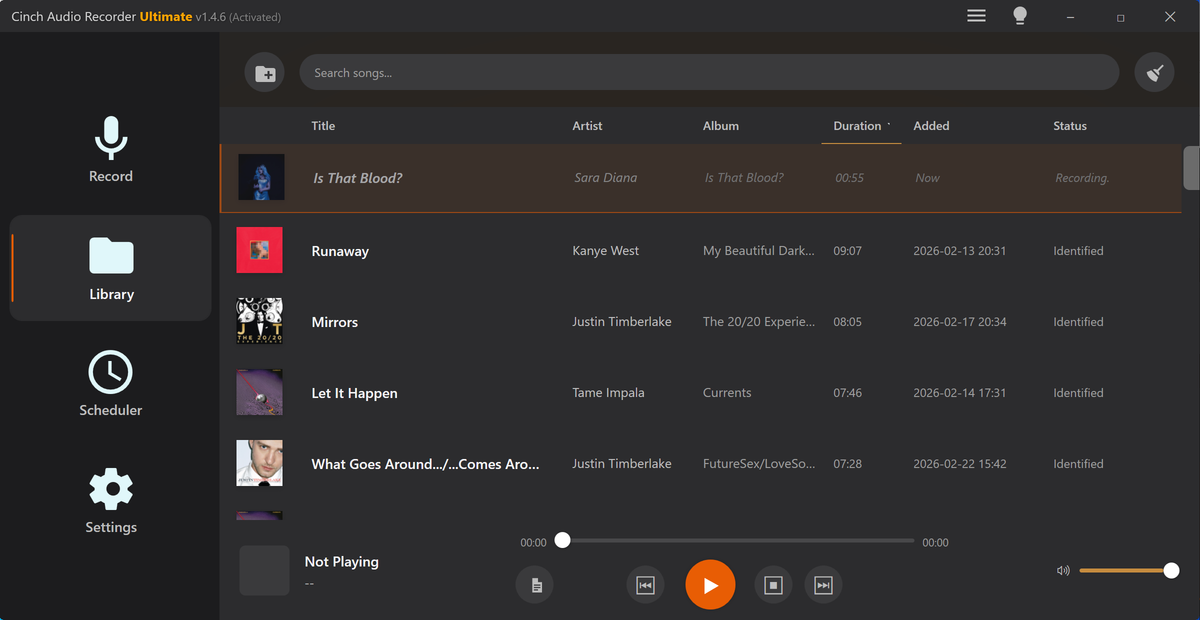
For recording songs from streaming sources into a local library, Cinch Audio Recorder helps with capture and music metadata. Use these free tools for practice-specific copies afterward.
Helpful Audio Tools
- BPM Finder
- Audio Key Finder
- Audio Trimmer
- Audio Speed Changer
- Audio Waveform Generator
- Audio Metadata Editor
- Sort Songs by BPM and Key Without Guessing
- Fix Missing Audio Titles Without Guessing
Questions People Usually Ask
How can I organize music files for practice?
Check the file, find BPM and key when useful, trim practice sections, create visual references if helpful, then add clear filenames and metadata.
Are BPM and key finder results always exact?
No. Treat them as estimates, especially for live recordings, complex songs, tempo changes, or tracks without clear rhythmic and harmonic information.
Should I edit metadata before trimming practice clips?
Usually no. Trim and export the practice copy first, then add tags that describe that specific version.