
Stop Background Music Covering Voiceover
 By HenrikUpdated Aug 7, 20266 min read
Plan voiceover ducking so narration stays clear, music supports the message, and small-speaker tests pass.
Background music can make a video, course, intro, or announcement feel finished. It can also bury the words.
Background music should support the voice, not compete with it. Measure the voice section, choose a modest ducking target, and listen on the same kind of speaker your audience will use.
Check the Voice Against the Music
| Sequence | Free tool | What to look for |
|---|---|---|
| 1 | Recording Quality Checker | Check whether the voiceover is complete, clipped, or too quiet. |
| 2 | Audio Trimmer | Cut the voice and music sections you actually plan to use. |
| 3 | Audio Normalizer | Make narration level more predictable before planning ducking. |
| 4 | Audio Ducking Calculator | Estimate music reduction, fade timing, and voice-over targets. |
| 5 | smooth harsh starts and endings | Smooth music starts, exits, and manual transitions. |
| 6 | Audio Waveform Generator | Create a quick visual reference for peaks, gaps, and cue timing. |
This is not a final mix. It gives you a clearer starting point so you stop guessing before opening the editor that will produce the finished audio.
Step 1: Prepare the Voice First
Open the narration in the Recording Quality Checker. If the voice is clipped, missing words, or extremely quiet, fix the source problem before adding music.
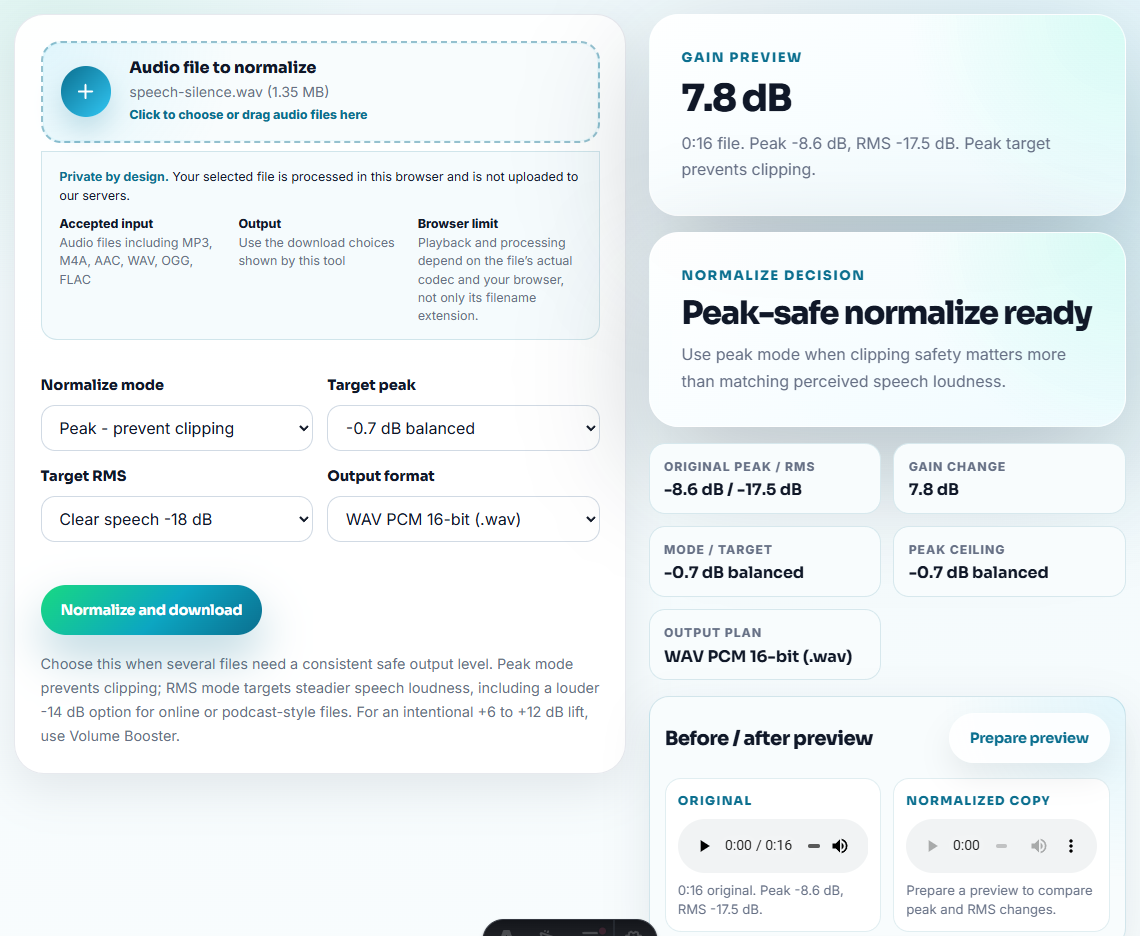
Trim false starts with Audio Trimmer, then use Audio Normalizer on the narration copy. Music ducking works best when the voice is stable.
Step 2: Choose the Music Section
Do not duck an entire music file just because it exists. Cut the intro, loop, bed, or ending that actually supports the voiceover.
Use Audio Trimmer to prepare a short music section, then add fades with smooth harsh starts and endings if the music begins or ends abruptly.
Step 3: Estimate the Ducking Plan
Use the Audio Ducking Calculator to plan how far the music should drop under speech and how quickly it should return when the voice pauses.
Start with a gentle plan. If the music jumps up and down every time the speaker breathes, the mix will feel distracting even if the words are technically audible.
Step 4: Check the Shape Visually
Use Audio Waveform Generator to create a simple visual reference for the narration or music section. The waveform can help you spot loud intros, sudden peaks, or empty space before you build the mix.
The waveform is a guide, not a verdict. Always listen before calling the mix ready.
Step 5: Test the Real Listening Context
Try the planned mix on the same type of device your audience will use: laptop speakers, phone speakers, earbuds, meeting-room speakers, or social media preview.
If the words disappear on small speakers, reduce the music more, trim busy sections, or choose a simpler background bed.
Match Ducking to the Message
A ducking plan should follow the content, not just a calculator number. A calm explainer, short ad, course lesson, and product demo need different music behavior.
| Voiceover use | Music role | Ducking choice | Final listening check |
|---|---|---|---|
| Tutorial or lesson | Stay out of the way | Deeper reduction during instructions | Key terms are clear on laptop speakers. |
| Short ad | Support pace and energy | Moderate reduction with quick returns | Music feels present without covering the offer. |
| Product demo | Mark transitions softly | Lower under explanation, rise between sections | The result or call to action is easy to hear. |
| Calm narration | Create atmosphere | Gentle bed with slow fades | The mix does not pump during pauses. |
This gives the final editor a practical target instead of a vague request to “make the music quieter.”
Why a Mix Passes Headphones but Fails Small Speakers
Many voiceover mixes sound fine on headphones and then fail on laptop or phone speakers. Small speakers hide bass detail, make busy music feel louder, and expose unclear consonants.
| Listening test | If the words disappear | Likely reason | Practical fix |
|---|---|---|---|
| Phone speaker | Music feels louder than expected | The music has strong midrange energy | Reduce music more under speech or choose a simpler bed. |
| Laptop speaker | Consonants blur | Voice is too low or too processed | Use a cleaner narration copy before ducking. |
| Earbuds | Music pumps during pauses | Ducking returns too quickly | Slow the fade-back timing. |
| Meeting room speaker | Voice sounds distant | Reverb or room tone competes with music | Use a drier voiceover take if available. |
| Social preview | First words are missed | Music intro masks the opening | Fade music in after the first phrase or lower the intro. |
This kind of check is more useful than chasing one universal ducking number. The right setting is the one that keeps the sentence understandable where the audience will actually hear it.
When Browser Prep Is Enough for Ducking Plans
Browser prep is enough when you are testing one voice track against one background track and only need a planning copy. Use a fuller workflow when the mix must meet ad specs, broadcast delivery, localization, or formal brand review.
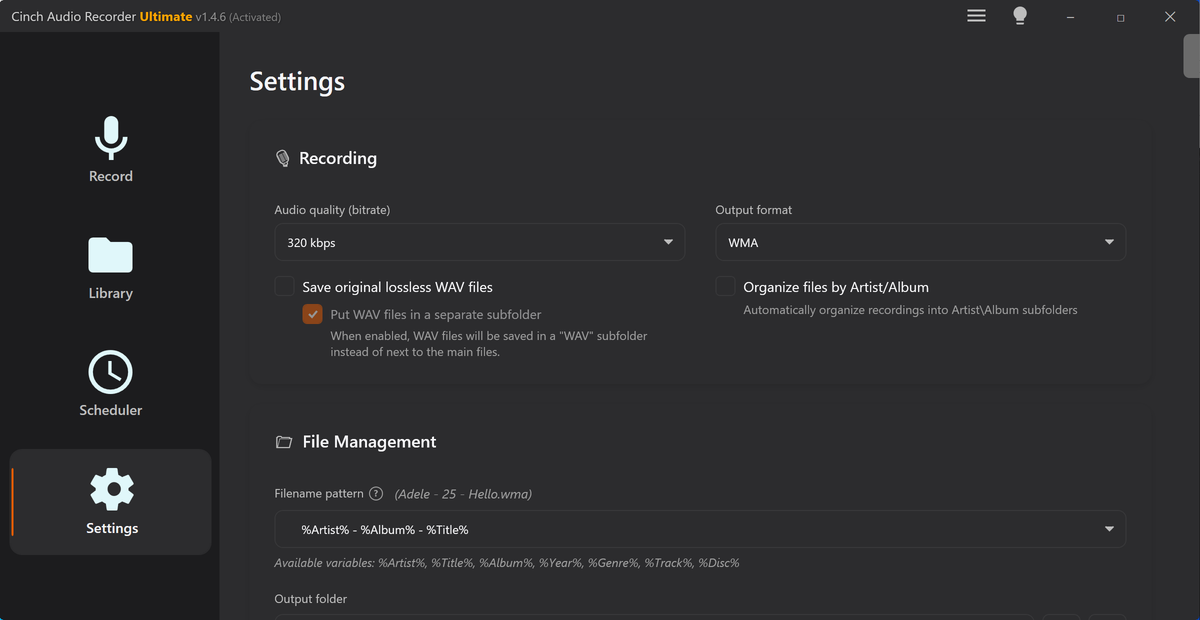
If you repeatedly record narration, Cinch Audio Recorder can help keep source audio organized before the editing and mixing stage.
Related Fixes and Prep Guides
- Audio Ducking Calculator
- Audio Normalizer
- smooth harsh starts and endings
- Audio Waveform Generator
- Make Video Voiceover Clear Before Export
- Make Background Music Loop Without a Jolt
- Make Short Ad Audio Clear From the First Second
Reader Notes
How do I stop background music from covering voiceover?
Prepare clean narration, choose the music section, lower the music under speech, use short fades, and test the result on the speakers or headphones your audience will use.
Should I normalize voiceover before ducking music?
Yes, prepare a consistent narration copy first. Ducking is easier when the voice level is predictable.
How much should background music be reduced under speech?
There is no single perfect number. Start with a conservative reduction, listen to the words, then adjust until speech stays clear without making the music pump noticeably.