
How to Sort Songs by BPM and Key Without Guessing
 By HenrikUpdated Aug 7, 20266 min read
Sort songs by BPM and key with verified estimates, practice sections, speed copies, and safer labels.

BPM and key are useful when you are practicing, sorting backing tracks, planning a playlist, or comparing song ideas. They are less useful when you treat estimates as absolute truth.
Organize songs with practical BPM and key labels, but keep uncertainty visible so nobody treats estimates as studio-verified facts.
Separate Source, Review, and Final Copies
| Checkpoint | Tool | Why it matters |
|---|---|---|
| 1 | Audio Metadata Viewer | Inspect existing title, artist, duration, format, and file details. |
| 2 | BPM Finder | Estimate tempo for rhythmic music and practice tracks. |
| 3 | Audio Key Finder | Estimate likely key for harmonic audio. |
| 4 | Audio Trimmer | Cut the section you actually practice or compare. |
| 5 | Audio Speed Changer | Make slower practice copies while preserving pitch. |
| 6 | Audio Metadata Editor | Add confirmed labels, comments, or version notes. |
For most users, the useful outcome is a practice folder where each label explains how confident the BPM or key really is.
Step 1: Inspect the Existing File
Open the song in Audio Metadata Viewer. Check whether title, artist, duration, and format already make sense.
If the tags are messy, write down what you know before changing anything. Bad metadata can spread quickly when copied into new folders.
Step 2: Estimate BPM
Use BPM Finder on the track or the section you care about. A steady beat usually gives a more useful result than a long file with intros, breakdowns, tempo changes, or silence.
If the result feels double-time or half-time, choose the value that matches how you count the song in practice.
Step 3: Estimate Key Carefully
Use Audio Key Finder for harmonic material such as songs, backing tracks, loops, and musical ideas. Treat the result as a starting point.
Key estimates can be uncertain when the recording changes chords often, has little harmony, includes noise, or uses modal or ambiguous material. Verify by playing along or checking against your own notes.
Step 4: Make Practice Sections
Use Audio Trimmer to cut the chorus, solo, verse, intro, or loop you actually need. A short practice copy is easier to repeat than a full track.
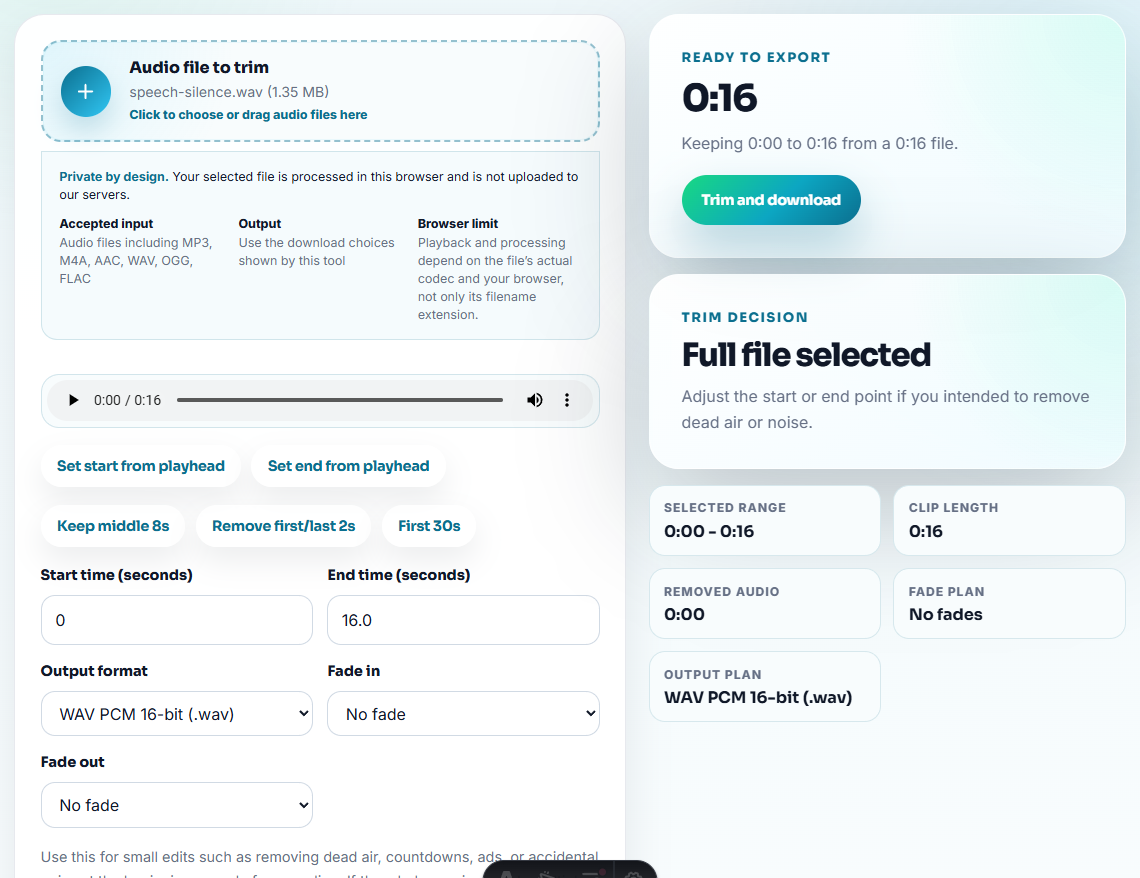
If the part is too fast, use Audio Speed Changer to make a slower copy while preserving pitch.
Step 5: Label Only What You Trust
Use Audio Metadata Editor for confirmed labels, comments, or version notes. If BPM or key is only a rough estimate, put it in the filename or folder name instead of overwriting important tags.
Examples:
song-name-92bpm-est-key-am-practice.mp3chorus-loop-110bpm-slower-copy.mp3backing-track-key-c-confirmed.wavideas-to-check-bpm-key/
Mark Confidence, Not Just Numbers
BPM and key labels are most useful when they show how confident you are. A rough estimate should not look like a verified teacher note.
| Result confidence | How to label | Good use | Avoid |
|---|---|---|---|
| Verified by playing along | key-c-confirmed | Practice folders and set lists | Rechecking every session. |
| Tool estimate feels right | 92bpm-est | Rough sorting and warmups | Treating it as exact tempo map. |
| Uncertain or changing song | check-bpm-key | Review folder | Writing uncertain tags into metadata. |
| Section-specific value | chorus-110bpm | Loop practice | Applying it to the whole song. |
This makes the folder helpful without pretending automated analysis is perfect.
When BPM or Key Labels Can Mislead
Automated BPM and key tools are most helpful when you understand where they struggle. Use the result as a sorting clue, then verify the part you actually play, practice, or share.
| Problem | What you may see | Better decision | Safer label |
|---|---|---|---|
| Half-time or double-time feel | 70 BPM and 140 BPM both seem plausible | Pick the count musicians will use in practice. | 140bpm-or-70feel |
| Live tempo drift | One number does not match the whole song | Label the practice section instead of the full track. | verse-about-96bpm |
| Intro differs from chorus | Tool reads a slow intro or rubato opening | Trim and analyze the section that matters. | chorus-112bpm |
| Key changes by section | Verse and chorus point to different keys | Avoid one global key unless you confirm it. | chorus-key-g-check |
| Sparse drums or weak harmony | Result jumps between attempts | Treat it as a review note, not metadata. | check-bpm-key |
| Very short clip | Result looks precise but lacks context | Test a longer section if possible. | short-loop-est |
This keeps the page useful for real folders: the user learns not only how to get a number, but when the number should stay provisional.
When a Quick Local Check Is Enough
For sorting songs by BPM and key, browser tools are enough when you are building a practice list, DJ draft, or workout sequence. Treat automatic detection as a starting point, check unusual results by ear, and keep original metadata until the playlist feels right.
For captured audio and recordings you want to keep organized, Cinch Audio Recorder can help create source files before you inspect and label them.
Related File Prep Guides
- BPM Finder
- Audio Key Finder
- Audio Speed Changer
- Audio Metadata Editor
- Turn a Recording Into a Clean Ringtone
- Build an Audio Sample Pack People Can Review
- Organize Practice Audio So Sessions Are Easier
- Make Background Music Loop Without a Jolt
Common Edge Cases
How do I sort songs by BPM and key?
Inspect the file, estimate tempo, estimate key for harmonic audio, verify by listening, then label copies or folders with only the details you trust.
Are online BPM and key results always exact?
No. Treat them as estimates, especially for live recordings, tempo changes, complex arrangements, or audio with weak rhythm or harmony.
Should I edit metadata after finding BPM and key?
Only edit metadata you can confirm. If you are unsure, use filenames or folder notes instead of writing uncertain tags into the file.