
How to Make Customer Training Audio Teach One Task
 By HenrikUpdated Aug 7, 20266 min read
Prepare customer training audio that teaches one task at a time, with lesson evidence, privacy boundaries, and review status.

Customer training audio should teach a task, not impress the listener. A short example can help customers hear the expected result, compare a before-and-after clip, or understand what a clean recording should sound like.
The best training clips are organized by lesson. The worst ones are long recordings where the useful part is hidden somewhere in the middle.
Check the Training Clip Before Customers Hear It
| Decision point | Tool | Evidence to collect |
|---|---|---|
| 1 | Audio Metadata Viewer | Check duration, format, size, channels, and labels. |
| 2 | Recording Quality Checker | Catch silence, clipping, weak level, or missing endings. |
| 3 | Audio Trimmer | Cut one focused training example. |
| 4 | Audio Chapter Splitter | Split long lessons into training sections. |
| 5 | Audio Normalizer | Make speech or examples easier to hear. |
| 6 | Audio Waveform Generator | Add a visual cue for cuts, silence, or result timing. |
| 7 | Audio Metadata Editor | Add lesson, module, product, version, or review labels. |
The audio should match the training step beside it.
Step 1: Pick One Training Outcome
Decide what the customer should learn from the audio:
- What a correct recording sounds like.
- How a cleaned example differs from the source.
- Which section proves a feature worked.
- What an export result should sound like.
- How to identify silence, clipping, or low volume.
- What example to compare against their own file.
If one clip tries to teach too many things, split it.
Step 2: Inspect the Source
Use Audio Metadata Viewer to check whether the source file is the right version and does not contain private labels or internal notes.
Use Recording Quality Checker before creating lesson clips. A training file should not accidentally teach the wrong thing because it is silent, clipped, or missing the ending.
Step 3: Trim or Split the Lesson
Use Audio Trimmer for one short example. Use Audio Chapter Splitter when a longer recording includes several training steps.
Useful section names include:
training-step-01-source-example.mp3
training-step-02-cleaned-result.mp3
training-module-setup-short-demo.mp3
training-before-after-listening-copy.mp3
Clear section names help customers and support teams point to the same audio.
Step 4: Preserve Learning Context
Do not remove every pause or transition. Keep enough context for the customer to understand:
- What happened before the sound.
- What result they should compare.
- Which speaker or product step is active.
- Whether silence is part of the lesson.
- Where the example starts and ends.
Training audio needs clarity, but it also needs context.
Step 5: Make Playback Comfortable
Use Audio Normalizer when the listening copy is too quiet. Use Audio Waveform Generator when timing, silence, or before-and-after sections need visual context.
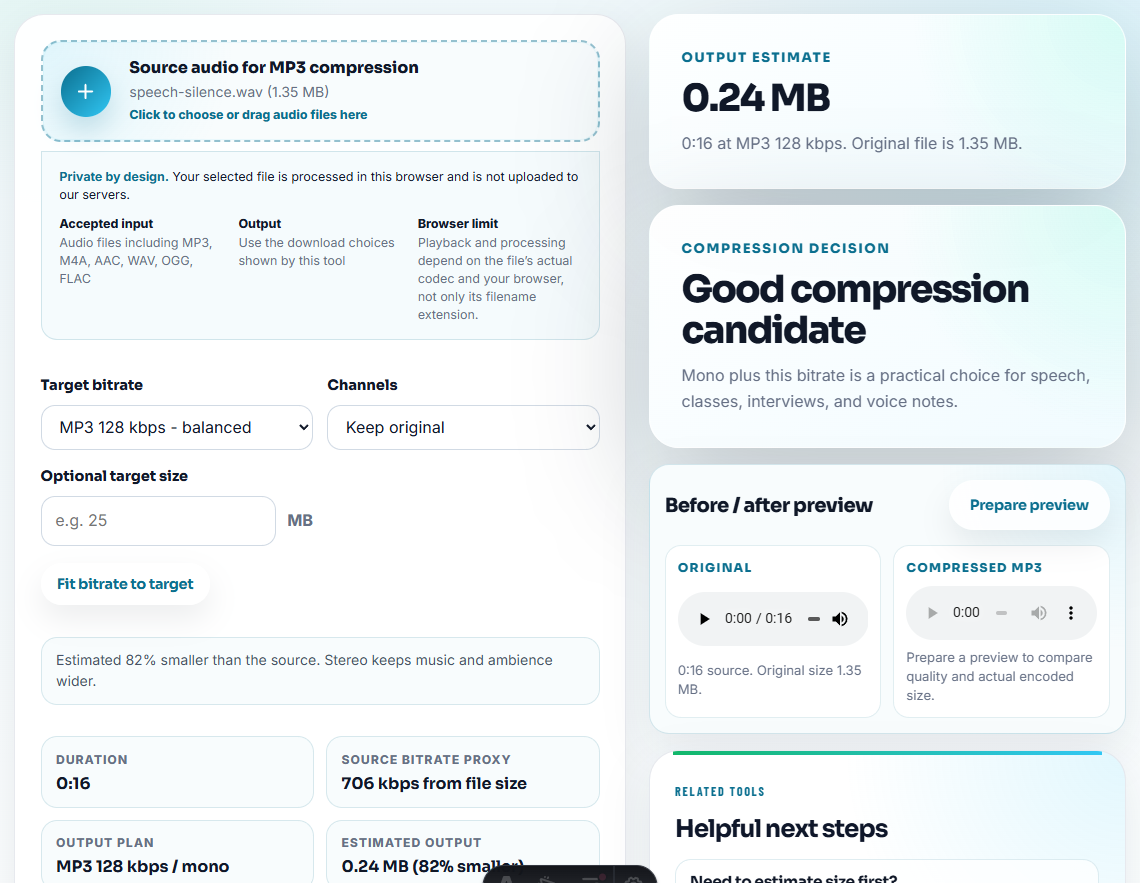
Use Audio Compressor after review if the file will be embedded, emailed, or stored in a lightweight training page.
Step 6: Label the Training Copy
Use Audio Metadata Editor for files that may be downloaded or reused by support and customer success teams.
Good labels include:
- Training title.
- Module or step.
- Source or result.
- Product version.
- Review status.
- Language.
Build Lessons Around Mistakes Customers Actually Make
Training audio is most helpful when it anticipates the point where a customer gets stuck. Use each clip to show the expected result, the common wrong result, or the difference between them.
| Training moment | Useful audio example | What the lesson should say |
|---|---|---|
| First recording setup. | A clean expected-output sample. | ”If your file sounds different, check source selection before editing.” |
| Distorted or fast playback. | A recreated problem sample plus a normal sample. | ”This is evidence to troubleshoot, not something to normalize away first.” |
| Missing track names or file labels. | A neutral metadata example. | ”Naming and recognition are separate checks.” |
| Customer asks for help after reinstalling. | A short setup-path explanation, not private account audio. | ”Confirm access first, then confirm the recording workflow.” |
This gives the page practical training value beyond the tool list.
Create a Lesson Map Before Publishing
Training files stay useful when each audio example has a lesson role. Build a small map before adding the clips to a help page, email, or customer training folder.
| Lesson role | Audio copy to prepare | Customer should learn |
|---|---|---|
| Expected result | Clean short sample. | What a successful output should sound like. |
| Common mistake | Recreated bad setup or wrong-source sample. | What problem to recognize before asking support. |
| Before and after | Matched comparison pair. | What changed and what did not change. |
| Decision point | Short clip with two possible next actions. | Whether to rerecord, clean, convert, or escalate. |
| Practice file | Safe sample without private content. | How to repeat the task without using customer data. |
This helps the training page answer a real learning problem instead of becoming a library of random examples.
What Can Go Wrong When You Make Customer Training Audio Teach One Task
- Do not publish a full raw call when one lesson clip is enough.
- Do not remove context that helps customers understand the task.
- Do not use customer audio without permission.
- Do not mix draft and approved training files.
- Do not make the result clip louder just to seem better.
- Do not rely on audio without a written training instruction.
When Browser Checks Are Safe to Use
Browser prep works for customer training when you are preparing one example, lesson prompt, or practice file. Remove silence that slows the exercise, keep instructions audible, and test the exported file on the same device customers will use.
Use a larger workflow when training audio needs captions, translations, professional narration, LMS packaging, formal accessibility review, or many product-version variants.
Next Audio Checks to Try
- Audio Metadata Viewer
- Recording Quality Checker
- Audio Chapter Splitter
- Audio Trimmer
- Use Audio Examples That Teach One Tutorial Step
- Make Language Audio Easier to Practice With
- Review Localization Audio Without Losing Context
- Make School Submission Audio Clear and Compatible
- Add Clear Audio Examples to Onboarding Emails
Reader Notes
What should the recipient know before listening?
Choose one training goal, trim or split the audio into short lessons, check playback, keep useful context, label each section clearly, and publish smaller copies only after review.
Should training audio be polished like a marketing clip?
Not always. Training audio should be clear and easy to follow, but it should preserve the context that helps customers learn the task.
What should I check for customer training audio?
Make each training clip easy to replay, label the lesson goal, remove dead time, and keep the sound clear enough for repeated learning.