
How to Avoid Mixing Draft and Approved Audio
 By HenrikUpdated Aug 7, 20267 min read
Prepare approval workflow audio by separating draft, review, approved, rejected, and public-use copies before sharing.
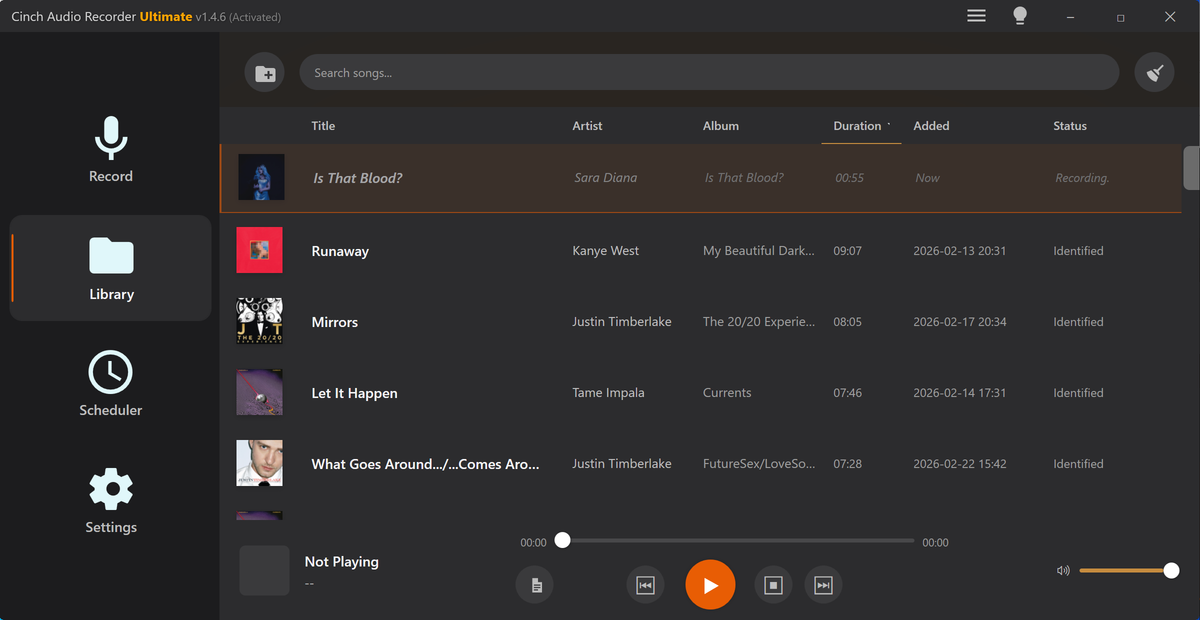
Audio approval often fails for a boring reason: nobody knows which file needs a decision. A folder may contain source recordings, rough cuts, compressed previews, old exports, and a file called “final-final.mp3”.
The reviewer opens the wrong copy, gives feedback on the wrong section, or approves something that was only meant for internal checking.
A good approval workflow makes the decision obvious before playback starts.
Separate Source, Review, and Final Copies
| Checkpoint | Tool | Why it matters |
|---|---|---|
| 1 | Audio Metadata Viewer | Inspect source details, hidden labels, duration, and version clues. |
| 2 | Recording Quality Checker | Confirm the approval copy is audible, complete, and not broken. |
| 3 | Audio Trimmer | Cut the exact section that needs approval from a working copy. |
| 4 | Audio Waveform Generator | Add a timing reference for the reviewed section or edit point. |
| 5 | Audio Compressor | Create a smaller approval copy after the review section is chosen. |
| 6 | Online Audio Format Converter | Convert only when a reviewer needs another format. |
| 7 | Audio Metadata Editor | Add approval status, reviewer, date, version, and use notes. |
The goal is to make the reviewer answer one question, not audit the entire folder.
Step 1: Write the Approval Question
Before editing, define the decision:
- Approve the quote.
- Approve the cut point.
- Approve the audio quality.
- Approve public use.
- Approve internal use only.
- Reject and revise.
- Archive and do not use.
Put that question in the message or note that travels with the file. Do not make reviewers infer it from the filename.
Step 2: Separate Drafts From Approval Copies
Keep source and working files away from the approval copy. A simple structure works:
01-source
02-working-drafts
03-needs-approval
04-approved
05-rejected-or-retired
This keeps a draft from becoming the file that someone uploads or forwards.
Step 3: Inspect the Candidate File
Use Audio Metadata Viewer to check the candidate copy. Look for old status notes, private names, wrong dates, rough titles, or hidden comments that conflict with the approval request.
If the file has confusing labels, fix the review copy before asking for approval.
Step 4: Check Playback Before Review
Use Recording Quality Checker to confirm the file plays correctly. An approval request should not make reviewers discover silence, clipping, missing endings, or low volume.
If the problem itself is what needs approval, state that clearly:
Approval question: is this remaining background noise acceptable for the public tutorial sample?Step 5: Trim to the Decision Area
Use Audio Trimmer on a copy when only one section needs review. Keep enough context for the decision.
Useful filenames:
approval-needed-testimonial-quote-v2.mp3
approval-needed-public-sample-cutpoint.mp3
approval-needed-before-after-copy.mp3
approved-internal-only-support-example.mp3
Avoid filenames that use “final” until the status is actually final.
Step 6: Add Timing Context
Use Audio Waveform Generator when the review depends on a cut point, silence, loud peak, or exact quote start. A visual timing clue reduces back-and-forth.
Keep the note short:
Review 00:08-00:28. Decision needed: approve quote context and ending cut.Step 7: Label the Outcome
After the decision, use Audio Metadata Editor to update the approved or rejected copy.
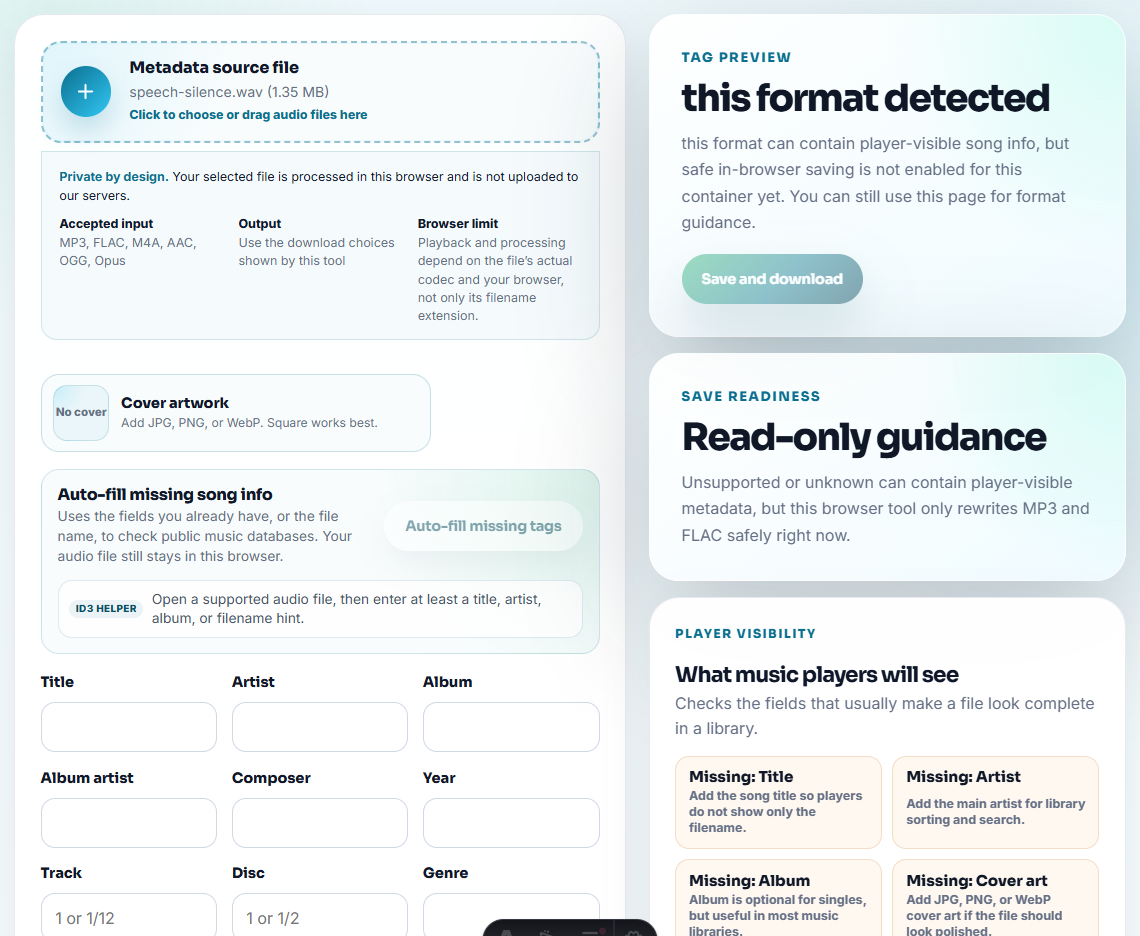
Useful fields:
- Approval status.
- Reviewer or owner.
- Review date.
- Version.
- Allowed use.
- Source reference.
- Next action.
Use Audio Compressor and Online Audio Format Converter only on delivery copies after the approval target is clear.
Use One Decision Per Approval Round
Do not ask one reviewer to approve quality, permission, public claim, and final delivery in the same pass unless they own all of those decisions. Split the workflow when needed.
| Approval round | Reviewer should answer | Next status |
|---|---|---|
| Content fit | Does this audio support the page or message? | Needs permission, revise, or owner-approved. |
| Permission | Can this exact excerpt be used for this audience? | Approved scope or hold. |
| Technical delivery | Does the final copy play, load, and download correctly? | Ready for staging or rebuild. |
| Public launch | Can this exact file go live on this exact page? | Approved public or launch hold. |
This gives approval pages a clear workflow value instead of just folder advice.
Keep an Approval Ledger Beside the Files
A simple ledger prevents “approved” from losing its meaning after files move between folders. It does not need to be complex.
| Ledger field | What to write |
|---|---|
| File under review | The exact review copy name, not only the source file. |
| Decision question | The one thing the reviewer is approving or rejecting. |
| Reviewer role | Owner, support lead, marketer, customer success, or permission reviewer. |
| Decision | Approved, revise, rejected, internal only, or public approved. |
| Evidence | Timestamp, source reference, page URL, or comparison note. |
| Expiry trigger | Date, page refresh, product change, customer status change, or campaign end. |
This makes the approval workflow more useful than a folder naming convention. It gives future editors an audit trail without forcing them into a heavy asset system.
Add a Status Gate Before Anyone Reviews
Approval audio needs a gate, not just a nicer filename. Before sending a file, decide what state it is in and what the reviewer is allowed to decide.
| File state | Reviewer should decide | Keep out of this folder |
|---|---|---|
| Draft | Is the direction close enough to continue? | Public-use copies and customer-facing filenames. |
| Needs approval | Approve, reject, or request one specific change. | Other versions that compete with the decision file. |
| Approved internal | Can the team use it in notes, training, or support? | Public pages, ads, and partner kits unless separately approved. |
| Approved public | Can this exact copy appear on the named page or asset? | Source recordings and old proof clips with unclear permission. |
| Rejected or retired | Should this be blocked from future reuse? | Any file still labeled final, approved, or current. |
This gives the workflow original value: it prevents approval mistakes before they happen.
Problems to Catch Before You Avoid Mixing Draft and Approved Audio
- Do not ask reviewers to approve an unlabeled folder of files.
- Do not use “final” before the approval is complete.
- Do not overwrite the source recording with a compressed review copy.
- Do not mix approved and rejected audio in the same delivery folder.
- Do not request approval without a decision question.
- Do not leave old approval status in metadata after a file changes.
When a Quick Local Check Is Enough
Browser prep fits approval workflows when the reviewer needs a focused sample instead of a full folder of raw audio. Keep the source file unchanged, show exactly what was trimmed or normalized, and route legal, customer, or brand-sensitive clips through the formal approval path.
Use a stricter workflow when approvals require legal records, signed consent, multiple reviewers, contract-sensitive claims, regulated customers, or a formal asset management system.
More Ways to Check the File
- Audio Metadata Viewer
- Recording Quality Checker
- Audio Trimmer
- Audio Metadata Editor
- Get Audio Approved by the Right Content Owner
- Confirm Audio Permission Before Public Use
- Stop Outdated Audio Proof From Being Reused
Common Edge Cases
What should approvers know before they listen?
Start from a copy, define the approval question, inspect metadata, check playback, trim the review section, label status clearly, and keep approved copies separate from drafts.
Should approval audio include every version?
No. Share the version that needs a decision, keep source and draft versions in controlled folders, and label the approval status on the delivery copy.
What should I check for audio approval?
Send approvers one controlled copy, explain what decision is needed, and keep draft files away from the approved version.