
How to Sync Two Recordings Without Losing Context
 By HenrikUpdated Aug 7, 20266 min read
Sync two recordings with shared cues, drift estimates, source-safe test clips, and start-middle-end checks.

Two recorders can start together and still separate later. A phone, laptop, camera, field recorder, and screen recorder may each keep time a little differently.
Two recordings can start together and still drift apart. Compare a clear reference point near the beginning and end before deciding whether trimming, stretching, or a fresh sync is needed.
Check the File Before Sharing
| Stage | Free tool | What it helps you decide |
|---|---|---|
| 1 | Recording Quality Checker | Confirm both files are complete and not badly clipped. |
| 2 | Audio Metadata Viewer | Compare duration, format, channels, and file details. |
| 3 | Audio Trimmer | Create short test copies around clear sync cues. |
| 4 | Audio Drift Fix Calculator | Calculate stretch percentage, ppm drift, and corrected duration. |
| 5 | Audio Normalizer | Make review copies easier to compare after timing is fixed. |
| 6 | Online Audio Format Converter | Create compatible test copies only when another app needs them. |
Keep the original recordings untouched. Drift work is easy to over-correct if you edit the only copy.
Step 1: Confirm Both Files Are Usable
Open both files in the Recording Quality Checker. Check for missing endings, long silent sections, clipping, or a file that stopped early.
If one recording is incomplete, sync can still help a short section, but it cannot rebuild missing audio.
Step 2: Find a Shared Start and End Cue
Look for the same sound in both files: a clap, first spoken phrase, slide change, door sound, music start, or audience reaction. You need one cue near the beginning and one cue near the end.
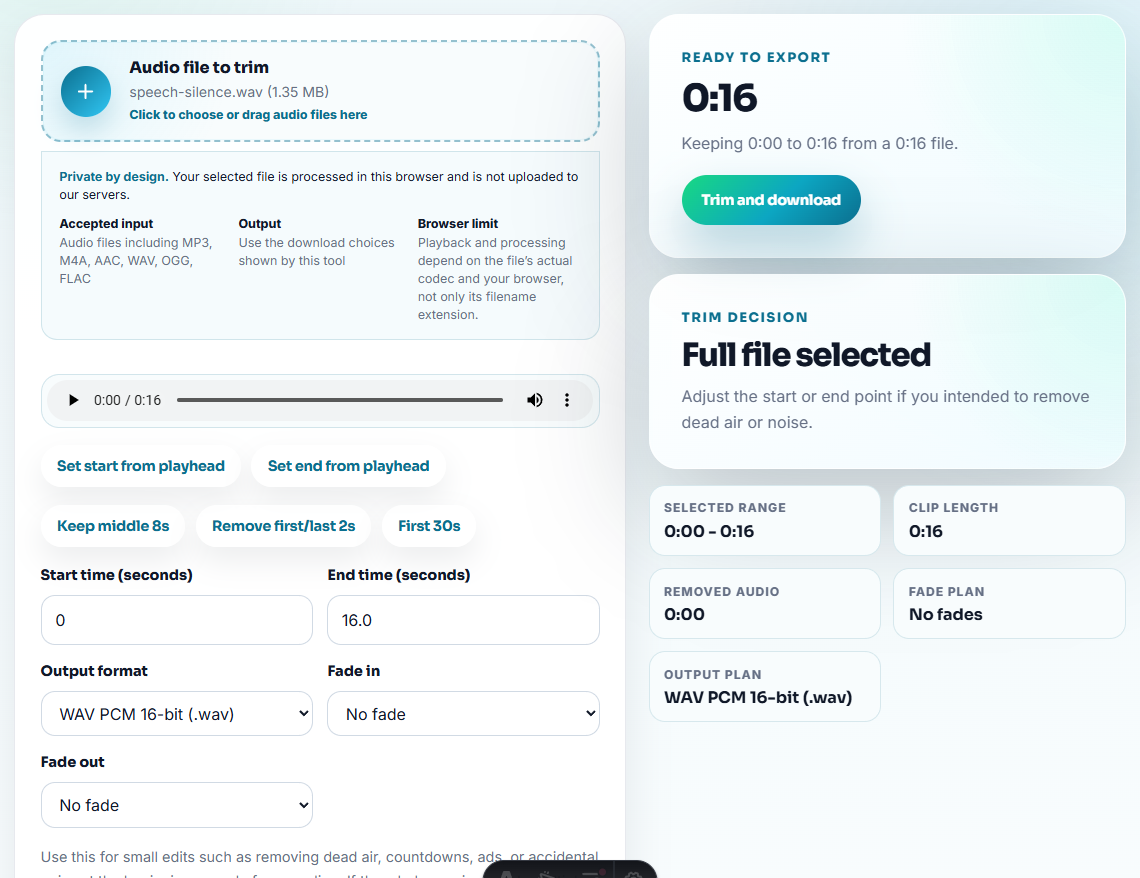
Use Audio Trimmer to make short reference copies around those moments. Short test clips make it easier to listen closely without dragging through a long file.
Step 3: Measure the Drift
Use Audio Metadata Viewer to confirm each file’s duration. Then use the Audio Drift Fix Calculator with the start and end offset information.
The goal is not to guess by ear. You want to know whether the second file needs a tiny stretch, a tiny shrink, or only a start trim.
Step 4: Test Before Editing the Full Session
Apply the calculated correction in your editing app or workflow, then listen to the beginning, middle, and end. Do not judge only from the first minute.
If the beginning syncs but the end does not, the correction is too small, too large, or based on unclear cue points. Pick better cues before touching the full project again.
Step 5: Prepare Listening Copies
Once timing works, use Audio Normalizer only on review copies if one source is much quieter. Convert with Online Audio Format Converter only when a teammate or editor needs a different format.
Useful filenames:
camera-audio-original.wavphone-backup-original.m4aphone-backup-drift-test-v1.mp3synced-review-copy-v2.wav
Validate Sync Across the Whole Recording
A start alignment can look correct while the middle or ending still drifts. Test the corrected copy in multiple places before trusting it.
| Check point | What to compare | Good sign | Problem sign |
|---|---|---|---|
| Beginning | First shared cue or phrase | Both recordings start together | One file needs a start trim. |
| Middle | Clear word, clap, slide cue, or music hit | Timing still feels locked | Drift correction may be slightly off. |
| Ending | Last shared cue or closing phrase | End cue lines up | Device clock drift remains. |
| Review copy | Full short section after correction | Sounds natural and complete | Stretching made speech strange. |
This prevents a synced-looking file from failing later in a long edit.
When Sync Is Not the Real Problem
Some recordings look out of sync because the files are different, damaged, or captured from different moments. Check those cases before stretching audio.
| Symptom | Likely cause | Better first step | Do not do |
|---|---|---|---|
| One file ends much earlier | Recorder stopped or battery died | Use the complete section only | Stretch missing audio to fit. |
| Start aligns, middle jumps suddenly | Edit, dropout, or dropped frame | Find a new cue after the jump | Apply one correction to the whole file blindly. |
| Voice sounds strange after correction | Stretch amount is too large or wrong | Recheck cue timing and duration | Keep the distorted corrected copy. |
| Files have different content | Devices captured different parts of the room or session | Sync only shared moments | Force every sound to match. |
| End cue is unclear | Poor reference point | Choose a sharper clap, word, or music hit | Trust a vague visual guess. |
This protects the user from over-fixing. Drift correction helps when both recordings are complete and share clear cues; it does not repair missing, edited, or unrelated audio.
When Free Browser Tools Are Enough
For syncing two recordings, browser tools are enough when both files are short and you only need a rough alignment check. Keep the originals, use a shared clap, beep, or spoken cue as the anchor, and move to a timeline editor when drift changes over time.
For repeatable capture work, Cinch Audio Recorder is a better fit when you want cleaner source files before you start sync or cleanup.
Helpful Next Steps
- Audio Drift Fix Calculator
- Recording Quality Checker
- Audio Metadata Viewer
- Audio Trimmer
- Make Podcast Guests Sound Even Before Editing
- Shorten Long Audio So Reviewers Hear the Point
- Clean Field Recordings Without Losing Useful Sound
- Clean Webinar Replay Audio Without Losing Context
Questions People Usually Ask
How do I sync two recordings from different devices?
Find a shared start cue and end cue, measure how far the second file drifts, calculate the stretch needed, then test the corrected copy before editing the full project.
Why do two recordings drift apart over time?
Different devices can record with slightly different clock timing, so two files that start together may no longer match after a long session.
Should I cut the beginning to fix recording drift?
Cutting can align the start, but it will not fix timing drift across the whole file. Use a drift calculation when the end is still out of sync.