
How to Shorten Long Audio So Reviewers Hear the Point
 By HenrikUpdated Aug 7, 20266 min read
Shorten long audio for review by checking quality, trimming waste, removing safe dead air, and labeling copies.
Long recordings are hard to review when they include setup time, waiting room silence, false starts, long endings, and sections nobody needs to hear. But cutting too aggressively can remove context and make the file harder to understand.
The goal is a shorter review copy, not a final master. Keep enough context for the reviewer to judge the point.
Decide What the Reviewer Must Hear
Shortening is useful only when the shorter version still answers the review question.
| Review goal | Keep | Remove | Label clearly |
|---|---|---|---|
| Approve a quote | Full sentence and nearby context | Long unrelated setup | Quote review copy |
| Check a problem | A few seconds before and after the issue | Unrelated middle sections | Problem sample |
| Review a lesson | Topic start, main explanation, ending | Waiting time and retakes | Lesson excerpt |
| Compare versions | Same time range in each file | Different sections | Before and after |
| Decide whether to rerecord | Best and worst representative parts | Repeated silence | Rerecord review |
Make a Short Review Copy First
| Pass | Tool to open | Check to make |
|---|---|---|
| 1 | Recording Quality Checker | Check whether the long file is complete, audible, clipped, or mostly silence. |
| 2 | Audio Trimmer | Cut obvious starts, endings, repeated setup, and unrelated sections. |
| 3 | Audio Silence Remover | Shorten only safe dead air, not meaningful pauses. |
| 4 | Audio Normalizer | Level the review copy after timing edits are done. |
| 5 | Audio Metadata Editor | Mark the file as a shortened review copy. |
| 6 | Audio File Size Calculator | Estimate storage or sharing size before exporting several versions. |
Do time edits first. Level and size changes come later.
Step 1: Check the Whole Recording
Start with Recording Quality Checker.
Look for:
- Whether the useful audio exists.
- Where long silence appears.
- Whether speech is too low.
- Whether peaks are clipped.
- Whether the file seems incomplete.
If the recording is broken, note that before trimming. A short broken file is still broken.
Step 2: Make a Review Copy
Keep the original untouched:
session-original.wav
session-short-review-copy.mp3
If several people will review the file, add the purpose:
client-call-review-copy.mp3
course-lesson-instructor-review.mp3
meeting-audio-decision-review.mp3
Step 3: Trim Only Obvious Waste
Use Audio Trimmer for clear cuts:
- Setup before anyone speaks.
- Repeated microphone checks.
- Long waiting sections.
- Unrelated ending chatter.
- Empty recording after the event ends.
Leave a few seconds of context around the useful section. Reviewers often need to know what happened before a quote, question, or decision.
Step 4: Remove Dead Air Carefully
Use Audio Silence Remover only after manual trims.
Safe removals:
- Long technical delays.
- Empty waiting-room silence.
- Repeated dead gaps between sections.
- Accidental blank space after a pause.
Risky removals:
- Thinking pauses.
- Speaker handoffs.
- Audience reactions.
- Language-learning repetition.
- Dramatic or emotional silence.
Preview the result before keeping it.
Say What the Short Copy Does Not Show
A shortened file can help reviewers focus, but it can also make the evidence look stronger than it is. Add a note when the edit changes the listener’s context.
| What was removed | Why the reviewer should know | Safer note |
|---|---|---|
| Long setup before the quote | The quote may depend on earlier context | ”Setup removed; quote context kept.” |
| Several repeated attempts | The short copy may hide how many takes existed | ”Best usable take selected from a longer file.” |
| Waiting-room silence | Usually safe, but affects total duration | ”Dead air shortened for review.” |
| Private side conversation | Reviewer should not assume the source was public-ready | ”Private section removed from review copy.” |
| Unclear ending | A cut ending can sound like the speaker stopped naturally | ”Ending trimmed after the relevant point.” |
Step 5: Level After Timing Edits
Use Audio Normalizer after trimming and dead-air cleanup.
This keeps the level decision focused on the useful audio. Do not normalize first if the file begins with several minutes of silence or noise.
Step 6: Label the Review Copy
Use Audio Metadata Editor when the shortened copy will be shared.
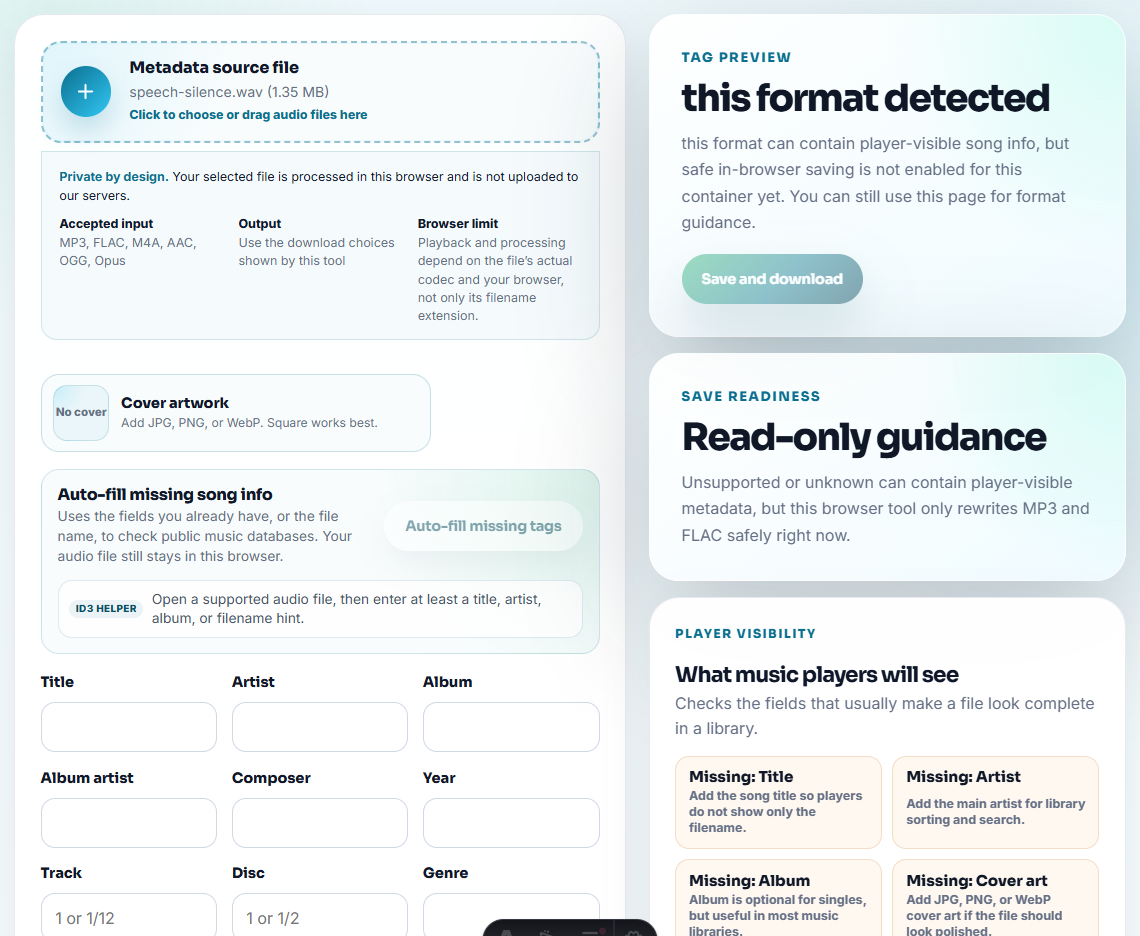
Helpful labels:
- Shortened review copy.
- Source preserved.
- Date.
- Project.
- Section covered.
- Reviewer or audience.
Avoid naming it final unless it truly is final.
Before You Send the Short Version
- Do not delete the long original after making a short copy.
- Do not remove every pause.
- Do not normalize before cutting long empty sections.
- Do not compress the review copy before confirming it still sounds clear.
- Do not send a shortened file without saying what was removed.
- Do not use a short copy as proof that the source was complete.
Use Browser Tools for Short Review Copies
Browser prep is enough when one long file needs a shorter review copy and the removed sections are easy to describe. Use a fuller workflow when the edit needs redaction, transcript alignment, exact chapter timing, legal review, or public evidence.
Use a full editor when you need exact chapter timing, transcript alignment, redaction, multitrack edits, captions, or delivery compliance.
Tools That Pair With This Task
- Audio Trimmer
- Audio Silence Remover
- Recording Quality Checker
- Make Audio Preview Clips That Do Not Mislead
- Make Audio Files Play at a Consistent Volume
- Turn Meeting Recordings Into Reviewable Sections
- Clean Webinar Replay Audio Without Losing Context
- Split a Long Recording Into Useful Sections
- Join Audio Segments Without Rough Transitions
- Organize Radio Recordings Into Usable Sections
Reader Notes
How can I shorten a long audio file for review?
Check the full file, cut unrelated starts and endings, remove only safe dead air, keep context, then label the shortened review copy clearly.
Should I remove every pause from long audio?
No. Keep pauses that carry meaning, timing, speaker rhythm, or listener comprehension. Remove only dead air that does not help the review.
Which tools help shorten long recordings?
Keep the section that proves the point, preserve enough context, and label the shortened copy so reviewers do not mistake it for the full source.