
How to Make Podcast Guests Sound Even Before Editing
 By HenrikUpdated Aug 7, 20266 min read
Balance podcast guest tracks by checking loudness, clipping, silence, clicks, and review-copy roles.

Podcast editing gets harder when one guest is tiny, another is loud, and a third track is full of long gaps. Before you start cutting the episode, make the raw tracks easier to judge.
Guest tracks often arrive with different microphones, rooms, and speaking levels. Start by checking each voice on its own, then balance the copies so the edit feels even without hiding who was actually louder or quieter.
Check the File Before Sharing
| Task | Tool | Result to verify |
|---|---|---|
| 1 | Podcast Track Balance Checker | Compare guest tracks for level mismatch, clipping, silence, and timing. |
| 2 | Recording Quality Checker | Inspect a single suspicious track more closely. |
| 3 | Audio Trimmer | Remove setup talk, dead starts, and unrelated endings from copies. |
| 4 | Audio Silence Remover | Shorten safe long gaps without destroying conversation rhythm. |
| 5 | Mouth Click Finder | Review obvious clicks or lip smacks that distract from a key speaker. |
| 6 | Audio Normalizer | Prepare easier listening copies before the main edit. |
Do the balance pass before detailed editing. Otherwise you may spend time polishing sections that should have been replaced or re-recorded.
Step 1: Compare the Guest Tracks
Open the separate guest tracks in Podcast Track Balance Checker. Look for one track that is much quieter, one that clips, or one that contains long stretches of silence.
If the tool points to a problem track, inspect that file separately in the Recording Quality Checker.
Step 2: Remove Obvious Waste
Use Audio Trimmer on copies to remove connection setup, test counting, long pre-show chatter, and endings that do not belong in the episode.
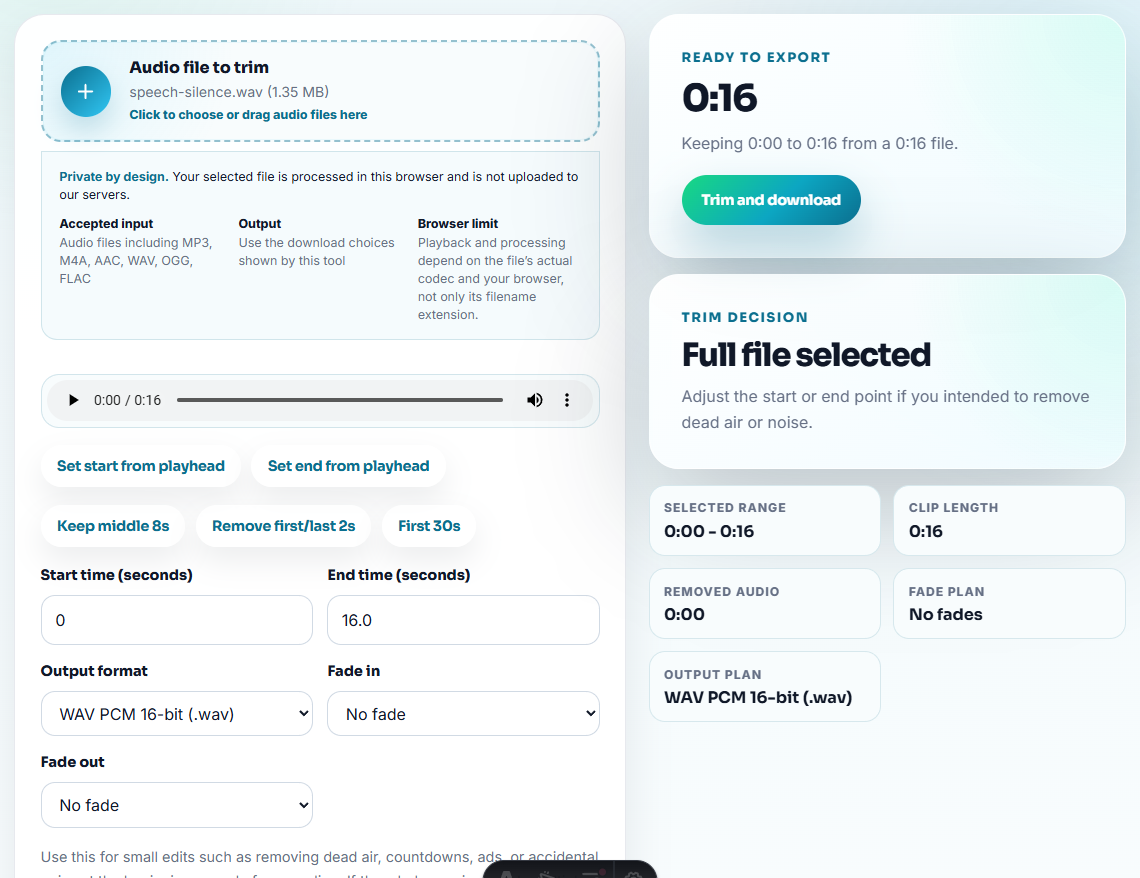
Keep a few seconds of context at the start of important sections. Over-tight trimming can make natural conversation feel abrupt.
Step 3: Shorten Silence Carefully
Use Audio Silence Remover only on gaps that are clearly dead air. Do not remove every pause, because pauses often carry timing, emphasis, or natural turn-taking.
For multi-guest shows, listen after silence cleanup. A gap on one track may overlap with speech on another track in the main edit.
Step 4: Review Clicks Where They Matter
Use Mouth Click Finder on the guest tracks that carry the most important speech. Fix only the clicks that pull attention away from the conversation.
Trying to remove every small mouth sound can waste time and make the voice feel less natural.
Step 5: Level the Review Copies
After trimming and cleanup, use Audio Normalizer to prepare comfortable review copies. This makes it easier to listen through the episode and decide what belongs in the final edit.
Label files by speaker and status:
host-track-original.wavguest-amy-trimmed-review.mp3guest-mark-click-review-v1.wavepisode-12-balanced-reference.mp3
Decide What Needs Fixing Before the Edit
A balance pass should identify which tracks are ready, which need a light copy, and which should be replaced before the main edit starts.
| Track condition | Good next step | Do not do this | Why |
|---|---|---|---|
| Guest is quiet but clean | Normalize a review copy | Boost the source destructively | The original may be needed for the final mix. |
| Guest clips during key answers | Mark or request replacement | Hide clipping by lowering volume | Distortion remains even when quieter. |
| Long silent sections | Shorten safe gaps on copies | Remove every pause automatically | Conversation timing can break. |
| Clicks distract in a key quote | Review only the affected area | Chase every tiny mouth sound | Natural speech matters more than perfection. |
This keeps the pre-edit pass focused on decisions, not endless cleanup.
Do Not Make Every Guest Artificially Identical
Good podcast balance makes the conversation comfortable. It does not erase every natural difference between speakers. A host on a studio mic and a guest on a headset should not be forced into the same texture if that makes one voice sound processed.
| Difference between tracks | Usually OK | Needs attention when | Better action |
|---|---|---|---|
| One speaker is naturally softer | Yes | Listeners keep reaching for volume | Normalize a review copy and mark the source. |
| One room sounds brighter | Yes | The voice becomes harsh or tiring | Note it for the mix instead of over-filtering early. |
| Guest has occasional pauses | Yes | Pauses create long dead air in the episode | Shorten only clear non-conversation gaps. |
| A key answer clips | No | Distortion is audible on important words | Request a replacement or mark the damaged section. |
| Mouth clicks appear in every sentence | Maybe | Clicks distract from the message | Review the affected phrases, not the whole track blindly. |
This helps editors decide what deserves repair before the main edit and what should simply be documented for the mix.
When You Do Not Need a Desktop Recorder
Free browser tools are enough when you are checking whether guest tracks are roughly balanced before a real edit. Keep each speaker’s raw track separate, compare the same conversation moment, and avoid boosting one guest so much that room noise becomes the loudest thing.
For repeated recording and archiving, Cinch Audio Recorder can help keep source files organized before the podcast cleanup step.
Related Tools and Guides
- Podcast Track Balance Checker
- Recording Quality Checker
- Audio Silence Remover
- Mouth Click Finder
- Sync Two Recordings That Drift Apart
- Make Audio Preview Clips That Do Not Mislead
- Make Podcast Clips That Stand Alone
- Podcast audio cleanup checklist
Common Questions
How do I balance podcast guest tracks before editing?
Check each track for clipping, silence, and level mismatch, trim obvious dead space, review distracting clicks, then normalize review copies before the main edit.
Should every podcast guest track be the same volume?
They should feel comfortable and consistent, but not artificially identical. Preserve natural speech while reducing obvious level jumps.
What should I fix before mixing a podcast?
Fix missing audio, clipping, severe level mismatch, long dead sections, and distracting mouth clicks before spending time on final arrangement.