
How to Merge Audio Without Rough Transitions
 By HenrikUpdated Aug 7, 20266 min read
Merge audio segments in order, check joins, fix rough edges, level the copy, and label the final file.

Merging audio sounds simple until the files arrive as part3, final-new, take-2, and intro-real-final. The biggest risk is not the merge button. It is joining the wrong pieces in the wrong order.
Joined audio sounds messy when sections meet at the wrong level or timing. Check the order, trim rough edges, and review each transition before treating the merged file as final.
Check Each Join Before Exporting
| Pass | Tool to open | Check to make |
|---|---|---|
| 1 | Audio Metadata Viewer | Confirm duration, format, channels, and file details for each segment. |
| 2 | Recording Quality Checker | Catch empty, clipped, or broken segments before merging. |
| 3 | Audio Trimmer | Remove rough starts, endings, and repeated setup moments. |
| 4 | Audio Merger | Join the prepared copies in the correct order. |
| 5 | Audio Normalizer | Make the merged listening copy more consistent. |
| 6 | smooth harsh starts and endings | Smooth abrupt beginning or ending points when needed. |
| 7 | Audio Metadata Editor | Add final title, notes, or version labels. |
Work from copies. If a join is wrong, you want the original segments still untouched.
Step 1: Build a Segment List
Before editing, write the intended order in filenames or a simple note:
01-intro.wav02-main-topic.wav03-demo.wav04-questions.wav05-ending.wav
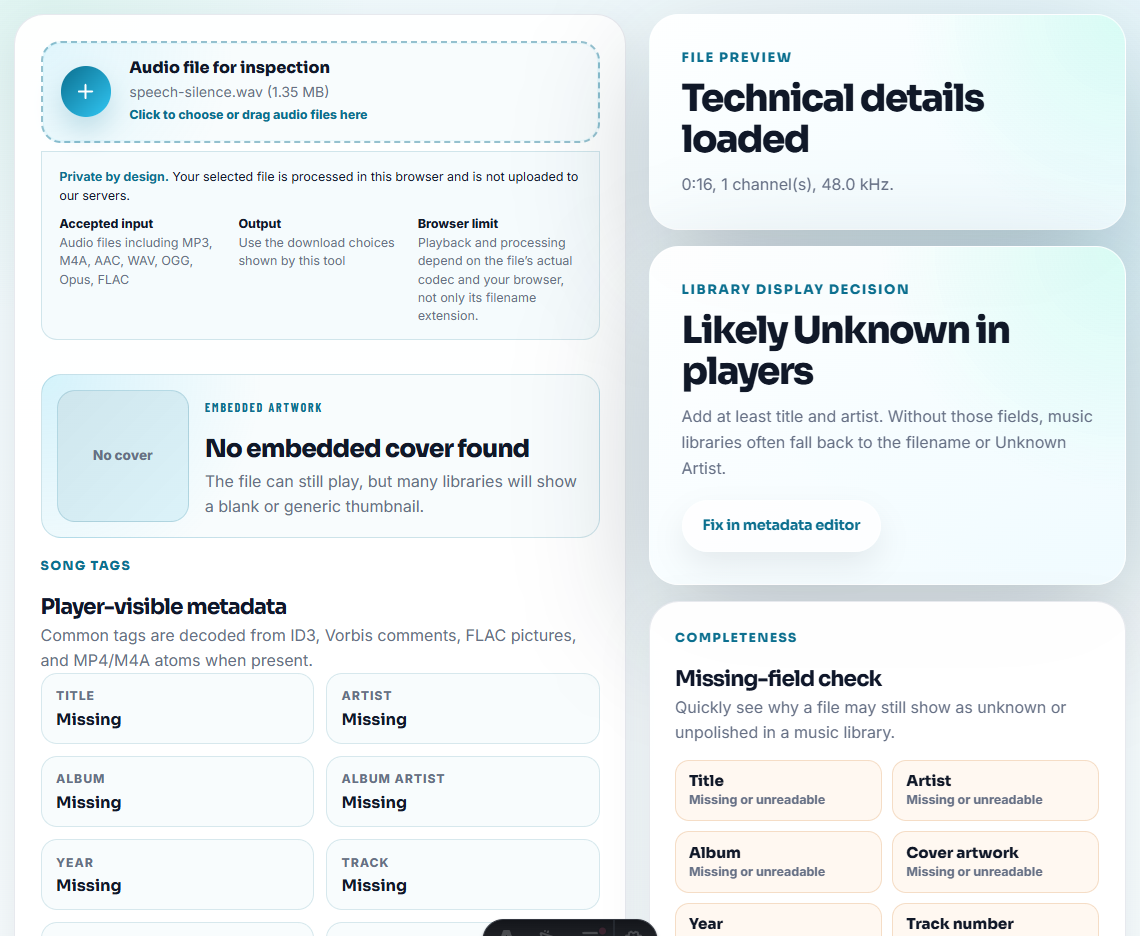
Open each file in Audio Metadata Viewer and confirm the duration and format. A segment that is unexpectedly short or silent should be checked before it enters the final merge.
Step 2: Check for Broken Segments
Use Recording Quality Checker on suspicious files. Look for silence, clipping, missing audio, or one segment that is much quieter than the others.
If one part is broken, solve that part first. Merging broken audio only hides the problem inside a longer file.
Step 3: Trim Rough Edges
Use Audio Trimmer to remove accidental starts, long tails, test speech, or repeated countdowns. Keep a little context so the joined file does not feel rushed.
Do not trim so tightly that the first word or last word of a segment gets clipped.
Step 4: Merge in Order
Use Audio Merger with the renamed prepared copies. Check the order before exporting.
After export, listen to the first few seconds around every join. This catches missing pieces, swapped segments, and rough transitions faster than listening only to the beginning.
Step 5: Level, Fade, and Label
Use Audio Normalizer if the merged file is too quiet or uneven. Add a gentle fade with smooth harsh starts and endings if the final file starts or ends abruptly.
Use Audio Metadata Editor only for labels you can confirm: title, speaker, course name, episode, date, or review status.
Verify the Story Order Before Export
Merging is not just technical. The final file should make sense to the listener from beginning to end.
| Segment type | Must come before | Must come after | Check at the join |
|---|---|---|---|
| Intro or context | Main explanation | Nothing or a short opening cue | First words are not clipped. |
| Demo or evidence | Result, Q&A, or conclusion | Setup that explains what is being shown | Listener knows what the sound proves. |
| Q&A or follow-up | Ending or next steps | The topic being answered | No answer appears before the question. |
| Outro or summary | Nothing | Main content | Ending is complete and not abrupt. |
If the merged file will be used publicly, write down the intended order before exporting. It is easier to fix a list than a finished wrong merge.
Check the Joins Like a Listener
The technical merge can succeed while the listening experience still feels wrong. After export, jump to every join point and listen for context, timing, and level, not just clicks.
| Final use | Join problem to catch | What to listen for | Fix before sharing |
|---|---|---|---|
| Dialogue or interview | Answer starts before the question feels complete | Missing breath, clipped first word, awkward jump | Add a little lead-in or restore the full question. |
| Lesson or course audio | Step order is confusing | A task is referenced before it is introduced | Rename segments and merge again in numbered order. |
| Product demo | Evidence appears without setup | Listener cannot tell what the sound proves | Add or restore the setup segment. |
| Music or ambience | Seam feels abrupt | Beat, tail, or room tone changes suddenly | Trim less tightly or add a short fade. |
| Support evidence | Important problem gets hidden | Problem example is too short or normalized away | Keep the issue audible in the review copy. |
This final listening pass often catches the real mistakes: swapped parts, missing context, and edits that look clean but make the file harder to understand.
Use Browser Tools for Simple Joins
Use browser merging when the segments are already approved, short, and in the right order. Keep every source segment unchanged, test the join points after export, and move to a full editor if timing, music beds, or multi-track cleanup matter.
For repeated recordings that should stay organized from the start, Cinch Audio Recorder can help keep capture and file management cleaner before merging.
Tools That Pair With This Task
- Audio Merger
- Audio Trimmer
- Audio Normalizer
- Audio Metadata Editor
- Shorten Long Audio So Reviewers Hear the Point
- Make Audio Preview Clips That Do Not Mislead
- Sync Two Recordings That Drift Apart
- Split a Long Recording Into Useful Sections
- Clean Webinar Replay Audio Without Losing Context
Small Decisions That Matter
How do I merge audio segments in the right order?
Inspect each segment, rename them in sequence, trim rough starts and endings, merge copies in order, then listen through the joins before sharing.
Should I normalize audio before or after merging?
Usually trim first, merge the ordered copies, then normalize the merged result. If one segment is extremely different, fix that copy before merging.
What should I check after joining audio files?
Check the segment order, join points, abrupt clicks, volume jumps, missing sections, final duration, and file name.