
Turn Meeting Recordings Into Reviewable Sections
 By HenrikUpdated Aug 7, 20266 min read
Check meeting audio, trim useful sections, remove safe silence, split topics, normalize speech, and label review copies.

Meeting recordings often contain useful decisions buried inside setup chatter, long pauses, screen-share delays, and repeated starts. The goal is not to polish the meeting like a podcast. The goal is to make the useful parts easier to review without losing context.
Meeting recordings are easier to review when the useful decisions are separated from setup chatter. Keep context, cut obvious dead time, and label the copy by topic or follow-up action.
Check the Meeting Section Before Sharing
| Step | Free tool | What to confirm |
|---|---|---|
| 1 | Recording Quality Checker | Confirm speech is present, complete, and not badly clipped. |
| 2 | Audio Metadata Viewer | Check duration, file size, format, channels, and basic details. |
| 3 | Audio Trimmer | Remove setup time, repeated starts, or unrelated endings. |
| 4 | Audio Silence Remover | Shorten long empty sections without destroying conversation rhythm. |
| 5 | Audio Chapter Splitter | Split the meeting by agenda item, speaker, or decision. |
| 6 | Audio Normalizer | Make speech easier to hear across speakers. |
| 7 | Audio Metadata Editor | Add meeting title, date, team, project, or review notes. |
Start by preserving the original file. Every edit should happen on a copy.
Step 1: Confirm the Recording Is Usable
Open the meeting in the Recording Quality Checker before trimming anything. Check whether the meeting starts where expected, whether speakers are audible, and whether the file contains long silent gaps.
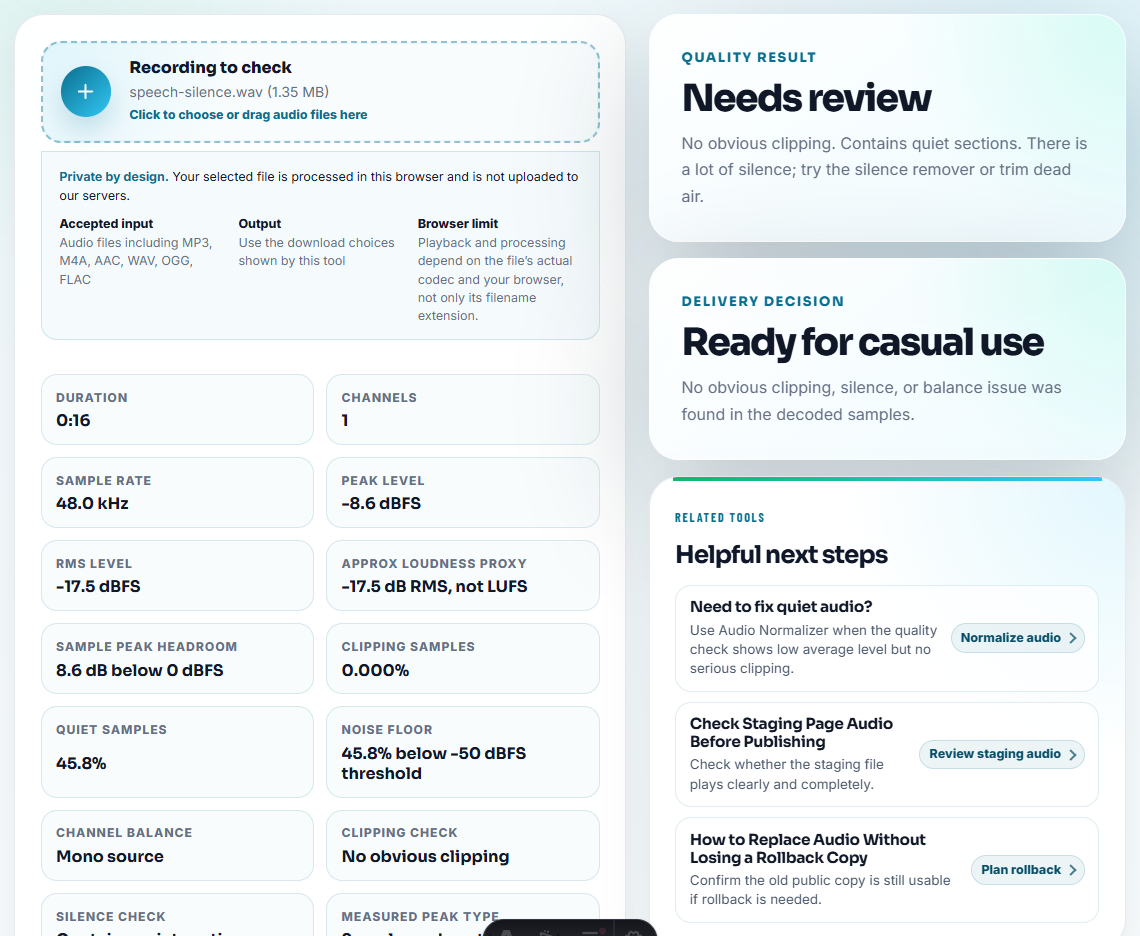
Also use Audio Metadata Viewer when you need a quick read on duration, format, channels, or file size before sharing the file with someone else.
Choose the Meeting Review Copy
Different listeners need different meeting audio. Decide the review copy before cutting the file.
| Listener need | Better copy | Keep | Remove or shorten |
|---|---|---|---|
| Action item review | Topic sections with clear endings | Decisions, owners, deadlines | Waiting-room silence and repeated setup. |
| Transcript preparation | Complete speech copy | Speaker introductions and question context | Private side talk or unrelated setup. |
| Customer or support follow-up | Short evidence clip | The exact issue, answer, or promise | Internal discussion and unrelated names. |
| Team archive | Labeled full copy plus optional sections | Original context and date | Only obvious dead air in the listening copy. |
| Executive recap | Few short sections | Decisions and blockers | Long exploration that does not affect the recap. |
This keeps meeting cleanup tied to what someone will actually do with the recording.
Do Not Turn a Meeting Into a Mystery Clip
A short meeting clip is useful only if the listener can understand why it was shared. Keep the minimum context that explains the decision, promise, or blocker.
| Review purpose | Context that must stay | Can be removed | Risk if missing |
|---|---|---|---|
| Action item | Owner, deadline, and decision wording | Waiting-room silence | Nobody knows who agreed to do what. |
| Customer follow-up | Customer question and final answer | Internal side discussion | The clip may sound like a promise without scope. |
| Technical blocker | Symptom, attempted fix, and current state | Repeated troubleshooting loops | Engineers cannot reproduce the issue. |
| Transcript prep | Speaker turns and topic setup | Private or unrelated chatter | The transcript loses attribution. |
| Executive recap | Decision and impact | Long exploration | The clip sounds like an unsupported conclusion. |
Step 2: Trim Setup and End Noise
Use Audio Trimmer to remove:
- Waiting-room silence.
- Microphone checks.
- Repeated starts.
- Off-topic ending chatter.
- Long silence after the meeting ends.
Do not trim away the first sentence that explains the meeting context. A clean review copy still needs enough lead-in for the listener to understand what happened.
Step 3: Shorten Only Safe Silence
Use Audio Silence Remover carefully. Meetings include pauses while people think, switch speakers, or look for information. Removing all pauses can make the conversation harder to follow.
Good silence to shorten:
- Long screen-share delays.
- Waiting for someone to join.
- Dead air after a task is finished.
- Repeated technical setup.
Bad silence to remove:
- Pauses before important answers.
- Speaker handoff gaps.
- Training moments where people need time to follow.
Step 4: Split the Meeting by Topic
Use Audio Chapter Splitter when a long meeting has several useful sections. A 60-minute meeting becomes easier to review when it is split into agenda blocks.
Helpful split points include:
- Introductions.
- Customer feedback.
- Technical discussion.
- Action items.
- Decisions.
- Follow-up questions.
Step 5: Normalize the Listening Copy
Use Audio Normalizer after trimming and silence cleanup. This helps when one speaker is quiet and another is close to the mic.
Do not boost a damaged file until it sounds harsh. If the recording has heavy clipping or missing speech, make a note instead of pretending the audio is fixed.
Step 6: Label the File for Future Search
Use Audio Metadata Editor or a clear filename after the file is final.
Useful labels:
- Meeting name.
- Date.
- Team or project.
- Main topic.
- Version type: original, review, transcript, archive.
Example: 2026-07-30-product-call-action-items-review.mp3.
When to Stay With Browser-Based Checks
Browser prep is enough when the meeting recording only needs a short review copy, a decision timestamp, or a clearer playback file for one team. Use a stricter process when the recording contains confidential discussion, legal decisions, HR topics, or customer commitments.
For long or repeated audio capture, Cinch Audio Recorder can help create organized source recordings before you prepare review copies.
Tools That Pair With This Task
- Recording Quality Checker
- Audio Metadata Viewer
- Audio Trimmer
- Audio Silence Remover
- Audio Chapter Splitter
- Prepare Clear Audio Before Transcription
Before You Start
How do I clean up a meeting recording for review?
Check the recording first, trim unrelated setup time, shorten only safe silence, split major topics, normalize speech, and label the final review copy clearly.
Should I delete silence from every meeting recording?
No. Keep pauses that make speakers easier to follow. Remove only long empty sections, waiting time, or repeated setup silence.
What should I keep before editing a meeting file?
Keep the original recording, then export edited copies for review, sharing, transcription, or archive.