
How to Convert Voice Notes to MP3 Without Losing Context
 By HenrikUpdated Aug 7, 20266 min read
Convert voice notes to MP3 safely, test playback, preserve context, trim copies, and label files.
Voice notes are easy to create and hard to organize. A phone recorder, messaging app, or chat export may leave you with OPUS, M4A, WebM, OGG, or another format that does not play well everywhere.
Voice notes are easy to record and surprisingly easy to lose in the wrong format. Convert only a copy, keep the spoken context intact, and check that the MP3 still opens where you plan to send it.
Make the Review Copy Easy to Trust
| Task | Tool | Result to verify |
|---|---|---|
| 1 | Voice Note to MP3 Converter | Create a playable MP3 copy when the browser supports the source file. |
| 2 | Audio Trimmer | Remove dead starts, repeated takes, or accidental endings. |
| 3 | Audio Normalizer | Make quiet voice notes easier to hear. |
| 4 | Audio Silence Remover | Shorten long blank gaps only when they are safe. |
| 5 | Audio Metadata Editor | Add a simple title, speaker, date, or comment when useful. |
Work on copies. Keep the original voice note until you know the MP3 opens and sounds right.
Step 1: Convert One Test Note First
Open one representative file in the Voice Note to MP3 Converter. Do not start with a folder of important recordings.
Check:
- The file opens in the browser.
- The export creates an MP3 copy.
- The MP3 plays from start to finish.
- The duration matches the original.
- Speech is not missing or sped up.
If the source format is not supported by your browser, keep the original and try a desktop converter instead of forcing a broken workflow.
Choose the Right MP3 Copy
Not every voice note needs the same output. Decide what the MP3 is for before trimming, normalizing, or removing silence.
| Use case | Best MP3 copy | Keep in the file | Remove from the file |
|---|---|---|---|
| Personal reminder | Short, clear listening copy | The task, date, and important context | Accidental recording before or after the note. |
| Meeting follow-up | Review copy with useful speaker context | Names, question setup, and decisions | Private side talk or unrelated waiting time. |
| Support example | Short evidence clip | The symptom and enough context to understand it | Customer details that do not affect the issue. |
| Language practice | Practice copy that preserves pauses | Repetition, pronunciation attempts, and corrections | Long dead air that slows review. |
| Archive note | Lightly edited copy plus original | Source context and original meaning | Nothing unless it is clearly accidental. |
This keeps conversion from turning into blind cleanup that removes the reason the note was recorded.
Step 2: Trim the Converted Copy
Use the Audio Trimmer after conversion when the voice note includes setup noise, repeated starts, or a long ending.
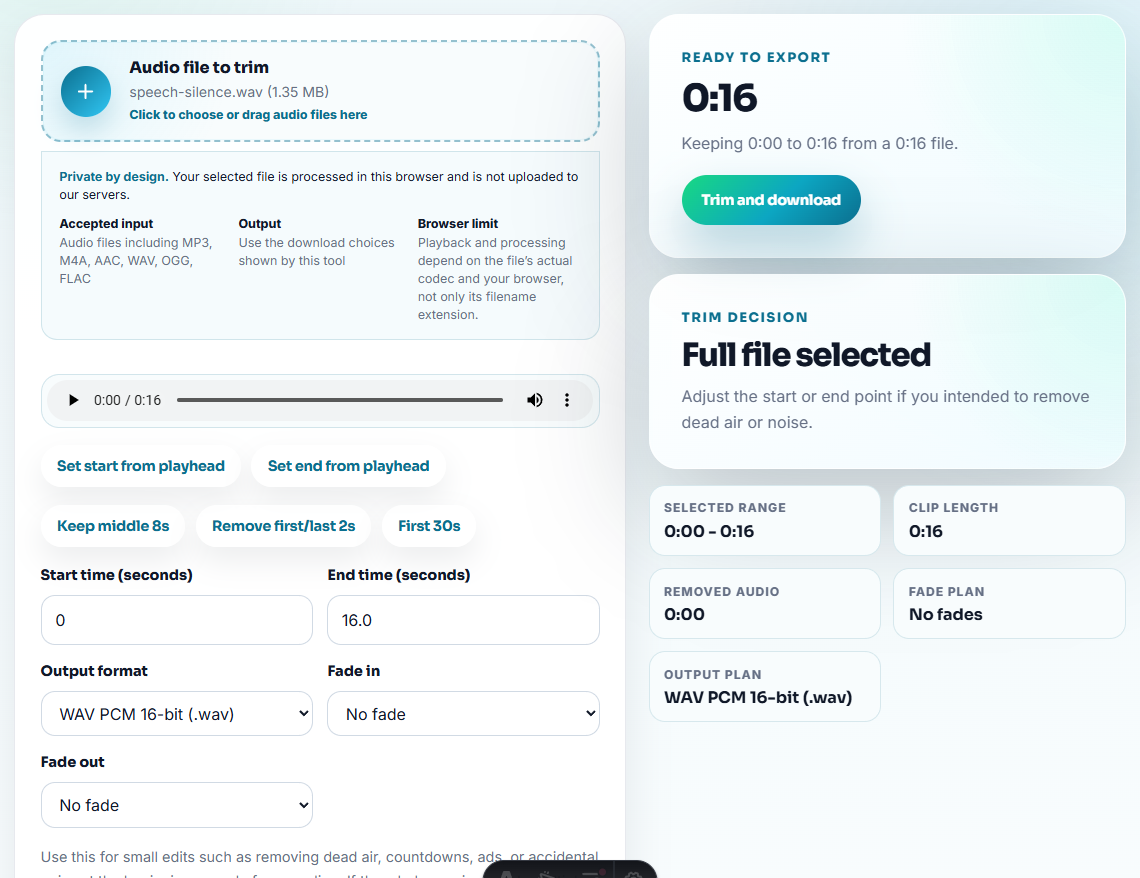
Trim carefully:
- Keep the first complete word.
- Leave a small natural lead-in.
- Remove only the parts you know are not needed.
- Export a new copy instead of overwriting your first MP3.
Voice notes often contain context at the beginning, so do not cut too tightly.
Step 3: Fix Quiet Voice Notes
If the voice is complete but too quiet, use the Audio Normalizer on the trimmed copy. Normalize after trimming so the tool measures the useful speech instead of dead air.
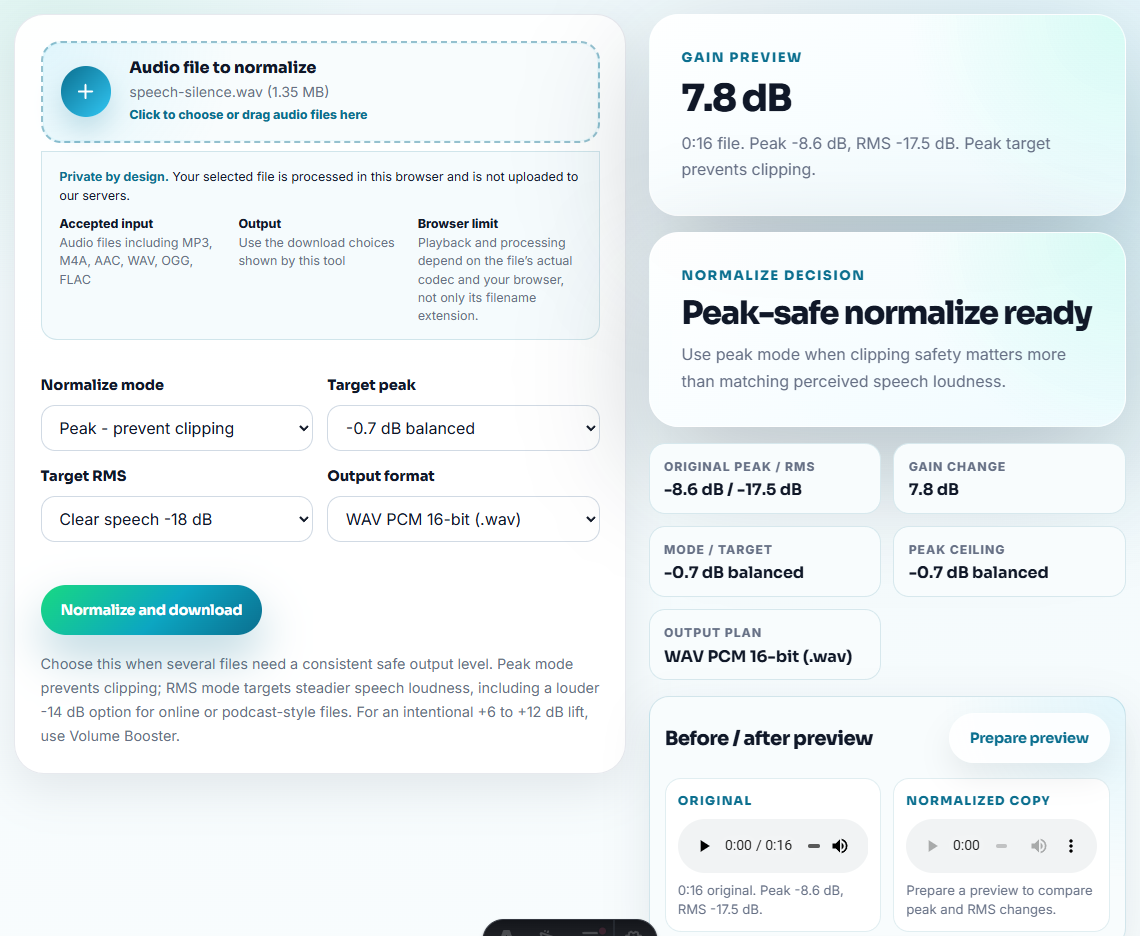
If the note has steady hiss or hum, use the Make Voice Recordings Clearer Before Sharing before boosting too much. Raising a noisy file also raises the noise.
Step 4: Shorten Long Pauses Only When Safe
The Audio Silence Remover can make review files easier to listen to, especially for dictated notes, meeting reminders, or long spoken memos.
Use it when:
- Pauses are clearly empty.
- The file is for review, not legal or archival accuracy.
- Speech still sounds natural after shortening.
Avoid it when pauses carry meaning, such as interviews, emotional messages, language practice, or recorded instructions.
Step 5: Name the File So You Can Find It
A useful filename is often better than complicated metadata.
For personal notes:
2026-07-30 - Voice Note - Project Idea.mp3For meeting or support notes:
2026-07-30 - Customer Call - Activation Issue.mp3For language practice:
2026-07-30 - Spanish Practice - Lesson 04.mp3Use the Audio Metadata Editor only when the player needs a visible title, speaker, or comment field.
Check the MP3 Against the Original
Conversion should make a voice note easier to use, not silently change what the note means. After converting, compare the MP3 with the original before trimming or sharing.
| Check | Good sign | Warning sign | Next step |
|---|---|---|---|
| Duration | MP3 duration matches the original closely | MP3 is much shorter or longer | Keep the original and retry with another workflow. |
| Speech speed | Voice sounds natural | Voice is fast, slow, or distorted | Do not batch convert until the test note passes. |
| Start and ending | First words and final words are present | Beginning or ending is missing | Convert again before trimming. |
| Context | Important pause or label still makes sense | Silence removal would remove meaning | Trim manually or keep a review copy. |
This single comparison catches many conversion problems before they spread into an archive or support folder.
When a Desktop Workflow Is Better
Free browser tools are best for a few local files. A desktop workflow is better when you need batch conversion, private archive rules, repeated system audio recording, or automatic organization.
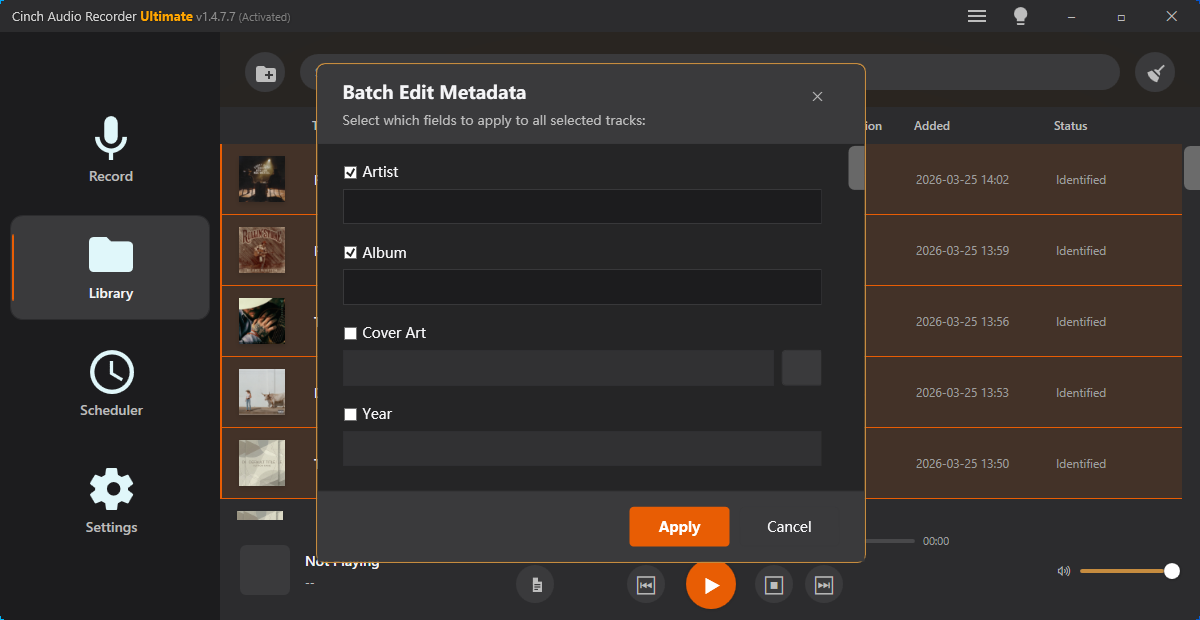
For recorded music and streaming audio, use Cinch Audio Recorder when the task is capture plus library cleanup rather than one-off file conversion.
More Ways to Check the File
- Voice Note to MP3 Converter
- Audio Trimmer
- Audio Normalizer
- Audio Silence Remover
- Make Voice Recordings Clearer Before Sharing
- Audio file naming guide
Questions People Usually Ask
What should I do after converting a voice note to MP3?
Open the MP3, trim unwanted starts and endings, check the volume, shorten only safe silences, then rename the file with a useful date, source, and topic.
Should I remove silence before converting a voice note?
Convert a copy first, then trim or remove silence on the MP3 copy. That keeps the original voice note untouched if the cleanup settings are too aggressive.
Can browser tools convert every phone voice note?
No. Browser support depends on the file type and encoder available in the browser. Keep the original file and test one short note before planning a batch conversion.