
Turn Vague Audio Complaints Into Action Items
 By HenrikUpdated Aug 7, 20267 min read
Turn vague playback complaints into a clear issue intake log with file identity, evidence, priority, and next action.
Audio issue reports often arrive as short messages: “this file is broken,” “the clip is wrong,” “it sounds bad,” or “the download is too big.” Those reports are useful, but they are not enough to fix safely.
An intake log turns the first report into a small, repeatable record. It tells the next person what was reported, which file was checked, what evidence exists, and what should happen next.
Use the Tools in This Order
| Pass | Tool to open | Check to make |
|---|---|---|
| 1 | Audio Metadata Viewer | Confirm file identity, duration, format, size, tags, and source clues. |
| 2 | Recording Quality Checker | Capture first-pass evidence for silence, clipping, low level, or missing endings. |
| 3 | Audio Waveform Generator | Save a visual clue when the report mentions silence, cuts, gaps, or wrong sections. |
| 4 | Audio File Size Calculator | Check whether size, bitrate, or delivery format may explain upload or playback complaints. |
| 5 | Audio Metadata Editor | Add safe intake status, owner, source, and next-action notes to review copies. |
The log does not need to be complicated. It only needs to stop the team from guessing.
Step 1: Capture the Report Without Rewriting It
Start with the original wording:
reported issue: "audio cuts off near the end"
reported location: product demo page
reported by: support team
date found: 2026-07-31
Keep the report short and literal. Do not translate it into a technical diagnosis yet.
Step 2: Identify the Exact File
Use Audio Metadata Viewer before opening an editor.
Record:
- File name.
- Page, folder, or download link.
- Format.
- Duration.
- Size.
- Visible title or hidden comments.
- Whether the labels match the page.
This matters because many audio issues are identity issues. The file may play correctly but still be the wrong clip.
Step 3: Add Evidence, Not Opinions
Use Recording Quality Checker for a first pass.
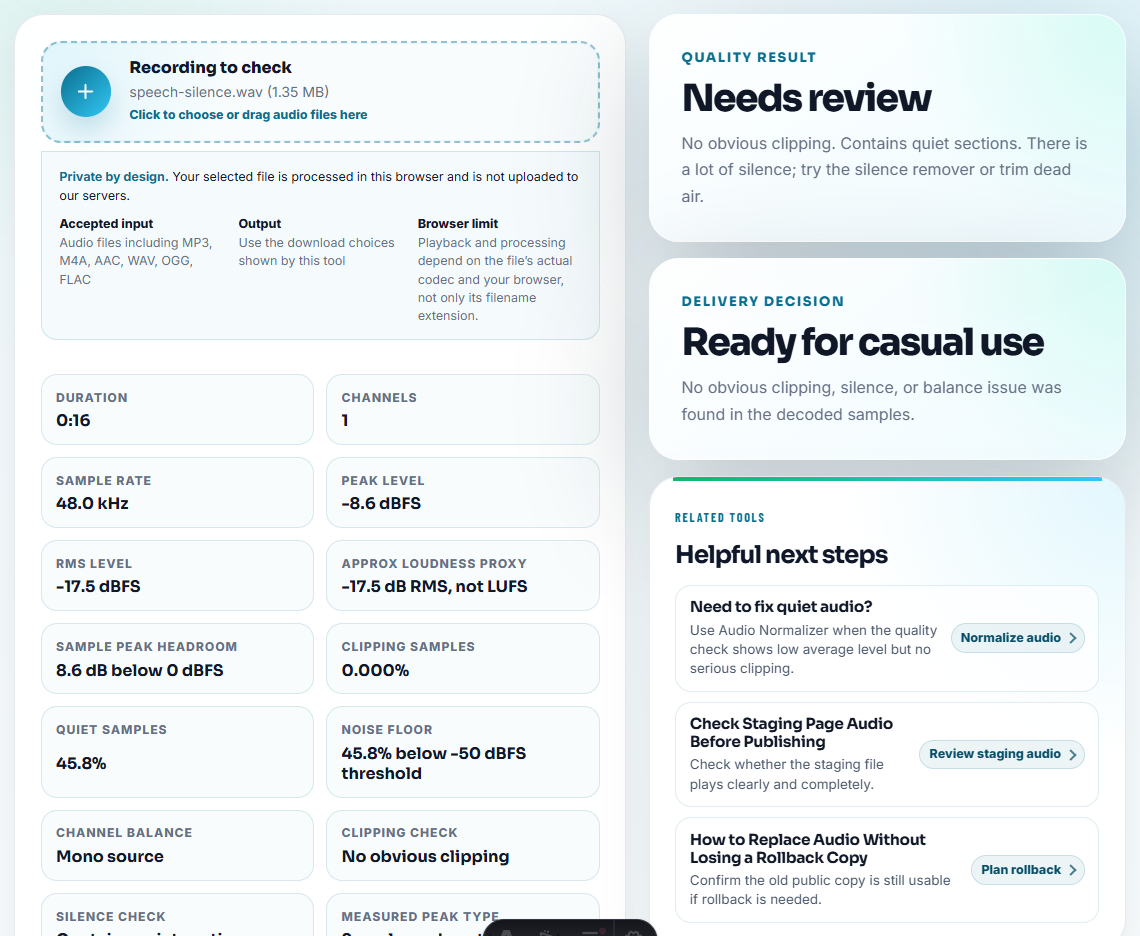
Useful evidence:
- Silent.
- Clipped.
- Too quiet.
- Ends early.
- Contains long blank lead-in.
- Wrong section appears to be present.
- File opens and plays normally.
When the report involves timing, use Audio Waveform Generator to capture a quick visual check.
Step 4: Translate Complaint Words Into Checks
People often describe audio problems in everyday language. Use their words as clues, not final diagnoses.
| Report wording | First check | Possible next status |
|---|---|---|
| ”It does not play” | Confirm page link, format, file size, and whether the file opens locally | Needs page check or needs format test |
| ”It is silent” | Check waveform, duration, and first audible section | Needs playback check or needs replacement |
| ”It stops early” | Compare public duration with trusted source duration | Needs replacement or root cause note |
| ”It sounds wrong” | Confirm metadata, page context, and expected section | Needs identity check |
| ”It is too big to send” | Compare size, format, and intended delivery channel | Needs size fix |
| ”This should not be public” | Preserve file and check permission/source status before editing | Needs permission review |
This table keeps intake practical. It lets a support or web teammate choose the first test without pretending the cause is already known.
Step 5: Check Size and Delivery Context
Use Audio File Size Calculator when the issue mentions:
- Upload failure.
- Slow page.
- Large attachment.
- Download timeout.
- Unexpectedly tiny file.
- Different size after replacement.
Size is a clue, not a verdict. A huge source file may be fine in an archive but wrong on a public page.
Step 6: Assign an Intake Status
Use one status per issue:
| Status | Meaning |
|---|---|
| Needs identity check | The exact file or page is unclear. |
| Needs playback check | The file is known, but the failure is unconfirmed. |
| Needs replacement | The public copy is wrong, damaged, or incomplete. |
| Needs page check | The audio file seems OK, but the embed, link, or page context may be wrong. |
| Needs permission review | The issue is about whether the audio should be public. |
| Closed after check | The report was reviewed and no audio-file issue was found. |
Avoid vague statuses like “fix later” or “bad audio”.
Step 7: Decide Escalation Before Editing
Some reports should not go straight into trimming, compression, or conversion. Escalate first when the wrong fix could make the situation worse.
| Escalate when | Why it matters | Safer next move |
|---|---|---|
| The file may contain private or customer-specific audio | Editing a copy does not remove exposure risk | Remove from public use and ask the owner |
| Source is unknown | A clean export from the wrong source is still wrong | Find the trusted source or mark source review |
| The same issue is repeated | A one-file fix may miss the workflow cause | Open recurrence prevention or monitoring review |
| The report affects sales, support, or public pages | More users may see the problem before it is fixed | Assign priority and status update owner |
| The file passes locally but fails on the page | The issue may be delivery, cache, or embed behavior | Route to page or web review |
Escalation does not mean delay. It means the next owner is the person who can safely decide.
Step 8: Label the Review Copy
If you create a review copy, use Audio Metadata Editor to add a safe note:
Intake status: needs playback check. Report: cuts off near end. Source copy preserved. Owner: web team.Do not put private customer details inside public files. Keep sensitive details in your support or project system.
Intake Log Template
issue id:
reported wording:
page or folder:
file checked:
format:
duration:
size:
evidence:
status:
owner:
next action:
source preserved:
This template is small enough to use in a note, ticket, spreadsheet, or support reply draft.
Quality Checks Before You Turn Vague Audio Complaints Into Action Items
- Do not start by converting or compressing the file.
- Do not overwrite the reported file before copying evidence.
- Do not diagnose from the complaint alone.
- Do not log only the page and forget the exact file.
- Do not leave the issue without an owner.
- Do not put private report details into public metadata.
Use Browser Tools for First Intake Evidence
Browser prep is enough when intake needs one safe sample and a clear first classification. Use a controlled support workflow when the issue includes customer identity, billing impact, logs, repeated reproduction, or public-facing evidence.
Use a formal ticketing or asset system when issues involve many teams, customer privacy, legal approvals, paid campaigns, or service-level commitments.
Useful Follow-Up Steps
- Audio Metadata Viewer
- Recording Quality Checker
- Audio Waveform Generator
- Prioritize Audio Fixes by User Impact
- Respond to Public Audio Problems Without Guessing
- Report Broken Audio Playback With Clear Evidence
- Monitor Public Audio Playback Before Users Complain
Small Decisions That Matter
What is an audio issue intake log?
It is a short record that captures the reported problem, exact file, page or folder, playback evidence, priority, owner, and next action before anyone edits the audio.
Why log audio issues before fixing them?
A log prevents vague reports from turning into random fixes. It helps you confirm the right file, separate playback problems from page problems, and avoid losing evidence.
What should I test with a short sample first?
Capture the symptom, source, user impact, file details, and next owner so vague complaints become something the team can act on.