
How to Turn Audio Feedback Into Product Evidence
 By HenrikUpdated Aug 7, 20267 min read
Organize customer audio feedback into useful clips for distortion, metadata, splitting, access, and speed issues.
Product feedback audio is useful when the sound carries something a written note cannot show well: confusion in a workflow, a before-and-after result, a playback problem, or a customer explaining what they expected.
The goal is not to send every recording to the product team. The goal is to prepare a short, reviewed clip that keeps the feedback specific and safe to share.
Decide What the File Must Prove
| Pass | Tool to open | Check to make |
|---|---|---|
| 1 | Audio Metadata Viewer | Check source details, duration, size, format, channels, and private labels. |
| 2 | Recording Quality Checker | Confirm the feedback section is audible and complete. |
| 3 | Audio Trimmer | Cut the moment that explains the feedback. |
| 4 | Audio Waveform Generator | Add a timing clue for silence, peaks, gaps, or before-and-after points. |
| 5 | Audio Compressor | Create a smaller review copy after the feedback section is approved. |
| 6 | Online Audio Format Converter | Convert a copy only when the product team needs another format. |
| 7 | Audio Metadata Editor | Add product, feature, version, feedback type, and review labels. |
The product team should understand what to listen for before they press play.
Step 1: Choose One Feedback Point
A product feedback clip should answer one question:
- What did the customer expect?
- What sounded wrong?
- Which workflow step caused confusion?
- What result changed after a setting or fix?
- Which output example should the team review?
- Which repeated support issue needs product attention?
If the clip contains several topics, split it into smaller reviewed copies.
Step 2: Inspect the Source
Use Audio Metadata Viewer before sharing anything beyond support or customer success. Check the filename, tags, format, duration, and source clues.
Avoid sending files that expose customer names, internal ticket notes, account details, or private call context unless the team has permission and a clear need.
Step 3: Check Playback Before Editing
Use Recording Quality Checker to confirm the relevant section is audible and complete.
If the feedback is about a sound problem, do not fix the problem away. Preserve the issue in a copy so the product team can hear what the customer heard.
Step 4: Trim the Feedback Moment
Use Audio Trimmer on a copy. Keep a few seconds of context before and after the key moment so the clip does not feel misleading.
Useful filenames include:
product-feedback-export-silence-example.mp3
product-feedback-feature-result-short-copy.mp3
product-feedback-before-after-reviewed.mp3
product-feedback-workflow-confusion-clip.mp3
Use a written note for private customer or ticket details.
Step 5: Add Visual Context When Helpful
Use Audio Waveform Generator if the feedback depends on timing, silence, peaks, missing endings, or before-and-after alignment.
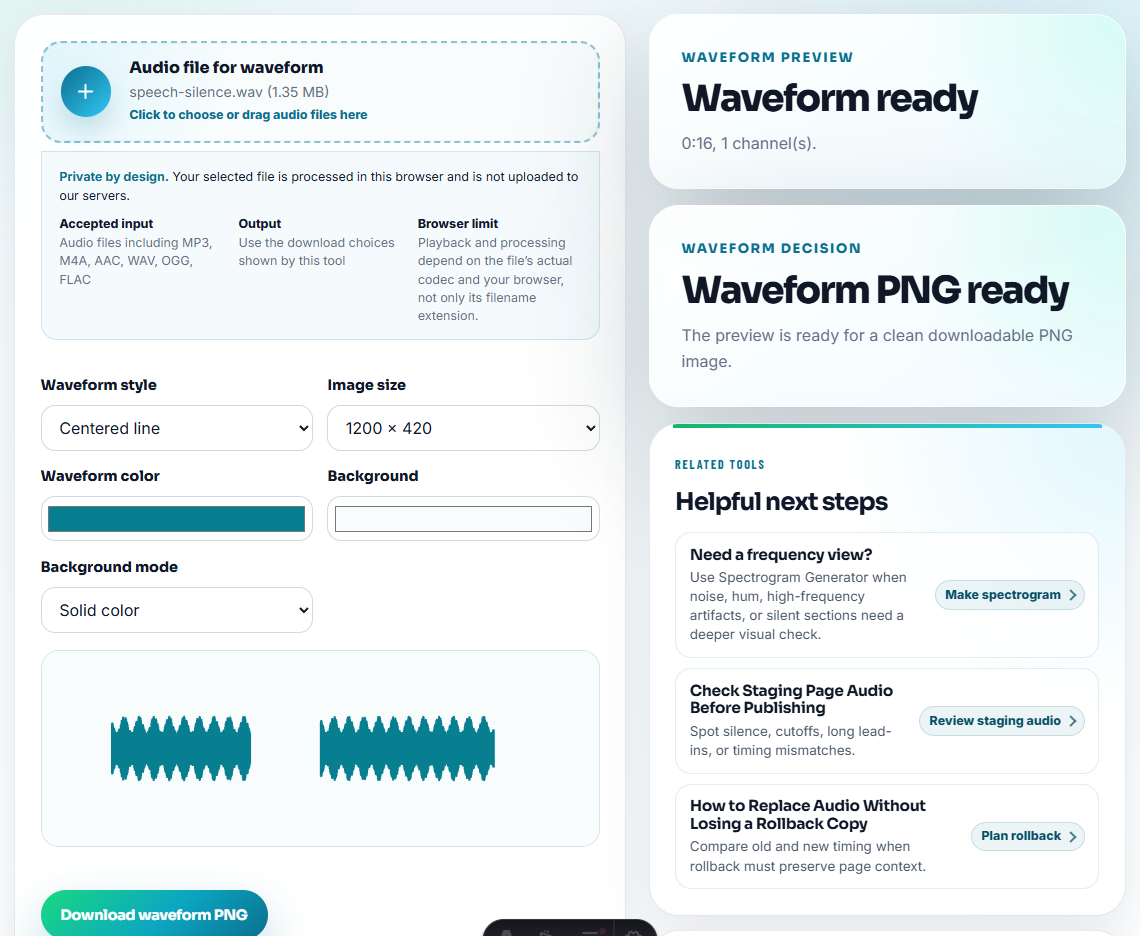
A simple waveform can help a product manager or engineer jump to the right section without replaying the clip several times.
Step 6: Create a Practical Review Copy
Use Audio Compressor after review so the clip is easy to attach to an issue, product note, or internal discussion.
Use Online Audio Format Converter only when the receiving workflow needs another format. Keep the reviewed source separate.
Step 7: Label the Product Context
Use Audio Metadata Editor to add:
- Product or feature.
- Version or build.
- Feedback type.
- Expected result.
- Actual result.
- Review owner.
- Source status.
Then add a short handoff note:
Customer expected continuous playback after export; this reviewed clip shows the silent gap starting around 00:08.Product Feedback Categories That Need Different Evidence
Not every audio complaint belongs in the same product backlog item. Anonymized support examples show several different evidence types hiding behind similar wording:
| User wording | Likely feedback category | Evidence to attach |
|---|---|---|
| ”The recording gets fast” or “songs play too fast” | Timing or capture stability | A short clip before and after the speed change, plus duration notes. |
| ”The MP3 is scratchy” or “recordings are distorted” | Output quality | A sample that preserves the artifact, not a cleaned copy. |
| ”No names of the songs” or “track numbers only” | Metadata recognition | File list, metadata snapshot, and one representative audio file. |
| ”It will not separate tracks” | Track boundary workflow | A longer sample around the transition point plus expected split behavior. |
| ”I reinstalled and cannot use it” | Access/setup blocker | Registration or download context first; audio evidence may be irrelevant. |
This keeps product feedback from becoming a bucket of vague complaints. Each category needs a different clip, note, or screenshot before it can be acted on.
Add a Product Triage Decision
Once the feedback clip is ready, label the product decision it supports. This keeps teams from treating every audio complaint as the same kind of backlog item.
| Triage decision | Use when | Next artifact |
|---|---|---|
| Needs reproduction | The clip shows a symptom but not the steps. | Support request for source, settings, timing, or logs. |
| Documentation gap | The audio is fine but the customer expected a different workflow. | Help article, onboarding note, or tooltip copy. |
| Product bug candidate | The issue is repeatable and tied to a product behavior. | Bug ticket with sample, version, and expected/actual result. |
| Feature request | The customer wants an outcome the product does not currently offer. | Product feedback item with customer segment and use case. |
| Not enough evidence | The clip is unclear or over-edited. | Ask for one better sample instead of escalating broadly. |
This gives product teams a better starting point than “customer sent bad audio.”
Quality Checks Before You Turn Audio Feedback Into Product Evidence
- Do not forward full customer calls when a short excerpt explains the feedback.
- Do not expose private customer or ticket details in filenames.
- Do not edit away the problem the product team needs to hear.
- Do not send vague audio without expected and actual result notes.
- Do not mix approved feedback clips with raw source recordings.
- Do not compress or convert the only source file.
When Browser Prep Is Enough for Product Feedback
Browser prep is enough for product feedback when one clip captures a request, complaint, or confusion point clearly. Keep the full feedback source private, add a short written summary, and avoid editing out hesitation that explains the user’s real experience.
Use a stricter workflow when the feedback contains customer-identifiable audio, legal-sensitive claims, formal research interviews, or files that will become public product evidence.
Tools That Pair With This Task
- Audio Metadata Viewer
- Recording Quality Checker
- Audio Trimmer
- Audio Waveform Generator
- Turn Interview Audio Into Fair Quote Clips
- Escalate Audio Issues With Reproducible Evidence
- How to Send Audio Proof in a Support Reply
Small Decisions That Matter
What should I check before using audio for product feedback?
Pick one feedback point, inspect the source, trim the relevant moment, check playback, remove private labels, add product and version context, and share a compact reviewed copy.
Should product feedback audio include a full call?
Usually no. A short excerpt with a clear note is easier for product teams to review than a long recording.
What should I check for product feedback audio?
Use a short sample that shows the user reaction or defect clearly, then connect it to the product area, account, and requested change.