
Write Audio Review Notes People Can Act On
 By HenrikUpdated Aug 7, 20265 min read
Write audio quality review notes with file identity, timestamps, listening impact, evidence, and next actions.
Audio feedback is often too vague: “sounds bad”, “too low”, “weird noise”, or “use the other file.” Those notes slow everyone down because the next person has to rediscover the problem.
Better review notes say where the issue is, what it sounds like, what the tools found, and what should happen next.
What to Check Before You Write Audio Review Notes People Can Act On
| Decision point | Tool | Evidence to collect |
|---|---|---|
| 1 | Audio Metadata Viewer | Capture file name, format, duration, size, channels, and source clues. |
| 2 | Recording Quality Checker | Note clipping, silence, low level, and rough quality signals. |
| 3 | Audio Waveform Generator | Add visual clues for peaks, blank sections, or cut points. |
| 4 | Audio Spectrogram Generator | Add frequency clues when hum, hiss, buzz, or artifacts matter. |
| 5 | Audio Trimmer | Create a short review clip that contains the issue. |
| 6 | Audio Metadata Editor | Add confirmed labels after review decisions are made. |
The point is not to sound technical. The point is to make the next action obvious.
Step 1: Identify the File Clearly
Start with Audio Metadata Viewer.
Write:
File:
Role:
Duration:
Format:
Source or copy:
Reviewer:
Date:
If there are several similar files, include the exact filename. A review note that cannot be matched to a file is almost useless.
Step 2: Describe the Problem in Plain Language
Use human words before tool words.
Examples:
Voice drops too low after the intro.
Left side is louder than right.
There is a buzz behind speech.
The first 40 seconds are empty.
The ending is cut off.
The music jump at 01:12 is distracting.
Then add tool clues only when useful.
Step 3: Add a Time or Clip
Use Audio Trimmer to make a short example when the file is long.
Good note format:
Problem section: 01:12-01:32
Example clip: support-buzz-01m12s.mp3
Impact: buzz is audible behind speech
Next action: test noise reduction on a copy
Do not send a full hour recording when a 20 second clip proves the issue.
Step 4: Add Quality Signals
Use Recording Quality Checker.
Useful signals:
- Clipping risk.
- Mostly silence.
- Very low level.
- Rough peaks.
- Incomplete recording.
- Suspicious duration.
Keep the wording simple:
Quality check: clipping appears near 02:40.
Quality check: file is not silent, but speech is very low.
Quality check: ending may be incomplete.
Step 5: Add Visual Evidence Only When It Helps
Use Audio Waveform Generator for visible silence, peaks, and rough edits.
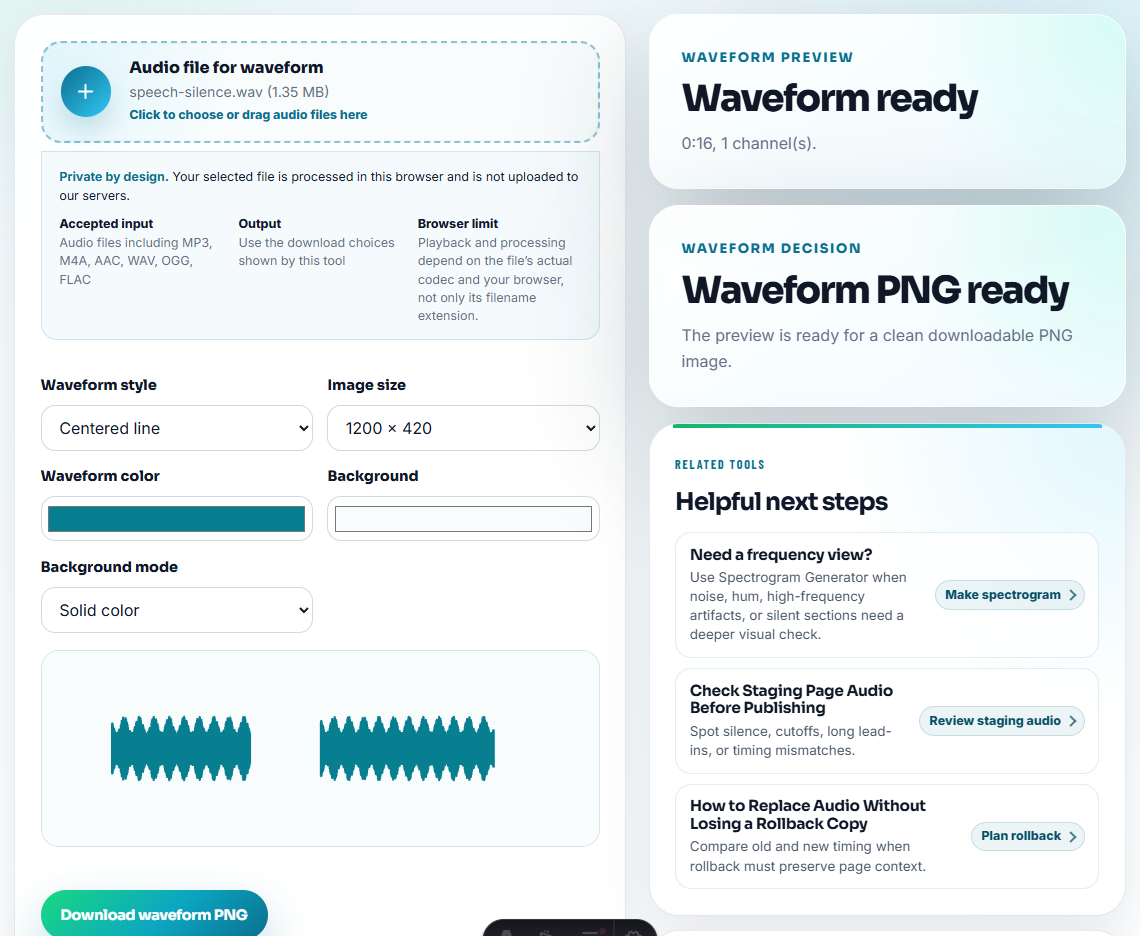
Use Audio Spectrogram Generator when the problem is frequency-related, such as hum, hiss, buzz, or artifacts.
Do not attach visuals just to decorate a note. Add them when they make the issue easier to find.
Step 6: Finish With a Next Action
Every useful review note should end with a practical next step:
- Keep as source.
- Make a shorter review copy.
- Normalize only a copy.
- Try gentle noise reduction.
- Re-record if possible.
- Ask whether the clipped version is still acceptable.
- Compare with another candidate copy.
This turns review from opinion into workflow.
Make the Note Useful to the Next Person
Good review notes do not just describe a flaw. They tell the next person whether to fix, compare, approve, replace, or ask for a new recording.
| Review finding | Weak note | Better note | Next action |
|---|---|---|---|
| Quiet but complete speech | ”Too low" | "Speech is complete but low from 00:18 onward.” | Normalize a copy and compare. |
| Distorted main section | ”Sounds bad" | "Main answer clips around 01:05; rerecord may be needed.” | Check source or request rerecord. |
| Unclear duplicate choice | ”Use other file" | "Copy B has full ending; Copy A cuts off at 02:10.” | Keep B as review candidate. |
| Private content in sample | ”Trim it" | "Remove names before the issue example starts.” | Create private-safe clip. |
This kind of note adds value because it reduces the next person’s retesting time.
What Can Go Wrong When You Write Audio Review Notes People Can Act On
- Do not write “bad audio” without a time or section.
- Do not mix several files in one unclear note.
- Do not use technical labels you have not verified.
- Do not attach a waveform when the problem is only metadata.
- Do not hide uncertainty.
- Do not mark a file final while review notes still say it needs work.
When Browser Checks Are Safe to Use
For quality review notes, browser tools are enough when the note needs a timestamp, symptom, and short listening sample. Keep the source file unchanged, write what you hear before trying to fix it, and separate subjective taste from measurable problems like clipping or silence.
Use a full review system when you need timecoded comments, legal redaction, approvals, version control, or many reviewers working on the same media.
Next Audio Checks to Try
- Recording Quality Checker
- Audio Waveform Generator
- Audio Spectrogram Generator
- Audio Trimmer
- Know When Audio Should Be Rerecorded
- Find What Is Causing Noise in an Audio File
- Show Support the Exact Audio Problem
- Help Users Troubleshoot Audio Before Support
- Send Client Audio Review Copies They Can Judge
Checks Worth Making First
What should audio quality review notes include?
Include the file name, source role, problem section, timestamp or clip, quality issue, listening impact, and the next action.
Do I need technical language in audio review notes?
No. Use plain descriptions first, then add tool clues such as clipping, silence, waveform peaks, or format details when they help someone act.
What should I check before writing audio review notes?
Write down the exact moment, what the listener should notice, whether the issue is repeatable, and which file version the note refers to.