
How to Make Audiobook Copies Easier to Follow
 By HenrikUpdated Aug 7, 20266 min read
Prepare audiobook listening copies with chapter splits, natural pauses, safer volume, speed versions, and labels.
Audiobook files need different treatment from music. Long pauses, sudden loud moments, uneven narration, and huge single files can make listening tiring, especially on phones or before sleep.
This guide helps you prepare a practical listening copy while keeping the original file safe.
Separate Source, Review, and Final Copies
| Task | Tool | Result to verify |
|---|---|---|
| 1 | Recording Quality Checker | Check levels, clipping risk, silence, duration, and basic file health. |
| 2 | Audio Chapter Splitter | Split one long file into chapters or sections. |
| 3 | Audiobook Silence Trimmer | Shorten long pauses without destroying natural narration rhythm. |
| 4 | Sleep Audio Jump-Scare Tamer | Reduce sudden loud narration peaks or startling sounds. |
| 5 | Audio Normalizer | Make chapter volume more comfortable after cleanup. |
| 6 | Audio Speed Changer | Create a faster review or commuting copy. |
| 7 | Audio Metadata Editor | Add chapter names, book title, narrator notes, or comments. |
Use only the steps your file needs. A clean audiobook may only need splitting and labels.
Step 1: Check the File
Use the Recording Quality Checker before editing. Confirm that the file is complete and not already damaged.
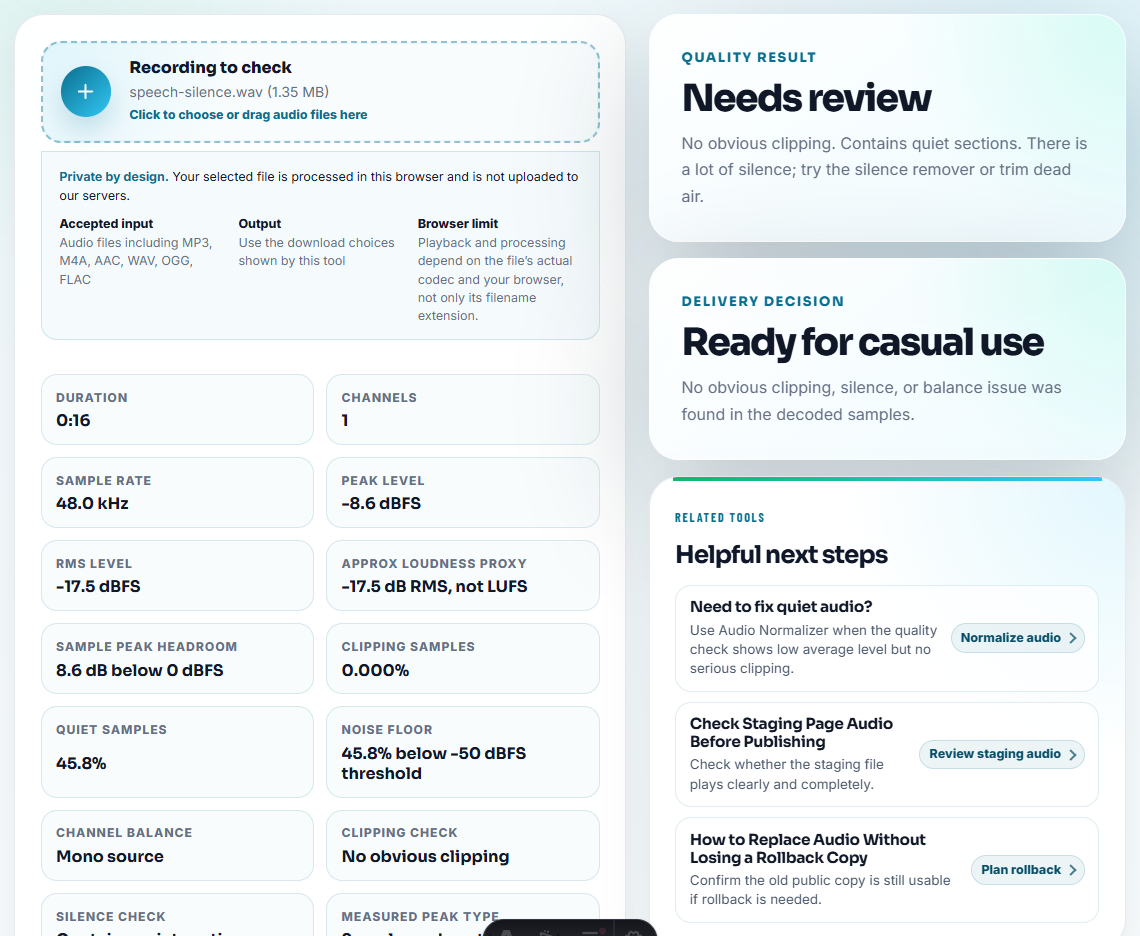
Check:
- Does the duration match the expected chapter or book part?
- Are there long silent sections?
- Are peaks harsh or clipped?
- Is the level too low for phone listening?
- Are channels and format expected?
If the file is incomplete or corrupted, make a fresh copy from the source before spending time on cleanup.
Decide Which Listening Version You Need
Audiobook edits should match the listening situation. A bedtime copy and a study copy should not always be processed the same way.
| Listening version | Best treatment | Preserve | Avoid |
|---|---|---|---|
| Bedtime copy | Tame peaks and keep gentle pacing | Calm narration and natural pauses | Fast playback or loud normalization. |
| Commuting copy | Clearer level and chapter labels | Speaker clarity | Over-compression that makes speech tiring. |
| Study copy | Optional faster review version | Names, terms, and section breaks | Speed changes that blur details. |
| Archive copy | Original file untouched | Full source quality | Replacing it with a processed copy. |
| Shared family copy | Simple chapters and readable names | Story order and narrator context | Removing pauses that help understanding. |
Use this choice to decide whether chapter splitting, silence trimming, peak taming, or speed changes are actually needed.
Step 2: Split Long Files Into Chapters
Use the Audio Chapter Splitter when one file contains many sections. A chapter-based folder is easier to resume, review, and transfer.
Good chapter labels are simple:
01-opening02-chapter-103-chapter-204-notes
If you do not have timestamps, create broader parts instead of guessing every chapter boundary.
Step 3: Trim Long Pauses Gently
Use the Audiobook Silence Trimmer for spoken content that has distracting blank gaps.
Be conservative:
- Keep natural narration pauses.
- Shorten long blank areas.
- Test one chapter before processing many files.
- Listen to transitions after export.
Aggressive silence removal can make narration feel rushed or unnatural.
Step 4: Tame Sudden Loud Moments
If a mostly calm audiobook has a few loud moments, use the Sleep Audio Jump-Scare Tamer. This is especially useful for bedtime listening.
Do not flatten the whole performance. Narration should still have expression. You are only reducing disruptive peaks.
Step 5: Normalize Chapter Volume
Use the Audio Normalizer after splitting and pause cleanup. This helps chapters play at more comfortable levels.
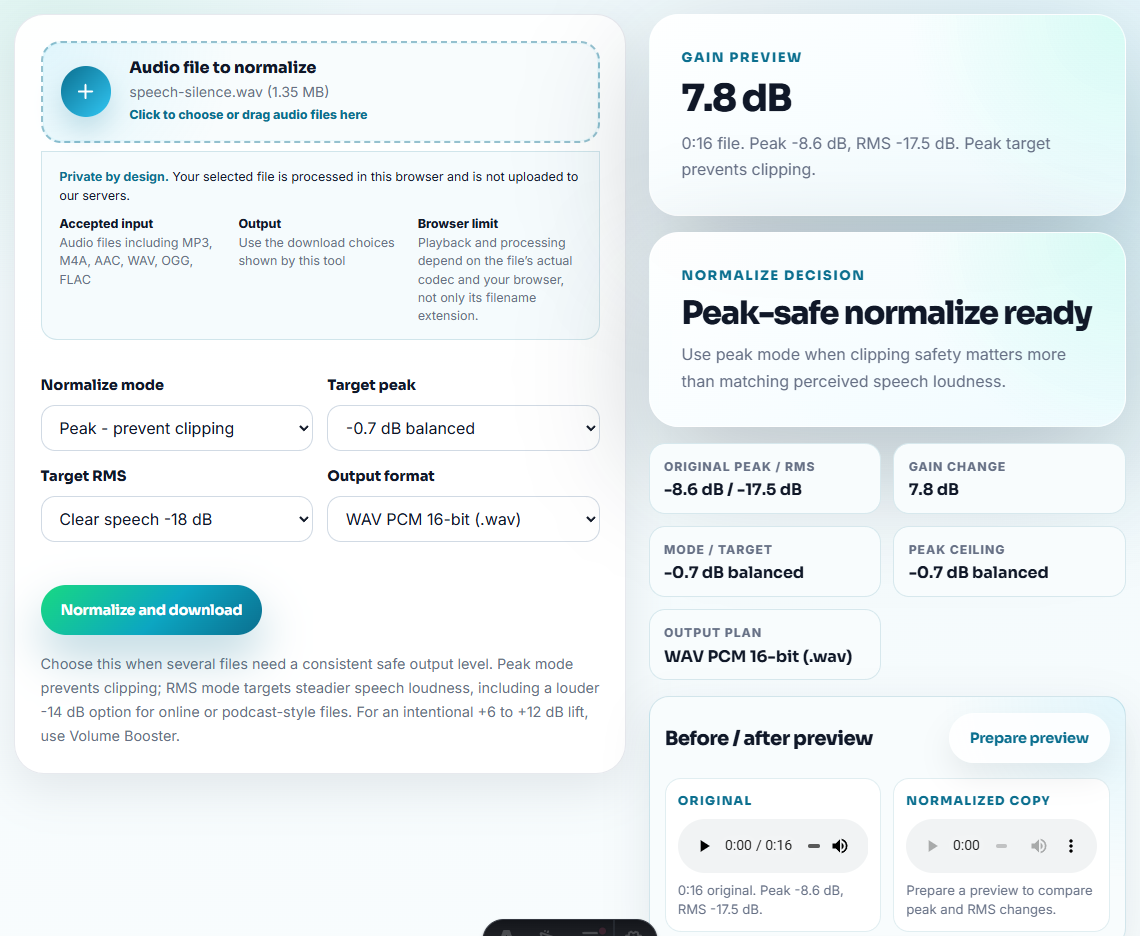
Listen to the quietest and loudest parts. If the normalizer makes breath noise, room tone, or mouth sounds too obvious, reduce the change or go back to a less processed copy.
Step 6: Create a Faster Copy If Needed
Use the Audio Speed Changer for review, commuting, or second listening. Keep pitch preserved so narration does not become sharp.
Keep two versions if the book matters:
- Normal-speed copy for relaxed listening.
- Faster copy for review or travel.
Do not speed up dense material so much that names, technical terms, or story details become hard to follow.
Step 7: Add Simple Labels
Use the Audio Metadata Editor after the listening copy is final.
Useful fields:
- Book title.
- Chapter title.
- Narrator.
- Part number.
- Notes or comments.
If your player ignores metadata, use consistent filenames instead.
Tune for Listening Mode
An audiobook file can need different copies for bedtime, commuting, study, or quick review. Choose the copy before applying silence trimming, peak control, or speed changes.
| Listening mode | Best adjustment | Preserve | Avoid |
|---|---|---|---|
| Bedtime | Tame sudden peaks and keep natural narration | Calm pacing and chapter order | Aggressive speed-up or harsh normalization. |
| Commuting | Slightly stronger level and clear chapter labels | Speaker clarity | Over-trimming pauses that help comprehension. |
| Study or review | Optional faster copy | Terms, names, and section boundaries | Speed so high that details blur. |
| Archive copy | No destructive processing | Full original file | Replacing source with edited listening copy. |
This keeps listening improvements tied to a real use instead of processing every chapter the same way.
When You Do Not Need a Desktop Recorder
Browser tools are enough for personal audiobook listening prep when you need clearer volume, shorter chapters, or easier device playback. Keep the original purchase or source copy, avoid changing narration speed unless you prefer it, and test one chapter before processing the rest.
- You are preparing a personal listening copy.
- The audiobook is complete and understandable.
- You need splitting, pause cleanup, volume correction, speed changes, or labels.
Use a deeper editing workflow when:
- Many chapters need batch processing.
- Noise varies heavily across sections.
- You need professional mastering or publishing output.
- The source file is damaged or incomplete.
For recording streaming audio and keeping organized files, Cinch Audio Recorder helps at the capture stage, while these browser tools help after the file exists.
Related Tools and Guides
- Audio Chapter Splitter
- Audiobook Silence Trimmer
- Sleep Audio Jump-Scare Tamer
- Audio Normalizer
- Audio Speed Changer
- Make Sleep Audio Softer and Less Startling
- Split a Long Recording Into Useful Sections
- Make Bedtime Audio Calmer and Safer to Play
Common Questions
What free tools help prepare audiobook files?
Use a quality checker, chapter splitter, audiobook silence trimmer, jump-scare tamer, normalizer, speed changer, and metadata editor in that order when each step is needed.
Should I remove pauses from audiobooks?
Shorten only long distracting pauses. Natural narration pauses often help comprehension and should not be removed aggressively.
Should I keep the original audiobook file?
Yes. Always keep the original file and export listening copies separately, especially after silence trimming, normalization, or speed changes.