
How to Make QR Code Audio Open Fast on Phones
 By HenrikUpdated Aug 7, 20266 min read
Prepare QR code audio that works on phones with fast starts, practical size, clear context, and tested final links.
QR code audio is often heard in a hurry. Someone scans a poster, classroom handout, package insert, museum label, event sign, or printed guide and expects the audio to work immediately on a phone.
That makes the preparation different from normal file sharing. The listener may not see your full website, may be using mobile data, and may only give the clip a few seconds before deciding whether it is useful.
Make the Review Copy Easy to Trust
| Task | Tool | Result to verify |
|---|---|---|
| 1 | Audio Metadata Viewer | Inspect the source file, duration, format, size, channels, and existing labels. |
| 2 | Recording Quality Checker | Catch silence, clipping, missing endings, and very low level before sharing. |
| 3 | Audio Trimmer | Create a short listening copy that starts quickly and ends cleanly. |
| 4 | Audio Normalizer | Make speech or instructions easier to hear on phone speakers. |
| 5 | Online Audio Format Converter | Create a practical playback copy when the source format is not phone-friendly. |
| 6 | Audio Compressor | Reduce the final copy after the listening check. |
| 7 | Audio Metadata Editor | Add title, project, language, or version notes that still make sense after download. |
Do the listening test before generating or printing the final QR code.
Step 1: Decide What the Scan Should Do
Write one sentence before editing:
- “Play a 30-second product sound sample.”
- “Give visitors the spoken instructions for this exhibit.”
- “Let students hear the pronunciation example.”
- “Open a short event welcome message.”
- “Provide a private review clip for a small group.”
This prevents the QR file from becoming a random upload with no clear purpose.
Step 2: Make a Delivery Copy
Keep the original in a source folder and create a separate QR copy. The shared copy should contain only what the listener needs.
Use Audio Trimmer to remove:
- Long setup time.
- Repeated starts.
- Private comments.
- Empty endings.
- Sections that need page context to understand.
For most QR uses, a shorter clip is better than a complete recording.
Step 3: Check Phone Listening
Use Recording Quality Checker first, then listen on a phone speaker if possible.
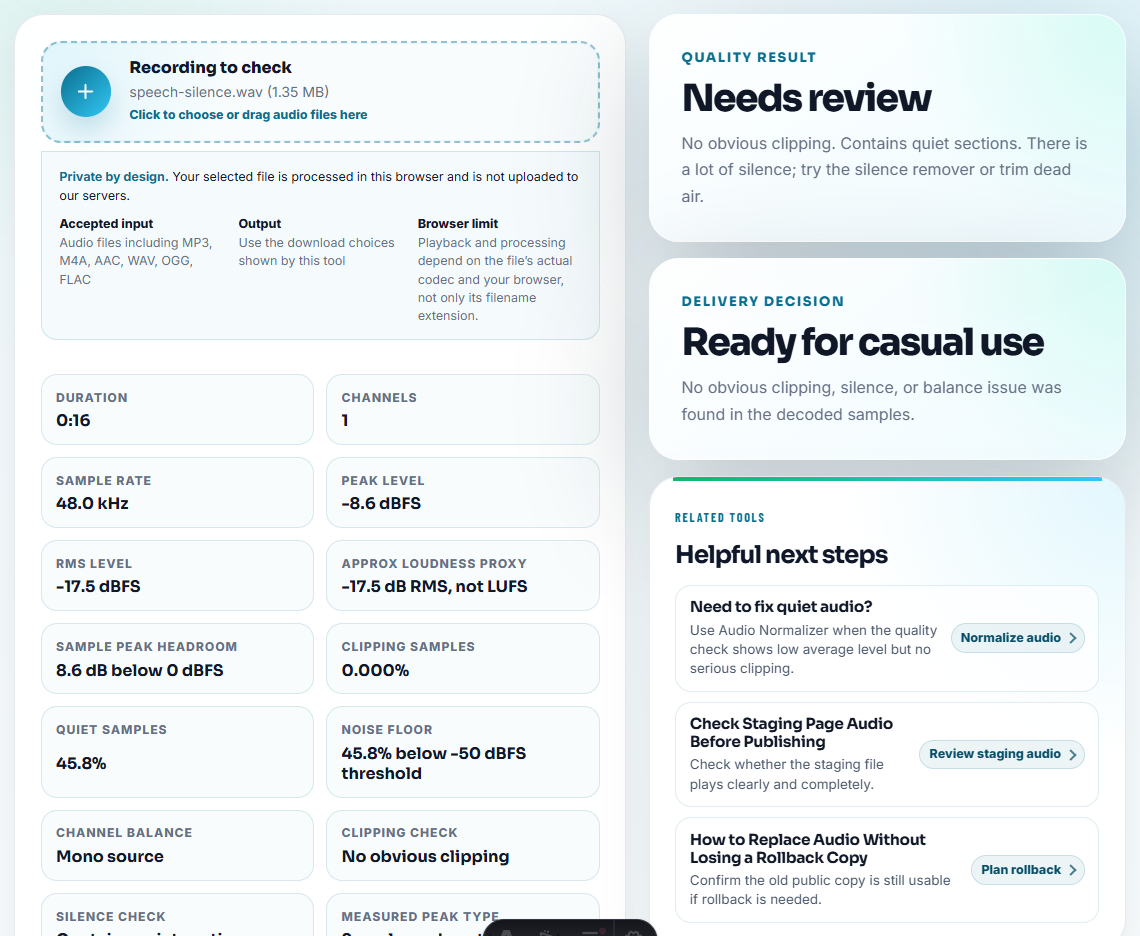
Pay attention to:
- Whether the first useful sound arrives quickly.
- Whether the voice is too quiet.
- Whether loud peaks feel harsh.
- Whether one channel disappears on small speakers.
- Whether the ending feels intentional.
If the clip is too quiet, use Audio Normalizer before compression. If stereo playback is risky, compare a mono copy with Stereo to Mono Converter.
Step 4: Keep File Size Practical
Use Audio Compressor only after the clip sounds right. A QR scan should not force someone to wait for an oversized file unless the audio truly needs that quality.
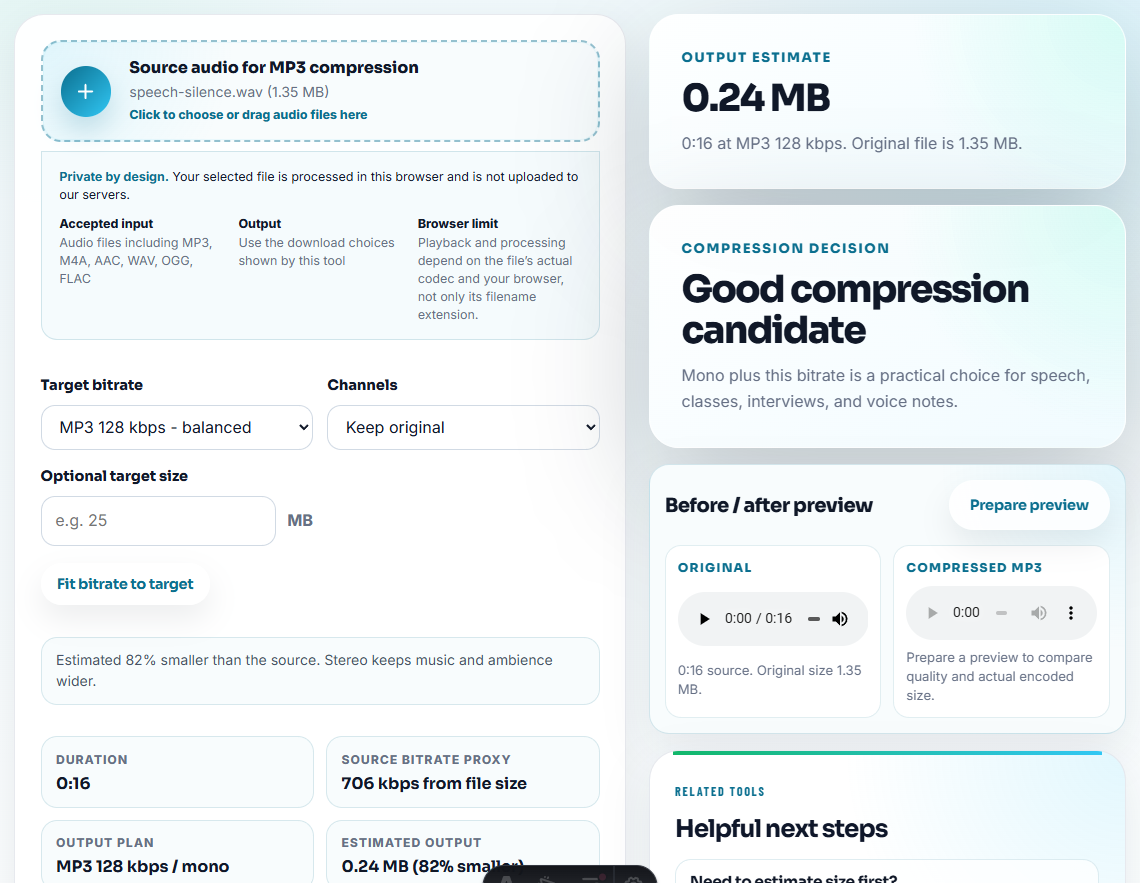
If the source format is unusual, use Online Audio Format Converter to create a more practical listening copy, then test it again.
Step 5: Label the File Clearly
A scanned file may be saved, forwarded, or opened later without the printed material nearby. Use a filename that explains the context:
gallery-room-2-audio-guide.mp3
product-demo-sound-sample.mp3
lesson-04-pronunciation-audio.mp3
event-welcome-message-short.mp3
Use Audio Metadata Editor when title, language, speaker, or project notes would help the listener recognize the file.
Test the Real Scan Context
QR audio is not just a file. It is a file opened in a specific physical moment. Prepare the clip for that moment.
| Scan context | Audio requirement | Check before printing |
|---|---|---|
| Event sign or booth. | Fast start and strong phone-speaker clarity. | Scan on mobile data and listen in a noisy room if possible. |
| Classroom or handout. | Clear title, language, and lesson number. | Confirm students know whether to stream or download. |
| Product packaging or insert. | Short answer or demo, not a full archive. | Make sure the link will remain stable. |
| Private review group. | Safe copy with access limits. | Confirm the QR destination is not publicly discoverable if it should be private. |
This gives the page practical value beyond generic compression advice.
Keep a QR Replacement Plan
Printed QR codes can outlive the audio file. Before printing, decide how the destination will be maintained.
| Risk | Prevent it by | Check later |
|---|---|---|
| File replaced but QR still points to old audio. | Link the QR code to a stable page or managed redirect. | Test the scan after every audio replacement. |
| Audio becomes outdated. | Add a source and version note to the delivery copy. | Review when the product, lesson, or exhibit changes. |
| Private review link becomes public. | Separate private QR copies from public printed assets. | Confirm access settings before distribution. |
| Mobile playback is slow. | Keep the delivery copy short and practical. | Rescan on mobile data after compression. |
| Context disappears. | Put title, language, or location in the file name and page copy. | Open the file without the printed material nearby. |
This is what many QR audio guides skip: the scan needs to keep working after the file changes.
Phone Scan Check Before Printing the QR Code
- Do not link a QR code to an untested original.
- Do not make people wait through a long introduction.
- Do not leave private audio in a public scan.
- Do not compress before confirming the voice is clear.
- Do not use a vague filename like
final-audio.mp3. - Do not print the QR code before testing the exact final file.
When You Do Not Need a Desktop Recorder
For QR-code sharing, browser tools are useful when you need a compact audio file that opens quickly on a phone. Test the link on mobile data, keep filenames plain, and avoid sharing private or permission-limited audio behind a public QR code.
Use a larger publishing workflow when you need analytics, password access, captions, transcripts, licensing review, or many QR codes managed over time.
Related Tools and Guides
- Audio Trimmer
- Recording Quality Checker
- Audio Normalizer
- Audio Compressor
- Audio Metadata Editor
- How to Choose the Right Audio Copy Before Editing
Quick Answers Before You Continue
What should I check before using audio for QR code sharing?
Make a short delivery copy, check playback on a phone, keep the file size practical, use a clear filename, and keep the original outside the shared folder.
Should QR code audio be the full original file?
Usually no. A QR code is often scanned on a phone in a noisy or rushed moment, so a focused listening copy is usually better than the full source.
What should I check for QR code audio?
Use trimming, quality checking, normalization, format conversion, compression, metadata editing, and optional waveform images.