
Prove a Product Update With the Right Audio Sample
 By HenrikUpdated Aug 7, 20265 min read
Prepare product update audio that proves one release change without confusing QA samples, customer issues, or marketing claims.
Product update audio should prove one change, not decorate the announcement. A short clip can help when the update affects recording quality, cleanup behavior, file output, tagging, voice clarity, playback, or an example workflow.
The useful version is specific: “hear the improved result” or “compare the old and new copy.” The weak version is a generic audio file with no clear reason to listen.
Build the Product Update Copy in Order
| Checkpoint | Tool | Why it matters |
|---|---|---|
| 1 | Audio Metadata Viewer | Confirm source details, duration, format, and labels. |
| 2 | Recording Quality Checker | Catch silence, clipping, weak level, or missing endings. |
| 3 | Audio Trimmer | Cut the proof moment that matches the update note. |
| 4 | Audio Normalizer | Make the public copy easier to hear without overstating the change. |
| 5 | Audio Waveform Generator | Add a visual cue when timing or comparison matters. |
| 6 | Audio Compressor | Make a smaller public or review copy after approval. |
| 7 | Audio Metadata Editor | Add product, version, feature, or release-note labels. |
The clip should connect directly to the update text beside it.
Step 1: Decide What the Audio Proves
Use audio when the update affects something a listener can actually hear:
- Cleaner speech after a fix.
- Better captured output in a known workflow.
- A shorter or smoother demo result.
- A before-and-after sample.
- A supported format or playback change.
- A feature that produces an audio file.
Do not add audio to every product update. Use it when the sound helps users judge the change.
Step 2: Inspect the Source
Use Audio Metadata Viewer to confirm the source file is the right version. Check the duration, file size, format, and labels before creating a public or email copy.
Use Recording Quality Checker to avoid publishing a sample with silence, clipping, missing audio, or a weak ending.
Step 3: Trim the Proof Moment
Use Audio Trimmer to remove unrelated setup and keep the section that proves the update.
For product updates, the clip should answer one question:
- What changed?
- What should I listen for?
- Is this the new behavior?
- Is this the before or after copy?
If the answer needs a paragraph, the clip is probably too broad.
Step 4: Make It Fair and Easy to Hear
Use Audio Normalizer when the proof clip is too quiet. Keep before-and-after comparisons fair by avoiding changes that make one side seem better only because it is louder.
Use Audio Waveform Generator when a simple visual helps readers understand timing, silence, peaks, or where the comparison starts.
Step 5: Prepare the Delivery Copy
Use Audio Compressor after the product or marketing team approves the clip. Use Online Audio Format Converter only if the publishing surface or email workflow needs a different format.
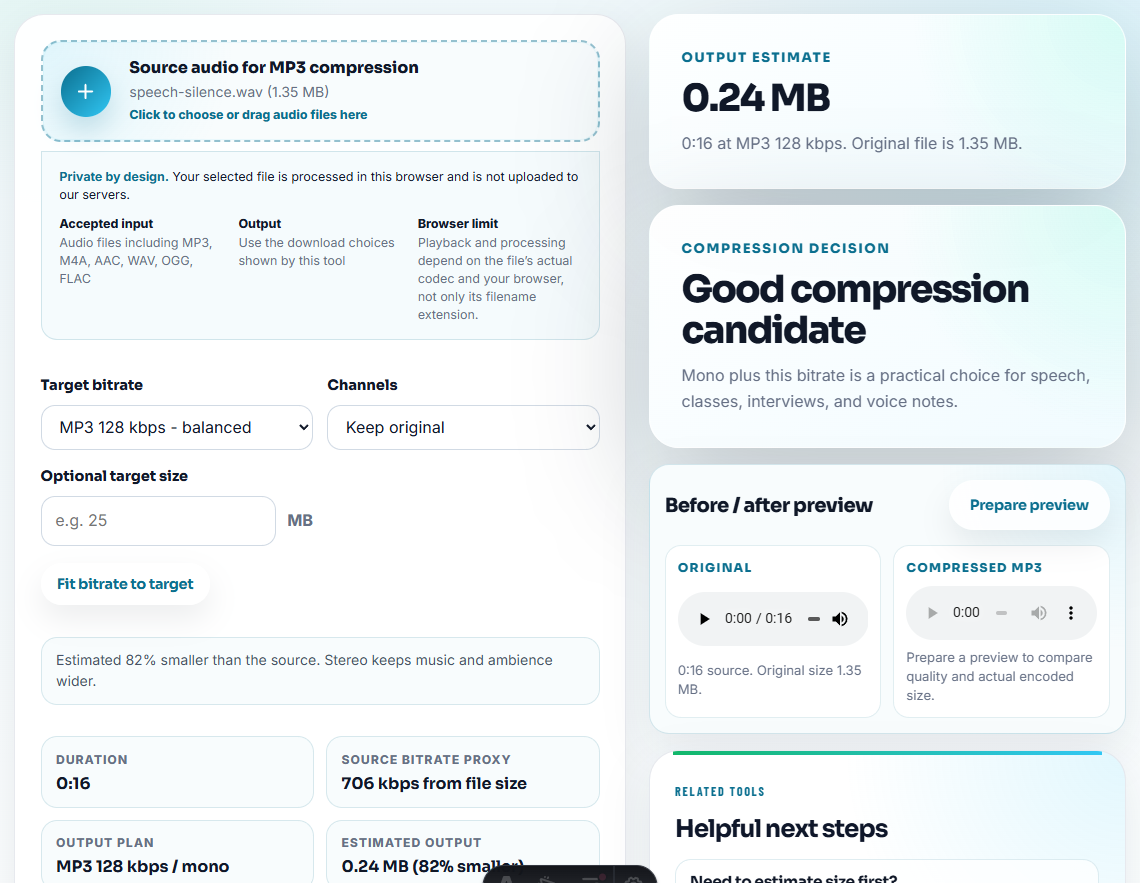
Keep the source, review copy, and public copy separate.
Step 6: Label the Release Context
Use filenames such as:
product-update-v3-voice-cleanup-after.mp3
release-note-before-after-sample.mp3
feature-output-demo-approved.mp3
update-email-proof-clip-short.mp3
Use Audio Metadata Editor for product name, version, feature, or public-status notes.
Decide Whether the Clip Is Public, Support-Only, or QA-Only
Not every useful product-update sample belongs in a public release note. Some clips are better for support training or internal QA because they show an edge case, a failed reproduction, or a customer-specific setup.
| Clip type | Use it in public update copy? | Better placement |
|---|---|---|
| Clean before-and-after sample from an approved internal test. | Yes, if the update text explains what changed. | Release notes, product update email, or tutorial page. |
| Customer sample showing distorted, fast, or scratchy output. | Usually no. | Support ticket, technical review, or anonymized issue summary. |
| Track names, file splits, or metadata examples. | Sometimes, if recreated safely. | Help article or feature explainer with neutral sample files. |
| Failed reproduction or unclear result. | No. | QA notes with source, timing, version, and environment labels. |
This keeps update pages trustworthy. The public clip should demonstrate the release, while private clips help the team understand what still needs work.
Problems to Catch Before You Prove a Product Update With the Right Audio Sample
- Do not publish an audio clip that does not match the update text.
- Do not use louder audio as proof of better quality.
- Do not mix draft and approved versions in the same folder.
- Do not expose internal filenames, customer names, or test notes.
- Do not compress the only copy of a proof file.
- Do not add audio when a screenshot or short sentence explains the update better.
When a Quick Local Check Is Enough
Browser prep works for product updates when one sample helps the team verify a release note, demo, or customer-facing explanation. Keep the pre-update source separate, test the updated clip in context, and route public claims through normal product review.
Use a larger workflow when the update audio needs localization, legal approval, customer consent, formal QA signoff, or many version-specific assets.
Related Tools and Guides
- Recording Quality Checker
- Audio Trimmer
- Audio Waveform Generator
- Audio Metadata Editor
- Use Demo Audio to Prove One Product Outcome
- Turn Product Feedback Audio Into Clear Evidence
- Use Audio on Landing Pages Without Overclaiming
Common Questions
What would confuse someone opening the file later?
Choose one update point, trim a short proof clip, check playback, label the version clearly, and create a smaller sharing copy only after approval.
What audio belongs in release notes or update emails?
Use audio only when it helps users hear a change, compare an improvement, or understand a workflow that text alone cannot explain.
What should I check for product update audio?
Make sure the clip reflects the current product, demonstrates one update, and does not leave older behavior or claims in circulation.