
How to Make Audio Easier to Transcribe
 By HenrikUpdated Aug 7, 20266 min read
Prepare transcript audio with preserved context, cleaner sections, speaker labels, and reviewer notes.

Transcript-ready audio is not always the shortest audio. For accessibility, the transcript writer or reviewer may need context: who is speaking, where a section begins, whether a pause matters, and which words are hard to hear.
The goal is to make the audio easier to understand without removing meaning.
Check the File Before Sharing
| Stage | Free tool | What it helps you decide |
|---|---|---|
| 1 | Audio Metadata Viewer | Check duration, format, size, channels, and labels. |
| 2 | Recording Quality Checker | Find silence, clipping, low level, or missing audio. |
| 3 | Audio Trimmer | Remove unrelated setup, test noise, or long endings. |
| 4 | Audio Chapter Splitter | Split long recordings into transcript-friendly sections. |
| 5 | Audio Normalizer | Make speech easier to hear before handoff. |
| 6 | Audio Compressor | Create a smaller handoff copy after review. |
| 7 | Audio Metadata Editor | Add speaker, section, source, or transcript-status labels. |
The handoff should help the next person write or review the transcript with fewer guesses.
Step 1: Identify the Transcript Job
Decide what the transcript is for:
- A support article.
- A product tutorial.
- A video caption handoff.
- A meeting summary.
- A webinar replay.
- A public audio example.
- An internal accessibility review.
The job affects what you should trim, split, label, or preserve.
Step 2: Inspect the Source
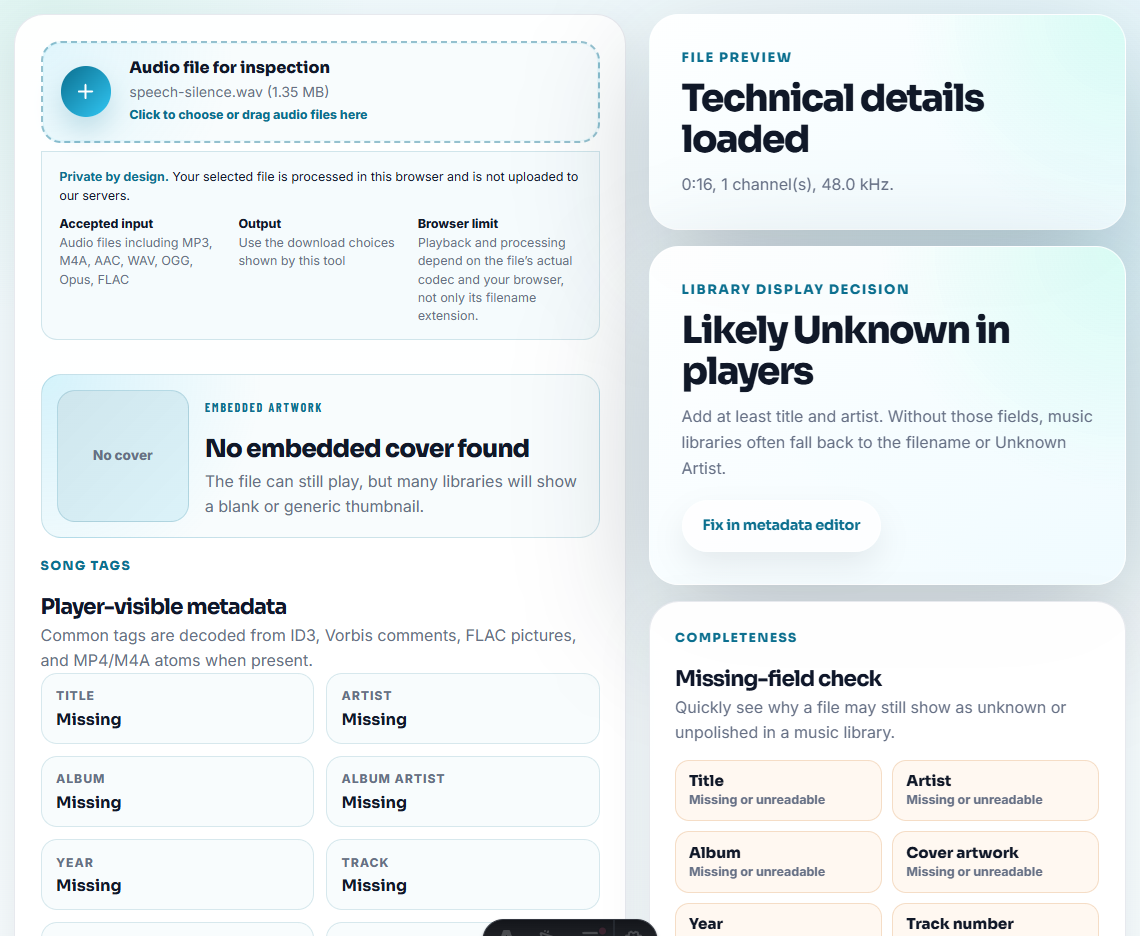
Use Audio Metadata Viewer to check duration, format, channels, and hidden labels. Long files may need splitting before anyone can review them properly.
Use Recording Quality Checker to identify silence, clipping, low level, or sections that may need a note.
Step 3: Trim Without Removing Meaning
Use Audio Trimmer to remove unrelated setup, mic tests, long dead endings, or repeated false starts.
Keep:
- Speaker introductions when they identify people.
- Pauses that change meaning.
- Context around unclear words.
- Section transitions.
- Questions that explain an answer.
Accessibility work is not just cleanup. It is context preservation.
Do Not Make the Transcript Writer Guess
A clean audio file still creates rework when names, speaker changes, or unclear terms are left unexplained. Add a short note before handoff when the audio alone is not enough.
| Transcript risk | What to add beside the audio | Why it helps |
|---|---|---|
| Similar speaker voices | Speaker names or roles in order | Prevents wrong attribution. |
| Product names or settings | Correct spelling of key terms | Reduces avoidable transcript errors. |
| Demonstration silence | A note explaining what happens during the pause | Keeps meaningful silence from being cut. |
| Private section removed | A simple edit note | Explains why timing may jump. |
| Unclear word you cannot fix | Timestamp plus best guess | Gives the reviewer a place to check. |
Step 4: Split Long Audio Into Sections
Use Audio Chapter Splitter for long lessons, meetings, webinars, or support recordings.
Helpful split points include:
- Topic changes.
- Speaker changes.
- Demo sections.
- Q&A sections.
- Troubleshooting steps.
- Before-and-after examples.
Shorter sections make transcript review easier and reduce the chance that one unclear section blocks the whole file.
Step 5: Improve Listening Copies
Use Audio Normalizer when speech is too quiet. Do not over-boost noisy recordings if it makes words harder to understand.
Use Audio Compressor after the source and section labels are clear. If the transcript workflow needs a different format, use Online Audio Format Converter on a copy.
Step 6: Add Handoff Labels
Use filenames such as:
transcript-source-section-01-intro.mp3
accessibility-review-demo-audio-part-02.mp3
support-article-transcript-example-clean-copy.mp3
webinar-transcript-q-and-a-section.mp3
Use Audio Metadata Editor to add speaker, section, source, review status, or transcript notes when the files may move between people.
Step 7: Include a Short Handoff Note
Add a note like:
Section 02 contains the product demo. Keep the pause before the result because it marks the processing step.That kind of note protects meaning better than a generic “please transcribe this” message.
Preserve Context That Affects Meaning
For accessibility work, cleanup is useful only when it makes the transcript easier to understand. Before trimming or splitting, mark what the transcript writer may need to hear or explain.
| Audio detail | Keep, trim, or note? | Why it matters | Handoff wording |
|---|---|---|---|
| Speaker introduces a role | Keep | The transcript can identify who is speaking | ”Keep intro; it names the presenter.” |
| Long setup silence | Trim | It slows review without adding meaning | ”Removed 18 seconds of room setup.” |
| Pause before a result | Keep or note | The pause may explain a process or reaction | ”Pause marks the processing step.” |
| Unclear product term | Note | The writer may mishear a brand, feature, or setting | ”Term at 02:14 is likely ‘Stereo Mix’.” |
This turns the audio file into an accessibility handoff, not just a smaller upload.
Transcript Details That Affect Accessibility
- Do not remove every pause automatically.
- Do not split in the middle of a question and answer.
- Do not erase context around unclear words.
- Do not publish customer or private audio without permission.
- Do not send unlabeled files to a transcript writer.
- Do not compress the only source copy.
When Free Browser Tools Are Enough
A local browser pass is useful when you are making speech easier to hear before transcript drafting. Trim dead air, keep speaker order intact, avoid noise cleanup that changes words, and always compare the transcript against the original recording before publishing.
Use a larger workflow when transcription needs professional review, legal accuracy, multilingual localization, caption timing, speaker diarization, or formal accessibility compliance review.
Helpful Next Steps
- Audio Metadata Viewer
- Recording Quality Checker
- Audio Trimmer
- Audio Chapter Splitter
- Prepare Clear Audio Before Transcription
- Review Localization Audio Without Losing Context
- Clean Webinar Replay Audio Without Losing Context
Last Review Points
What should I check before using audio for an accessibility transcript?
Check the source, trim unrelated sections, keep important context, label speakers or sections when possible, and send a clear copy with notes for the transcript writer.
Should I remove all silence before transcription?
No. Remove only irrelevant dead space. Keep pauses or context that help a transcript writer understand speakers, timing, or meaning.
What should I check before preparing transcript audio?
Make sure speech is clear, speaker changes are understandable, long pauses are intentional, and the file is easy for a transcriber to replay.